
Introduction #
This guide shows you how to start automating TradingView strategy alerts in TradeLocker using PickMyTrade. Follow each step to ensure your strategy signals trigger real trades seamlessly in your TradeLocker account.
1. Choose a TradingView Strategy to Automate in TradeLocker #
Choose a TradingView strategy (not just an indicator) that generates automatic buy and sell signals.
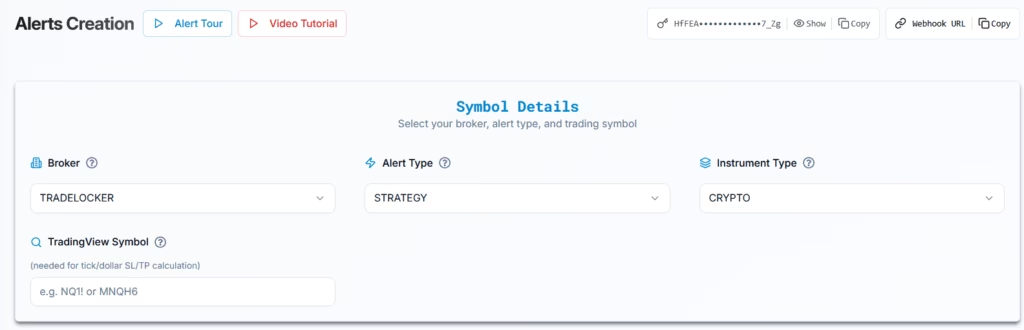
2. Configure Trading Symbol for Strategy Execution in TradeLocker #
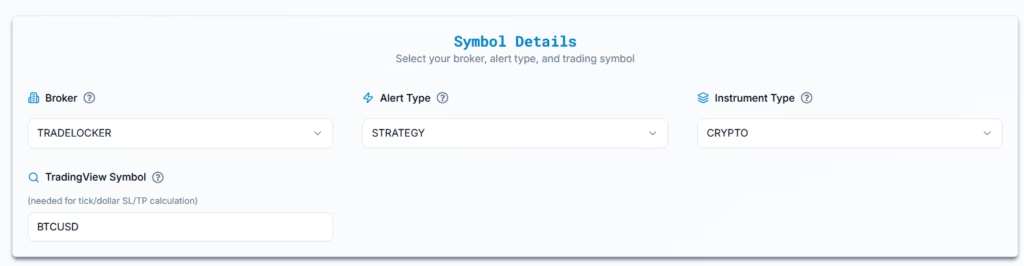
Specify the symbol of the instrument you want to trade in TradeLocker (e.g., BTCUSD).
2.1 Required for Specific Stop Loss Types #
This is mandatory if you plan to use stop-loss types like Ticks or Total Profit/Loss.
2.2 Symbol Mapping #
If your chosen symbol isn’t executing properly:
➔ Make sure it’s added and mapped correctly in PickMyTrade.
2.3 Using Different Symbols for Alerts and Execution #
You can generate an alert from one symbol but execute the trade on another.
Example:
- TradingView alert uses BTCUSD
- TradeLocker execution uses ETHUSD
➔ In PickMyTrade, enter ETHUSD in the symbol field.
2.4 What If No Symbol is Entered? #
If left blank, PickMyTrade will default to the TradingView chart symbol used in your alert.
3. Managing Exit Rules in Automated TradingView Strategies #
Determine how exits will be handled in your strategy:
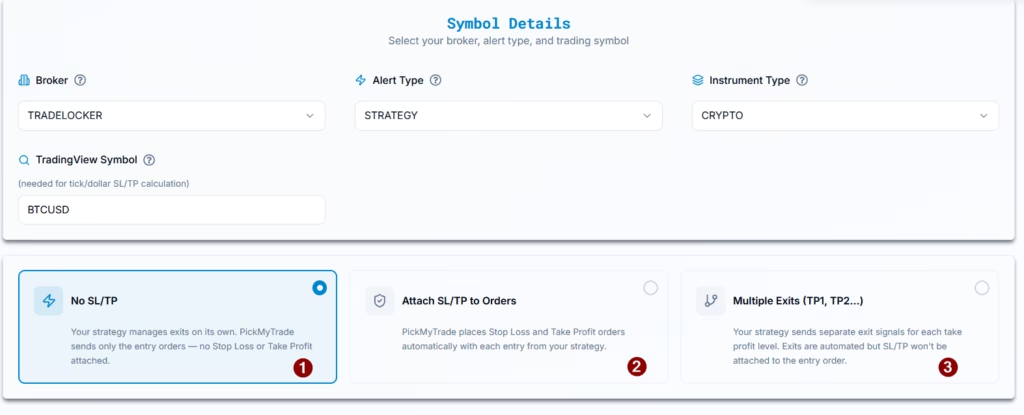
Option 1: No SL/TP (Strategy Controlled Exits) #
- Select this if your TradingView strategy fully manages entries and exits
- PickMyTrade will NOT place any Stop Loss or Take Profit orders
- All exits will be executed only when TradingView sends exit alerts
Use this when:
Your strategy already includes complete exit logic
Option 2: Attach SL/TP to Orders #
- Select this if your strategy does NOT handle exits
- PickMyTrade will place Stop Loss (SL) and Take Profit (TP) with each entry
Features:
- Choose SL/TP type (percentage, price, Total Profit/Loss, etc.)
- Only one SL and one TP per order is supported
Use this when:
You want simple, fixed risk management handled by PickMyTrade
Option 3: Multiple Exits (TP1, TP2, etc.) #
- Select this if your TradingView strategy uses multiple take-profit levels
- PickMyTrade will NOT require SL/TP configuration
- All exits will be executed based on TradingView alerts
Note:
When using multiple exits, SL/TP cannot be attached to the entry order.
Use this when:
Your strategy scales out of positions (partial exits)
4. Assign TradeLocker Accounts for TradingView Strategy Execution #
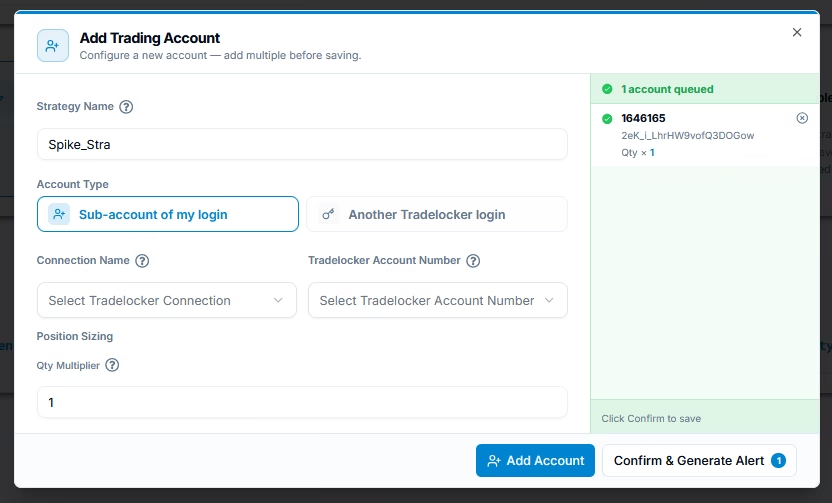
4.1 Add TradeLocker Account in Current PickMyTrade Account #
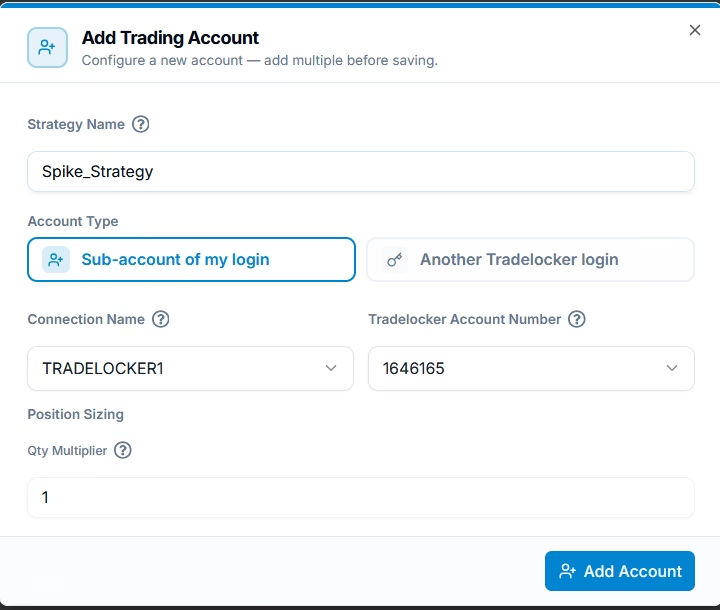
| Field Name | Example Input | Explanation |
|---|---|---|
| PickMyTrade Conn. Name | TRADELOCKER1 | Choose the correct TradeLocker connection name from your PickMyTrade list. |
| TRADELOCKER Acc. Name | TL001928 | Select the TradeLocker account you want to trade from. |
| Option | QUANTITY MULTIPLIER / RISK PERCENTAGE | Choose how to size your trades. |
| QUANTITY MULTIPLIER | 1 (if selected) | A multiplier of 2 will double your trade size (e.g., 5 → 10 contracts). |
| RISK PERCENTAGE | 2% (if selected) | Calculates position size so each trade risks 2% of your account capital. |
Ensure all dropdown selections match existing TradeLocker connections and accounts.
4.2 Add TradeLocker Account in Another PickMyTrade Account #
This setup is for cases where you want to trade in an account linked to a different PickMyTrade login.
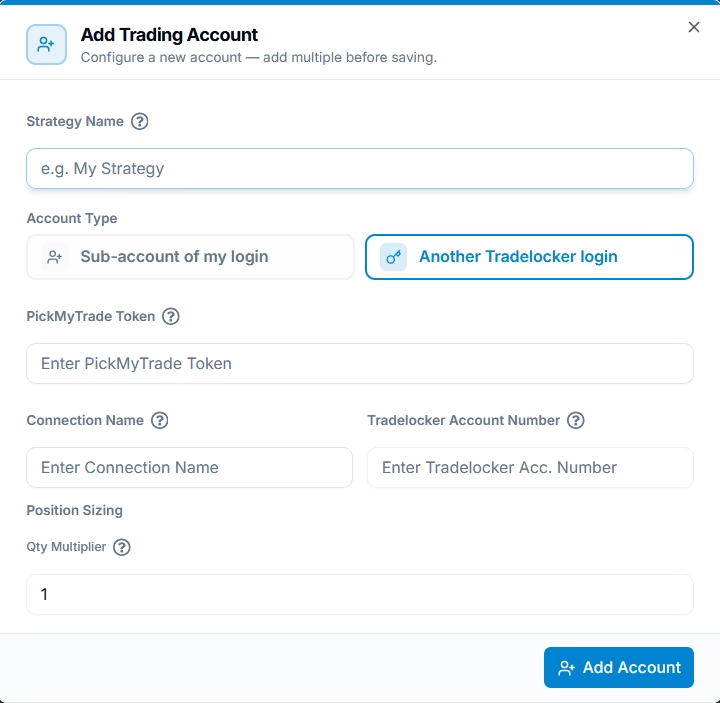
| Field Name | Example Input | Explanation |
|---|---|---|
| PickMyTrade Token | abcd1234xyz | Token from the target PickMyTrade account you want to push trades to. |
| PickMyTrade Conn. Name | TRADELOCKER1 | Must match the TradeLocker connection name in that target account. |
| TRADELOCKER Acc. Name | TL002091 | Must exactly match the TradeLocker account name in the platform. |
| Option | QUANTITY MULTIPLIER / RISK PERCENTAGE | Same sizing logic as above. |
| QUANTITY MULTIPLIER | 1 | Multiplies trade size accordingly. |
| RISK PERCENTAGE | 2% | Calculates size based on percentage of capital. |
Ensure the token is accurate and the target account has the TradeLocker connection set up, or trades will not execute.
4.3 Generate Alert Code for Strategy Execution
Once all accounts are added and configured, click Confirm & Generate Alert button.
5. Finalize and Set Up TradingView Alerts for TradeLocker Automation #
Once PickMyTrade is configured, follow these steps in TradingView:
- Go to TradingView → click “+” Create Alert.
- Paste the copied alert code into the message box.
- Click “Copy Webhook URL” in PickMyTrade → paste into TradingView’s Webhook URL field.
- Confirm all fields are filled correctly, then click “Create Alert.”
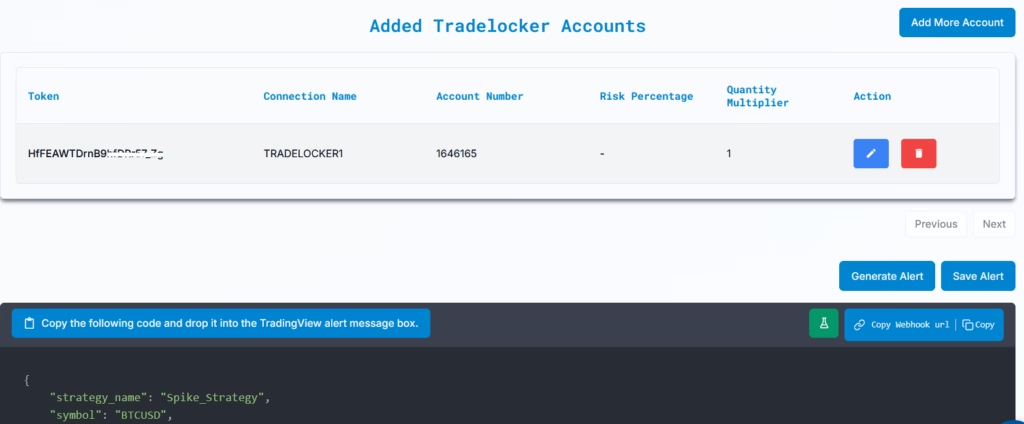
Your TradingView strategy is now live and fully automated in TradeLocker via PickMyTrade.
More Resources #
Want to automate trades on platforms beyond Rithmic, such as Interactive Brokers, TradeLocker, TradeStation, or ProjectX?
Explore all PickMyTrade setup guides
Using Tradovate instead?
View the Tradovate automation guide
Ready to connect TradeLocker?
See TradeLocker automation on pickmytrade.io
Last updated: September 29, 2026


