
This guide shows how to connect Tradier with PickMyTrade to automate stocks and options trades using TradingView strategy or indicator alerts.
Step 1: Access the PickMyTrade Dashboard #
- Visit https://pickmytrade.io and log in to your account.
- On the top-right of the page, click Tradier Connection.
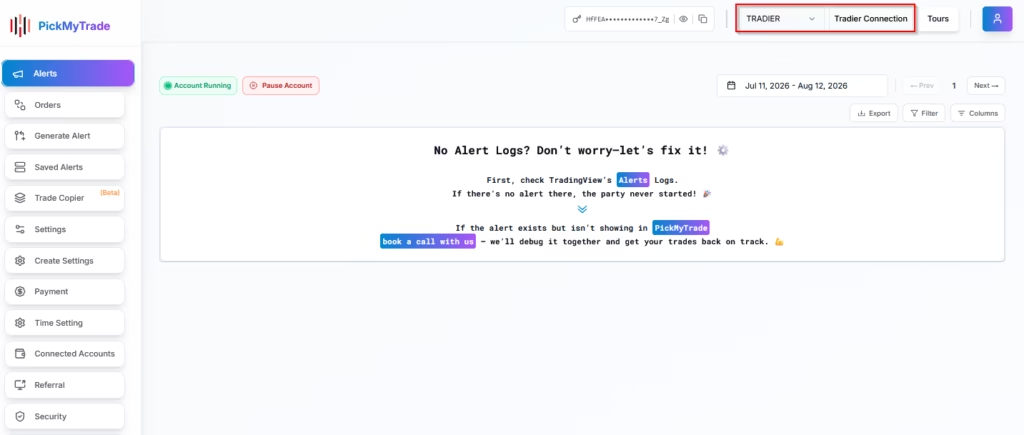
Step 2: Add a New Tradier Connection #
In the popup window, click Add New Connection.

Step 3: Select the Environment #
From the Environment drop down, choose the type of account you want to connect:
- Demo – Select this option if you want to connect a Tradier demo account for testing or paper trading.
- Live – Select this option if you want to connect a live Tradier account for real-money trading.

The connection process is different for Live and Demo accounts. Please follow the appropriate connection method based on the type of account you are using.
First, we’ll walk you through the steps to connect your Live Tradier Account.
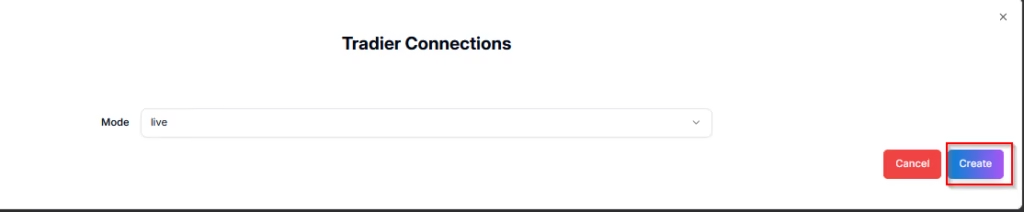
Click on the Create button, and you will be redirected to the Tradier Login page.
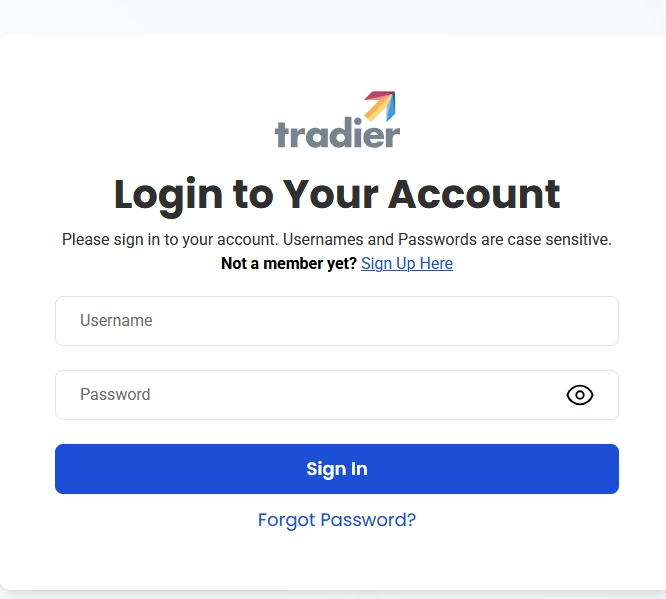
Enter your Tradier username and password to connect your account with PickMyTrade.

After successful authentication, you will be redirected back to PickMyTrade.
When the connection button turns 🟢 Green, your Tradier account is successfully connected to PickMyTrade.
Step 4: Creating Demo Account #
To connect your Tradier Demo account with PickMyTrade, you’ll first need to generate an API key for your Tradier account.
Visit: Tradier Page
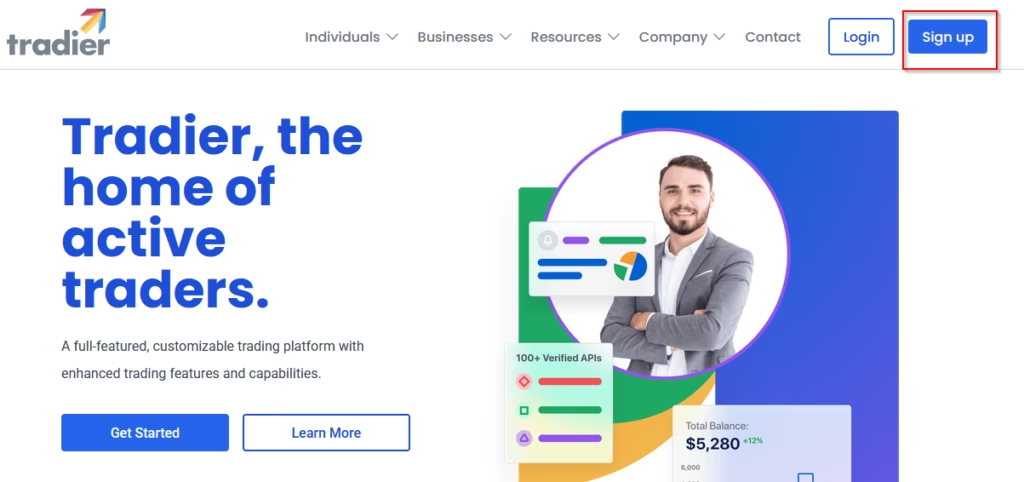
Create your account on Tradier and complete the registration process by providing the required details.
Once your account is created, you will have a email address and password that you can use to log in.
Visit : Tradier Login Page for the API Key
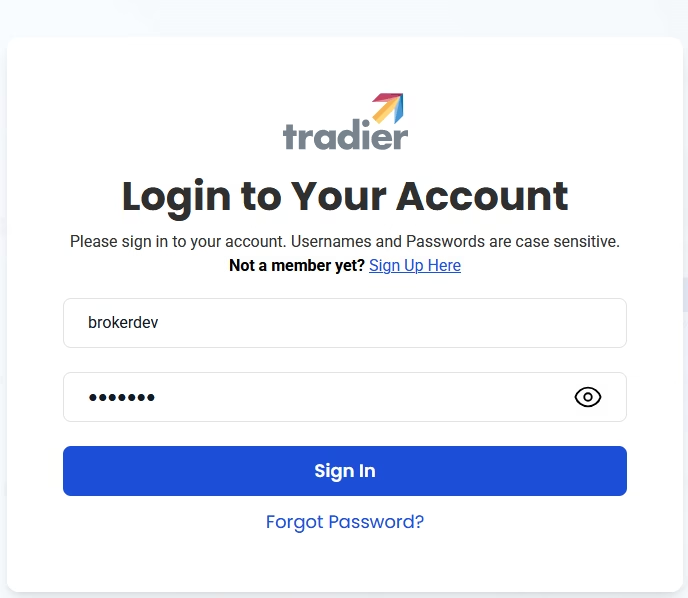
Enter your Tradier username and password to log in.
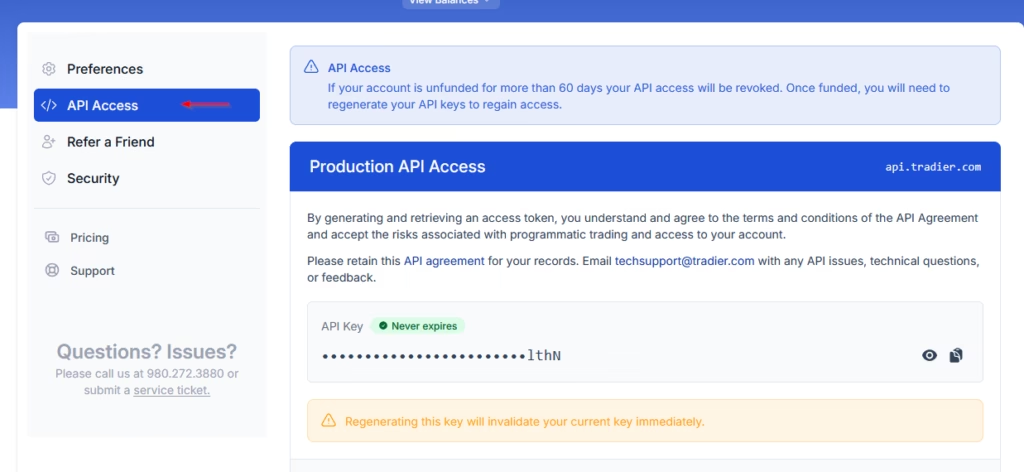
Navigate to API Access and scroll down the page.
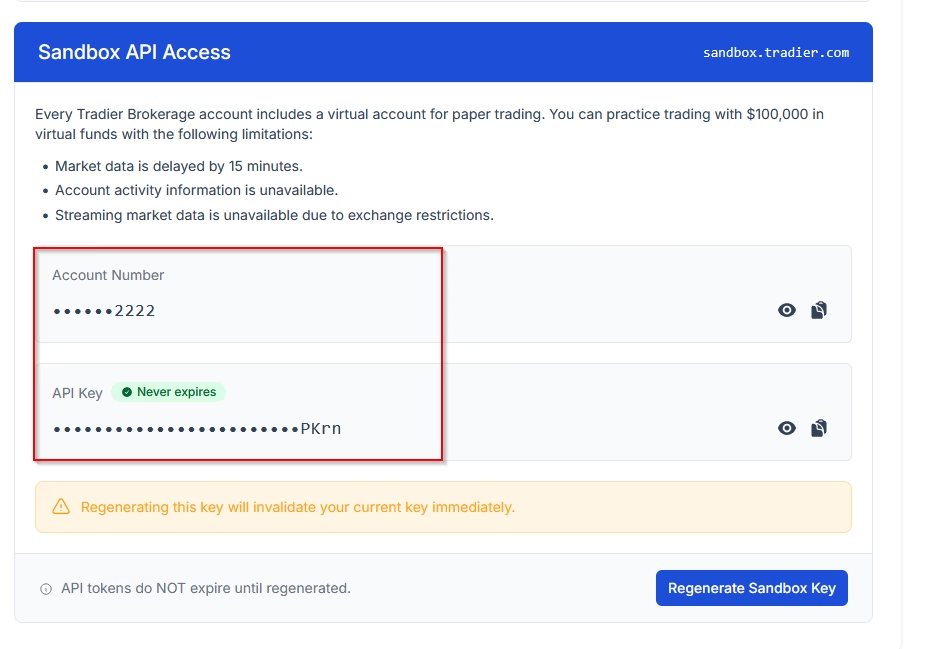
The Account Number and API Key for your Demo account will be displayed under Sandbox API Access.
Step 5: Connecting Demo Account with PickMyTrade #
- Visit https://pickmytrade.io and log in to your account.
- On the top-right of the page, click Tradier Connection.
- Click on Add New Connection.
- Choose “Demo” mode and enter the API Key.
- Click “Create” to establish the connection with your Tradier Demo account.
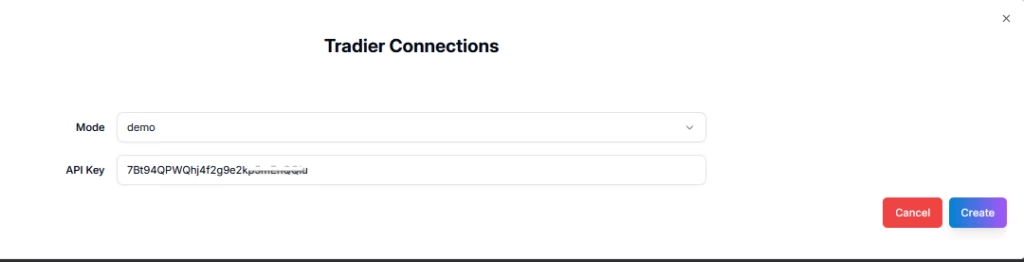
After successful authentication, the connection button turns 🟢 Green, your Tradier account is successfully connected to PickMyTrade.
Step 6: Start Automated Trading #
Once your Tradier account is successfully connected to PickMyTrade, you can proceed to automate your trading strategies or indicator alerts.
For detailed guidance, refer to the following resources:
Automating TradingView Indicator Alerts in Tradier for Stocks and Options
Automating TradingView Strategy Alerts in Tradier
You are now ready to:
- Generate TradingView alerts
- Automate futures trades on Tradier using PickMyTrade
More Resources #
Want to automate trades on platforms beyond Rithmic, such as Interactive Brokers, TradeLocker, TradeStation, or ProjectX?
Explore all PickMyTrade setup guides
Using Tradovate instead?
View the Tradovate automation guide
Ready to connect Tradier?
See Tradier automation on pickmytrade.io
Last updated: October 1, 2026


