When automating TradingView signals using PickMyTrade with Interactive Brokers (IB), some symbols may not be available in the system. In such cases, you need to manually create the symbol using details from TWS.
This is especially common for stocks from other countries or less commonly traded exchanges, such as Canada, Japan, India, and other international markets, which may not be preconfigured in PickMyTrade.
The following steps show how to add these symbol settings in PickMyTrade so you can trade them seamlessly.
Prerequisites #
Make sure:
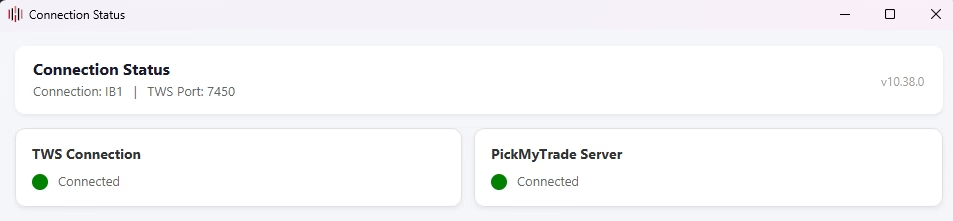
- IB (TWS or Gateway) is running
- IB is connected properly
- PickMyTrade is connected to IB
Steps to Add a Missing Symbol #
1. Check if Symbol Exists #
- Log in to PickMyTrade
- Go to the Settings tab
- Search for your symbol (For ex. URA and it’s not present)
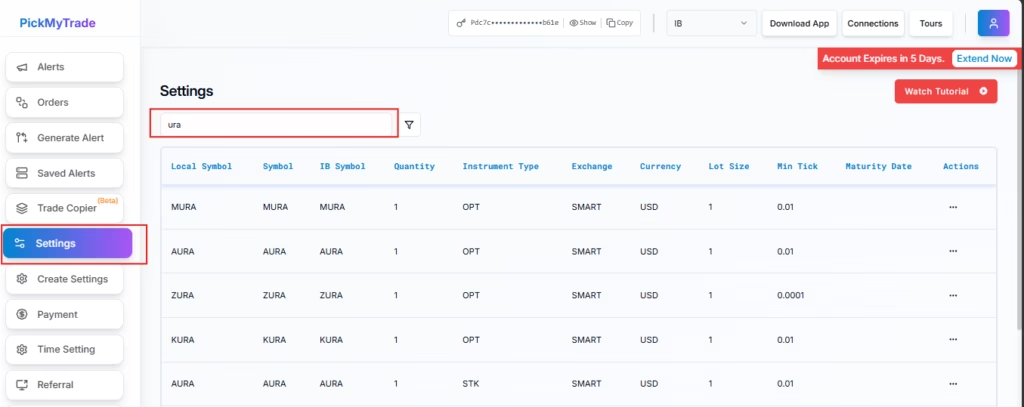
👉 If found, use it directly
👉 If not found, proceed to create it
2. Open Create Settings #
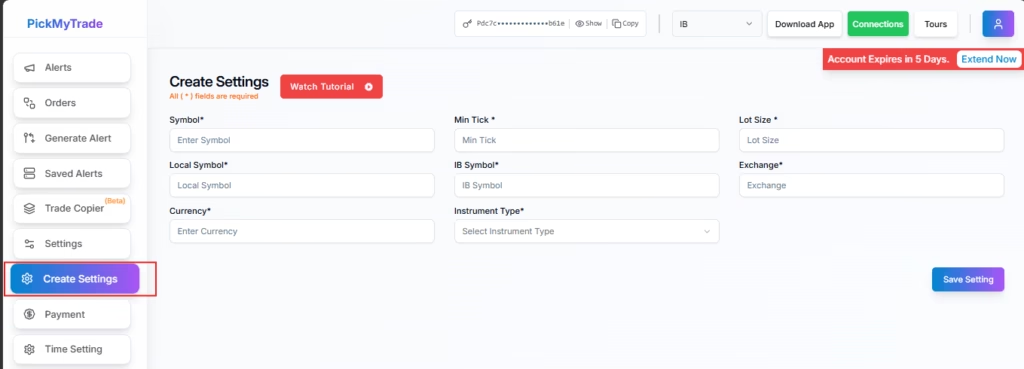
- Go to the Create Settings tab in PickMyTrade
3. Fetch Details from TWS (Example: URA) #
- Open Trader Workstation (TWS)
- Search for the symbol URA
- Add it to your watchlist
- Right-click on URA
- Click:
Financial Instrument Info → Description
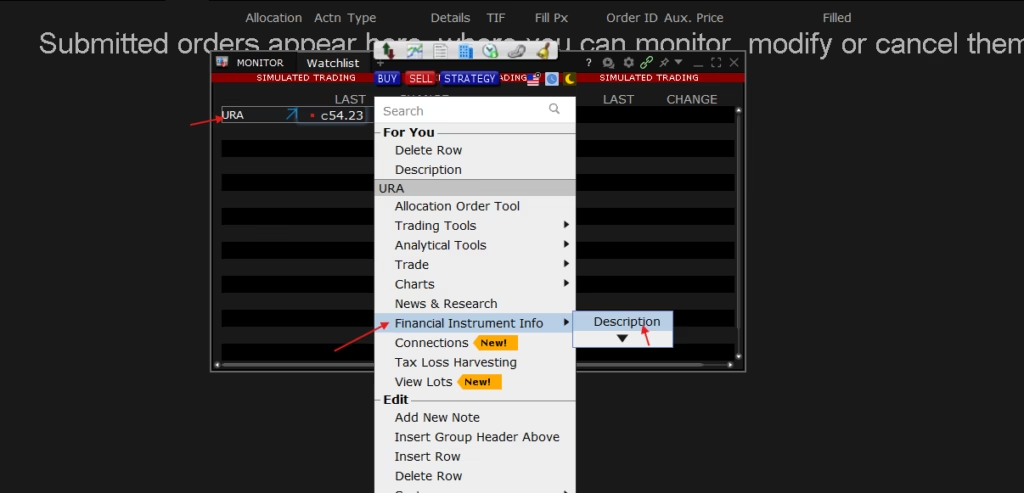
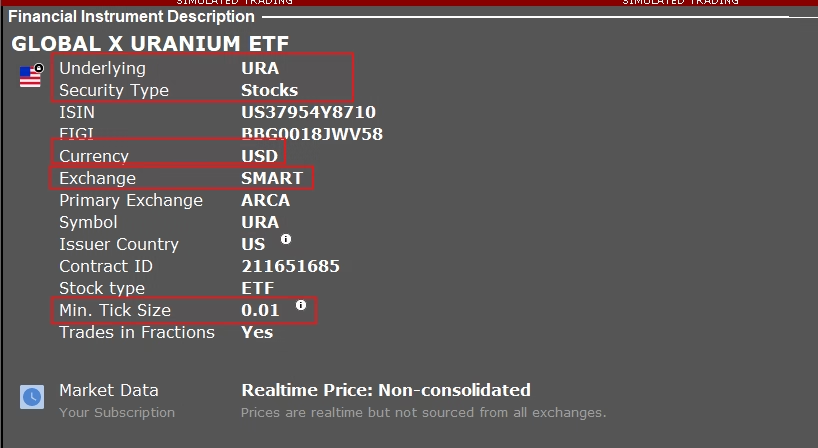
From the Financial Instrument Description section, note the following highlighted symbols details:
From the Description section, note the following:
- Symbol
- Security Type (Instrument Type)
- Currency
- Exchange
- Primary Exchange (use if Exchange doesn’t work)
- Minimum Tick Size
4. Enter Details in PickMyTrade (Using URA Example) #
Now, take the details from the TWS Description window and directly fill them into PickMyTrade:
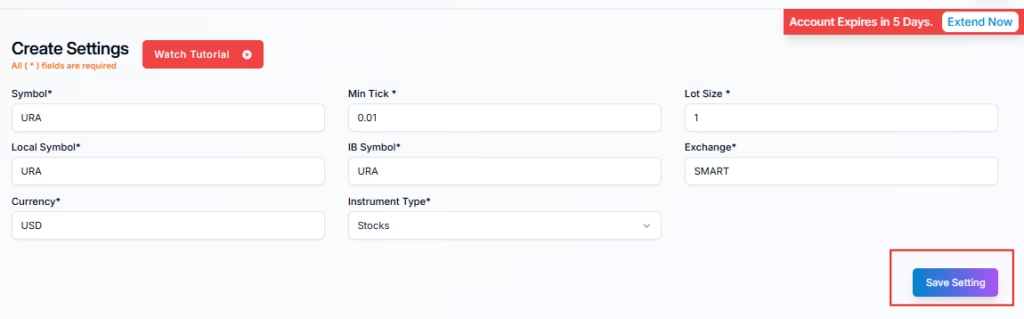
- Symbol Name → URA
- Local Symbol → URA
- IB Symbol → URA
- Instrument Type (Security Type) → Stocks (or as shown)
- Currency → USD
- Exchange →SMART (or can use Primary Exchange if Exchange doesn’t work)
- Min Tick Size → 0.01 (as shown in TWS, e.g., 0.01)
- Lot Size → 1 (or based on your trading preference)
Confirm Tick Size & Lot Size #
After entering Min Tick Size and Lot Size, a confirmation popup will appear.
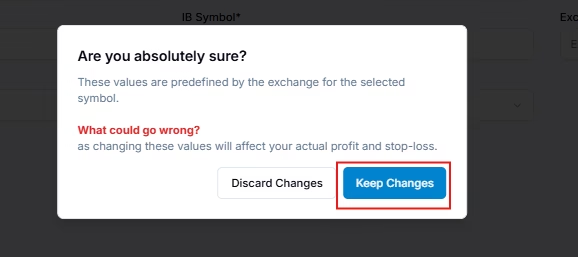
- This warning indicates that these values are predefined and can affect profit and stop-loss calculations
- Click “Keep Changes” to proceed
Do NOT discard, otherwise your settings won’t be saved correctly
Then click:
- Save Setting
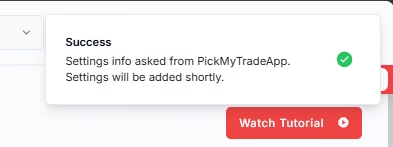
5. Verify and Use #
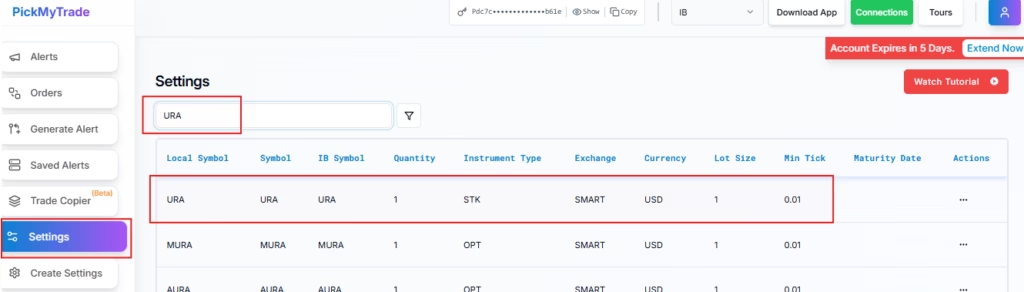
- Go back to the Settings tab
- Search for URA to confirm it’s added
- While generating TradingView alert code, select URA from the symbol list
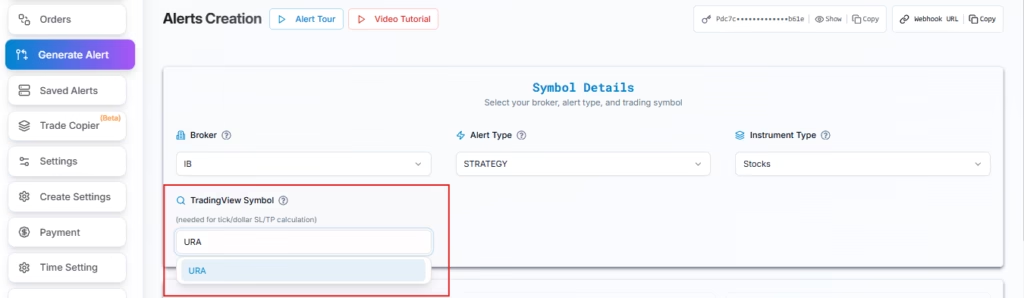
Now your automation will work for this symbol.
Notes #
- If orders fail, switch to Primary Exchange
- Ensure all values match TWS exactly
- Keep IB running during automation
Last updated: September 3, 2026


