
Overview #
When placing Future Options orders through Interactive Brokers (IBKR)/Trader Workstation (TWS), you may encounter an error indicating that the order cannot be traded outside regular trading hours.
This happens because, by default, TWS restricts Future Options orders to Regular Trading Hours (RTH) unless you explicitly allow orders to be activated and filled outside RTH.
Error #
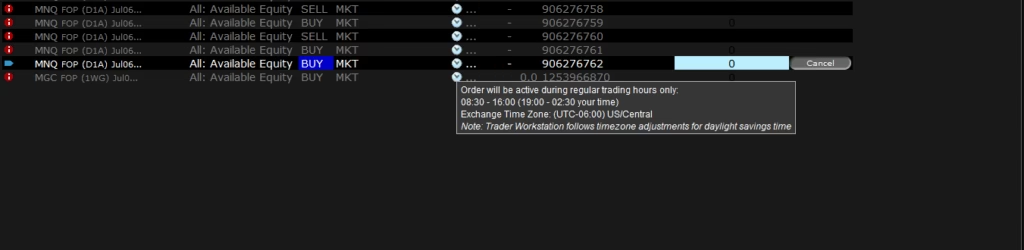
While placing a Future Options order, TWS displays a message similar to:
Order will be active during regular trading hours only
- 08:30 – 16:00 Exchange Time
- (Corresponding local time shown)
As a result, the order remains inactive outside these hours.
Example
The order shows the warning that it will only become active during regular trading hours.
Root Cause #
Future Options presets in Trader Workstation are configured by default to allow orders only during Regular Trading Hours (RTH).
If your trading system (such as PickMyTrade) submits an order outside these hours, IBKR rejects or delays the order because the preset does not permit execution outside RTH.
Solution #
Enable the option that allows Future Options orders to be activated, triggered, or filled outside regular trading hours.
Steps #
1. Open Trader Workstation Configuration #
Navigate to:
File → Global Configuration
or
Edit → Global Configuration
2. Go to Future Options Presets #
Navigate to:
Configuration
    └── Presets
            └── Future Options
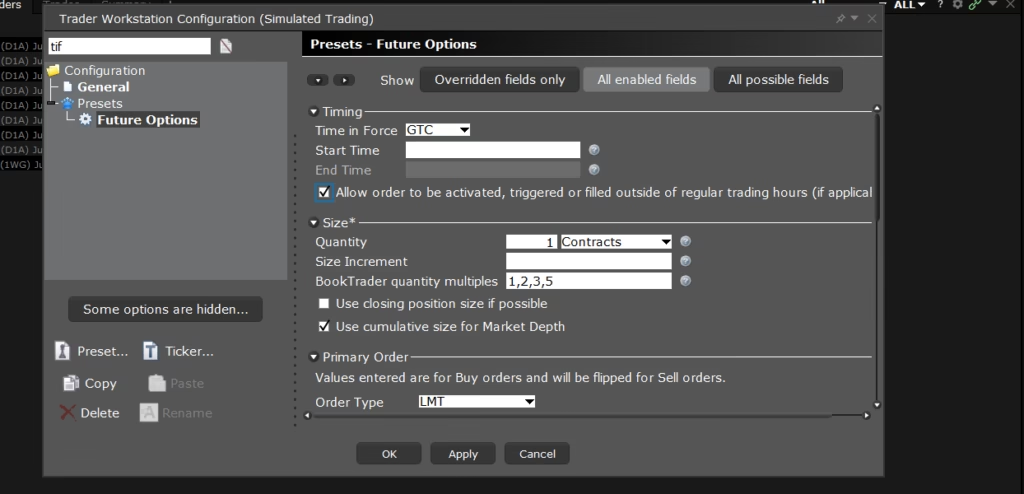
3. Locate the Timing Section #
Under Timing, find the checkbox:
Allow order to be activated, triggered or filled outside of regular trading hours (if applicable)
4. Enable the Checkbox #
✔ Check the option.
Click:
- Apply
- OK
Example
Result #
After enabling this option:
- Orders can be submitted outside Regular Trading Hours.
- IBKR allows eligible Future Options orders to participate in extended trading sessions (when the exchange supports it).
- PickMyTrade can successfully place Future Options orders without receiving the “outside trading hours” restriction.
Note: Enabling this setting does not create additional trading hours. It simply allows your orders to participate in any exchange-supported extended session.
Explanation of Future Options Preset Settings #
Below is a description of the most commonly used settings in the Future Options preset.
Timing #
Time in Force (TIF) #
Determines how long an order remains active.
Common options include:
| Option | Description |
|---|---|
| DAY | Valid only for the current trading day. |
| GTC | Good Till Cancelled. The order remains active until executed or cancelled. |
| IOC | Immediate-Or-Cancel. Executes immediately; any unfilled quantity is cancelled. |
| FOK | Fill-Or-Kill. Entire order must execute immediately or it is cancelled. |
Recommended for automation: GTC
Start Time #
Specifies when the order should become active.
Leave blank unless scheduling orders for a future time.
End Time #
Automatically expires the order at a specified time.
Usually left blank.
Allow order to be activated, triggered or filled outside regular trading hours #
This is the most important setting for automated trading.
When enabled:
- Orders may become active outside Regular Trading Hours.
- Stop orders can trigger during extended sessions.
- Limit orders can fill during extended sessions if the exchange permits.
When disabled:
- Orders wait until Regular Trading Hours begin.
Recommended: ✔ Enabled
Size #
Quantity #
Default number of contracts.
Example:
1 ContractThis value can still be overridden by PickMyTrade when sending orders.
Size Increment #
Defines the increment used when adjusting quantities.
Usually left blank.
BookTrader Quantity Multiples #
Controls preset quantity buttons in BookTrader.
Example:
1,2,3,5This affects only the TWS interface and has no impact on API orders.
Use Closing Position Size if Possible #
When enabled, IBKR automatically uses your existing position size while closing trades.
Useful for manual trading.
Generally not required for automated strategies.
Use Cumulative Size for Market Depth #
Aggregates quantities at the same price level in the order book.
This only affects how Market Depth is displayed.
It does not affect order execution.
Primary Order #
Order Type #
Specifies the default order type used when manually creating orders.
Examples:
- LMT (Limit)
- MKT (Market)
- STP (Stop)
- STP LMT (Stop Limit)
This setting serves as the default in TWS but can be overridden by PickMyTrade when placing orders programmatically.
Best Practices for PickMyTrade Users #
- Enable Allow order to be activated outside regular trading hours if your strategy submits Future Options orders overnight or during extended sessions.
- Use GTC as the default Time in Force for automated trading unless your strategy requires DAY orders.
- Verify that the specific futures options contract supports overnight trading, as exchange trading hours vary by product.
- Remember that this setting only allows orders during the exchange’s available extended session—it does not enable trading when the exchange is completely closed.
Summary #
If PickMyTrade reports that a Future Options order cannot be traded outside regular trading hours, the issue is typically caused by the default TWS preset. Enabling “Allow order to be activated, triggered or filled outside of regular trading hours” in Global Configuration → Presets → Future Options resolves the issue and allows eligible orders to participate in the exchange’s extended trading sessions.
Also Checkout: TradingView Options Strategies for Interactive Brokers
More Resources #
Ready to connect Interactive Brokers?
See Interactive Brokers automation on pickmytrade.io
Last updated: September 29, 2026


