
Introduction #
Automating TradingView strategy alerts in cTrader allows you to send real-time orders directly from your strategy or indicator alerts using PickMyTrade. This guide walks you through setting it up for forex, indices, commodities, metals, and stocks.
Pre-requisites #
Before proceeding, ensure that your cTrader account is connected to PickMyTrade.
If you have not connected your account yet, please refer to the detailed setup guide before continuing.
Connect cTrader with PickMyTrade – Easy Setup Guide

When the connection button turns 🟢 Green, your cTrader account is successfully connected to PickMyTrade.
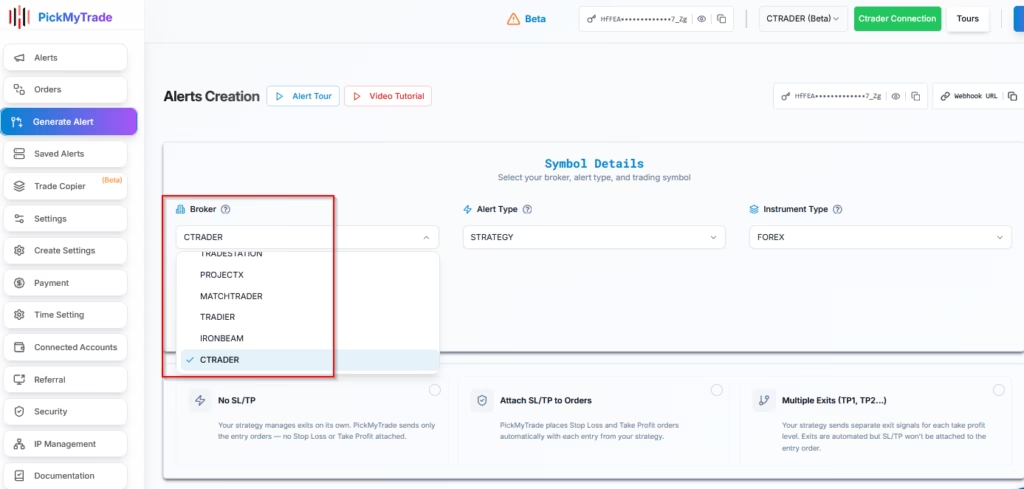
1. Select ctrader as Your Broker #
From the PickMyTrade interface, choose your broker as:CTRADER
This ensures that all generated alerts will be routed for execution into your connected ctrader account.
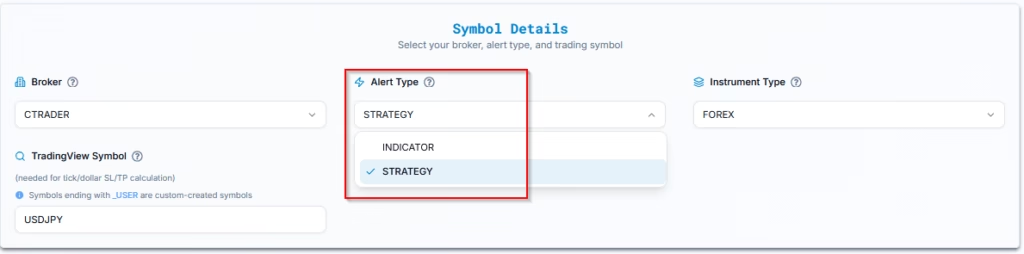
2. Choose Strategy or Indicator Alert in TradingView #
Select the appropriate alert type based on your TradingView setup:
STRATEGY: For alerts generated by a TradingView strategy (e.g., Supertrend Strategy, RSI Strategy). This uses the Strategy Tester and automatically triggers alerts when a strategy’s logic executes.INDICATOR: For alerts based on chart conditions (e.g., RSI crosses above 70). This does not use the Strategy Tester and is based on plotted conditions or alert functions.
3. Choose Asset Type for Ctrader Execution #
Pick the asset type that corresponds to your Ctrader instrument:
- FOREX (e.g. AUDUSD, EURJPY)
- STOCK (e.g. FEDEX, APPLE)
- METAL (e.g. XAUUSD, XAGEUR)
- INDEX (e.g. US 500, FRANCE 40)
- COMMODITY (e.g. XTIUSD, XBRUSD)
This tells PickMyTrade how to structure the trade format (lots vs contract vs shares, etc.).
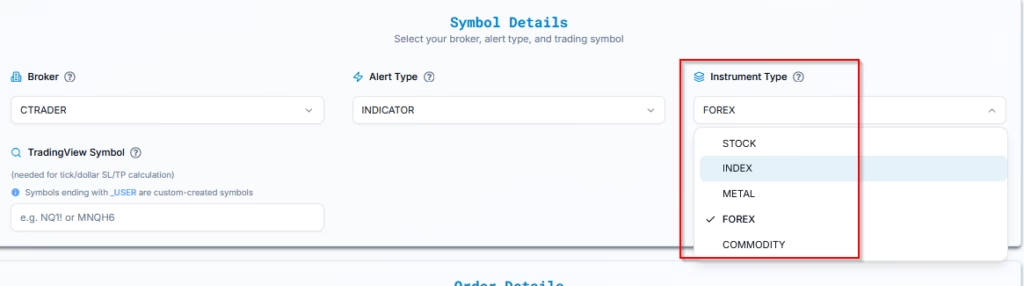
⚠️ Selecting the wrong instrument type may lead to incorrect lot sizing, SL/TP calculation, or order rejection.
4. Enter the TradingView Symbol for Strategy Alerts #
Enter the symbol used in your TradingView chart.
Example: USDJPY
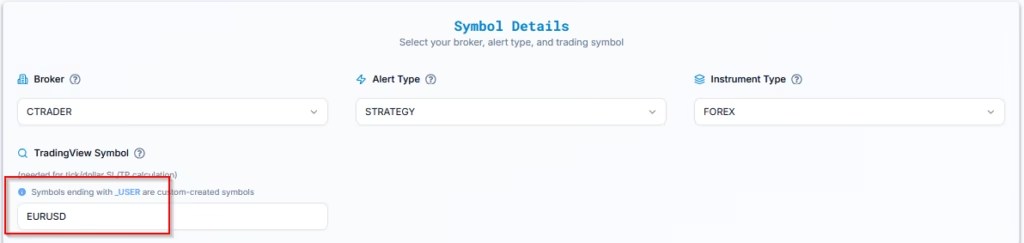
This field is optional, but becomes mandatory if you’re using:
- Stop Loss / Take Profit type = Ticks
- Stop Loss / Take Profit type = Total Profit / Loss
If the symbol is missing or incorrect, PickMyTrade may default to the chart symbol or fail to map orders correctly.
5. Managing Exit Rules in Automated TradingView Strategies #
Determine how exits will be handled in your strategy:
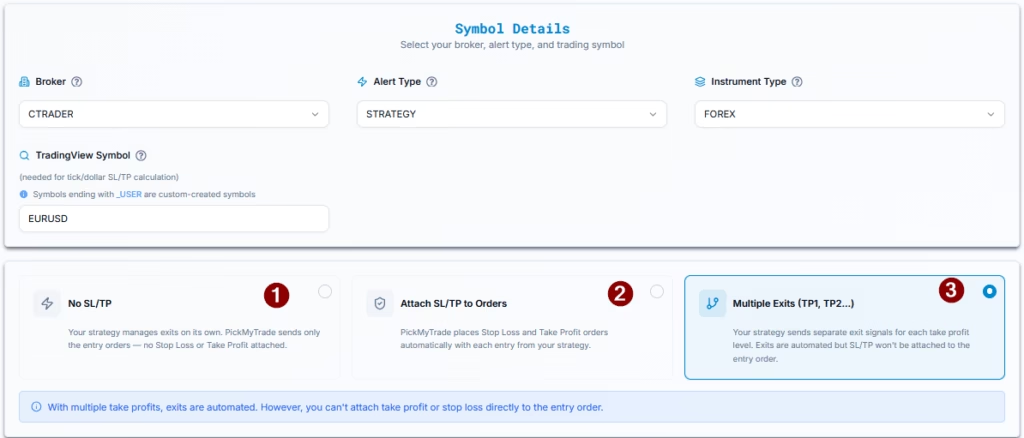
Option 1: No SL/TP (Strategy Controlled Exits) #
- Select this if your TradingView strategy fully manages entries and exits
- PickMyTrade will NOT place any Stop Loss or Take Profit orders
- All exits will be executed only when TradingView sends exit alerts
Use this when:
Your strategy already includes complete exit logic
Option 2: Attach SL/TP to Orders #
- Select this if your strategy does NOT handle exits
- PickMyTrade will place Stop Loss (SL) and Take Profit (TP) with each entry
Features:
- Choose SL/TP type (percentage, price, Total Profit/Loss, etc.)
- Only one SL and one TP per order is supported
Use this when:
You want simple, fixed risk management handled by PickMyTrade
You can refer to the Stop Loss / Take Profit Types guide in PickMyTrade for exact formulas and examples. Click here
Option 3: Multiple Exits (TP1, TP2, etc.) # #
- Select this if your TradingView strategy uses multiple take-profit levels
- PickMyTrade will NOT require SL/TP configuration
- All exits will be executed based on TradingView alerts
Note:
When using multiple exits, SL/TP cannot be attached to the entry order.
Use this when:
Your strategy scales out of positions (partial exits)
Here’s an example of how multiple exits work:
- Your strategy enters a long position with 3 contracts.
- TP1 is hit → the strategy sends Sell 1, leaving a long position of 2 contracts.
- TP2 is hit → the strategy sends Sell 1, leaving a long position of 1 contract.
- TP3 is hit → the strategy sends Sell 1, bringing the net position to 0.
If, instead of reaching the take-profit levels, the trade hits the stop loss, your strategy should send a close or flat signal. PickMyTrade will then close the remaining open position and cancel any active or pending orders for that symbol, leaving the net position at 0.
6. Connect Ctrader Account for Automation #
This section explains how to add your Ctrader account to PickMyTrade for automated execution. You can either connect your Ctrader login within your current PickMyTrade account or link it across multiple PickMyTrade accounts.
6.1 Adding a Ctrader Account in Your Current PickMyTrade Login
Use this option if your Ctrader login is already connected to the same PickMyTrade account you’re currently using.
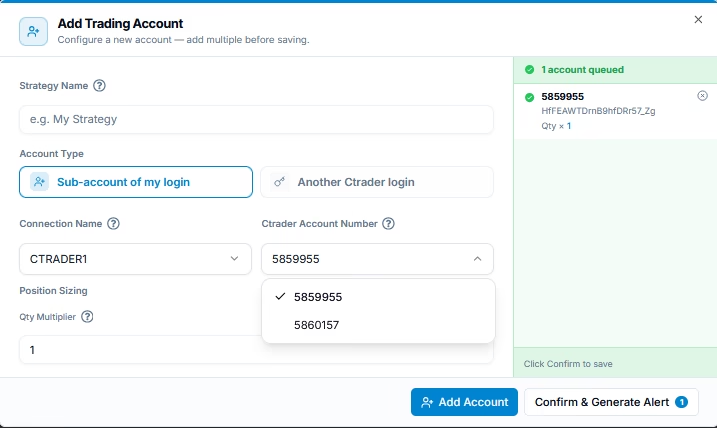
| Field Name | Example Input | Description |
|---|---|---|
| PickMyTrade Conn. Name | Ctrader | The Ctrader connection name from your PickMyTrade account |
| Ctrader Acc. Name | 5859955 | The actual Ctrader account where trades should be sent |
| Option | Quantity Multiplier | Choose how trade size is calculated |
| Quantity Multiplier | 1 | If set to 2, all trade sizes will be doubled |
Make sure your Ctrader connection is active and verified in the account.
6.2 Adding a Ctrader Account from Another PickMyTrade Login
Use this setup if you want to send trades into a different PickMyTrade account — useful when managing multiple logins.
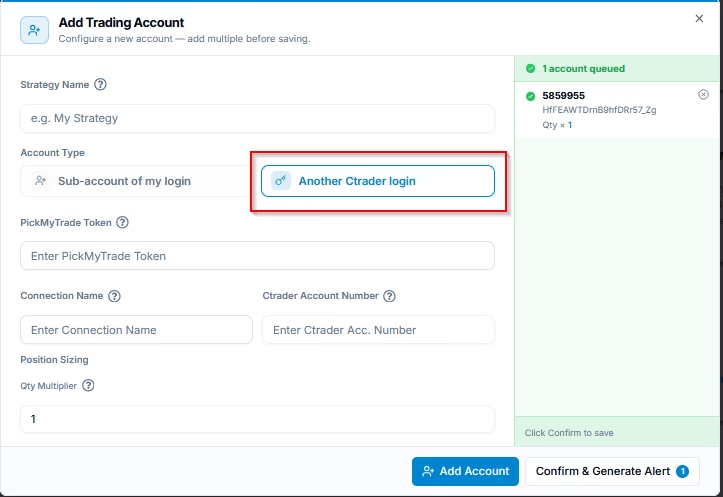
| Field Name | Example Input | Description |
|---|---|---|
| PickMyTrade Token | abcd1234xyz | Token from the external PickMyTrade account you want to trade through |
| PickMyTrade Conn. Name | Ctrader | Must match the Ctrader connection inside that target account |
| Ctrader Acc. Name | 4805264 | Must match exactly as registered in Ctrader |
| Quantity Multiplier | 1 | All trade sizes are multiplied by this number |
Ensure the PickMyTrade token is copied accurately and the Ctrader connection exists in the destination account.
Execution will fail if the mapping is incorrect.
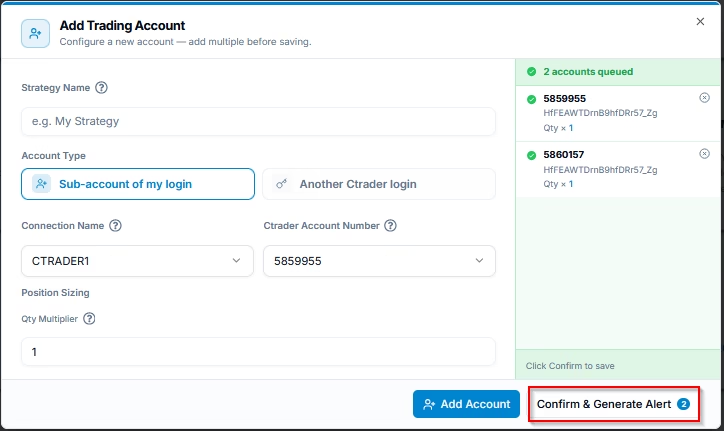
6.3 Generate Alert Code for Strategy Execution
Once all accounts are added and configured, click Confirm & Generate Alert button.
7. Create and Automate TradingView Alerts via PickMyTrade #
Once you’ve configured everything in PickMyTrade, follow these steps in TradingView:
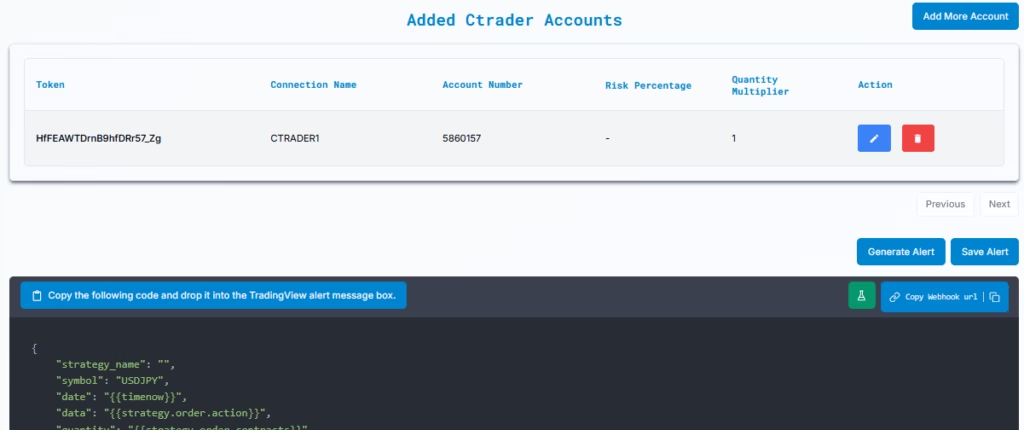
- Copy the alert message /JSON
- Open TradingView → Click “+ Create Alert”
- Paste the alert message into the Message field
- Paste the Webhook URL provided by PickMyTrade
- Set your alert condition and frequency
- Click Create Alert
You’re done! Your TradingView strategy or indicator is now connected to your Ctrader account through PickMyTrade — ready for automated, real-time execution.
Next, follow the link below to learn how to set up your TradingView alert for automated trading:
Setting Up TradingView Alerts for Automated Trading
More Resources #
Want to automate trades on platforms beyond Rithmic, such as Interactive Brokers, TradeLocker, TradeStation, or ProjectX?
Explore all PickMyTrade setup guides
Using Tradovate instead?
View the Tradovate automation guide
Ready to connect cTrader?
See cTrader automation on pickmytrade.io
Last updated: September 29, 2026


