
We’ve introduced a new Saved Alerts feature that allows users to save alerts created in the Generate Alert tab. This helps you reuse, edit, or manage alerts without needing to recreate them each time.
This guide walks you through how to use the feature.
1. Generate an Alert #
To start, go to the Generate Alert tab. From here, you can choose whether you want to generate an alert for an Indicator or a Strategy. After completing the setup, click on the Generate Alert button. This will display an option to Save Alert for future use.
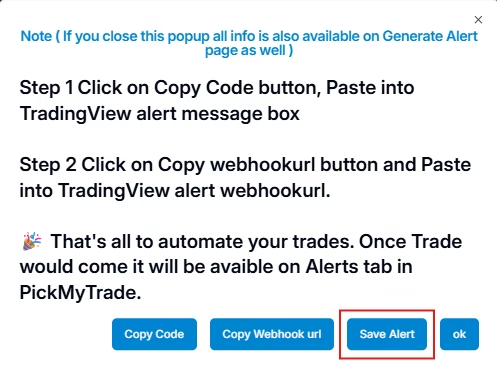
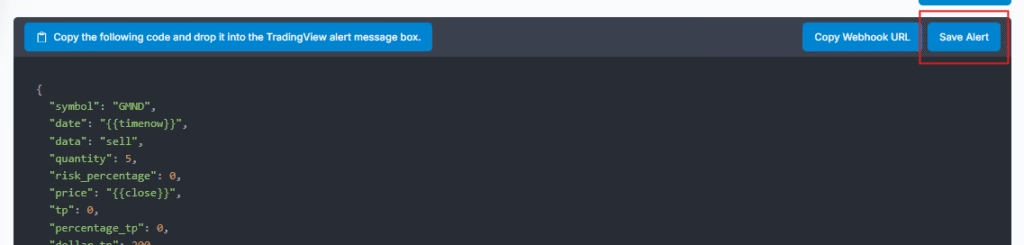
2. Save an Alert #
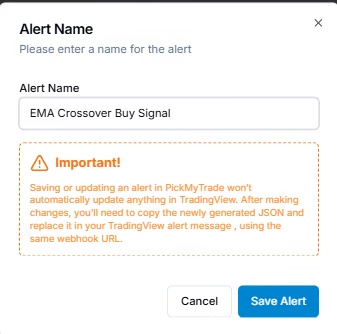
- After configuring your alert, click on the Save Alert option.
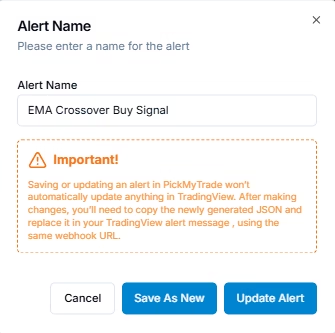
- Enter a name for your alert so you can recognize it later. (Example: EMA Crossover Buy Signal )
- Click Save Alert.
3. View Saved Alerts #
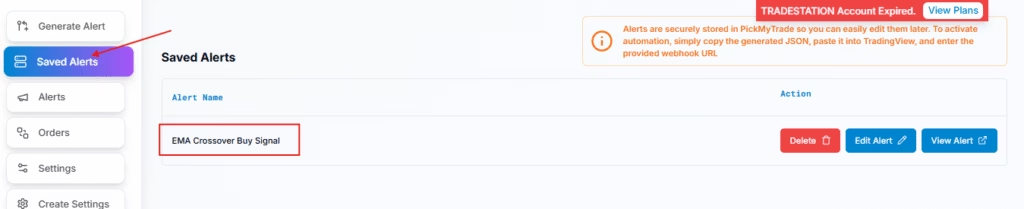
- Navigate to the new Saved Alerts tab in the menu.
- You’ll see a list of all alerts you have saved
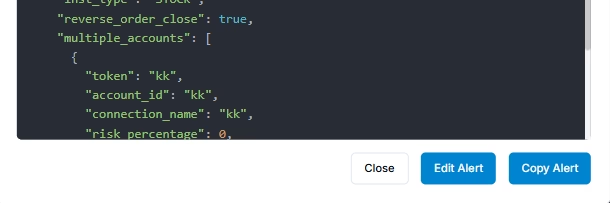
If you click on view alert, for each alert, you will get the option to Copy it if you want to reuse the same alert or Edit it if you want to make changes in setup without starting from scratch.
4. Edit a Saved Alert #
- From the Saved Alerts tab, select the alert you want to edit.
- Click Edit to open the configuration screen.
- Make changes to conditions, Risk Settings, Symbol, Accounts ids, etc. and click generating
- For saving, now you’ll have two options:
- Update Alert → overwrite the existing alert
- Save As New → create a new alert while keeping the original intact (name it distinctly to avoid confusion)
5. Delete a Saved Alert #
- In the Saved Alerts tab, locate the alert you want to delete.
- Click Delete, once deleted, the alert can’t be restored.

6. Key Notes #
- Works for both Indicators and Strategies.
- Alerts saved are stored securely and can be managed anytime.
- Editing an alert does not affect your currently active TradingView alerts until you update and apply them again in tradingview.
More Resources #
See how this fits into PickMyTrade’s automation platform.
Automation overview on pickmytrade.io
Last updated: September 29, 2026


