
Error Message #
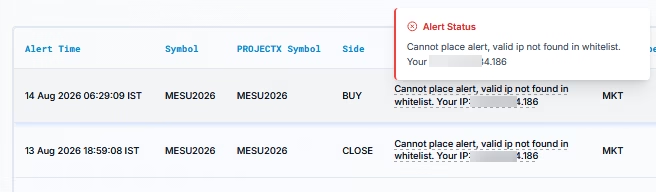
When PickMyTrade receives a webhook alert from an IP address that isn’t in your approved list, the alert is rejected and the Alerts log shows this message:
“Cannot place alert, valid ip not found in whitelist. Your IP: 13.220.134.186”
Why Does This Happen? #
IP Management is a security feature that controls which IP addresses are allowed to send webhook alerts to your PickMyTrade account. This error appears when a request arrives from an IP that hasn’t been approved yet — for example, if your internet provider assigns you a new IP, you switch networks, or you’re connecting from a VPS or automation platform for the first time.
How to Fix the Error #
Step 1: Open IP Management #
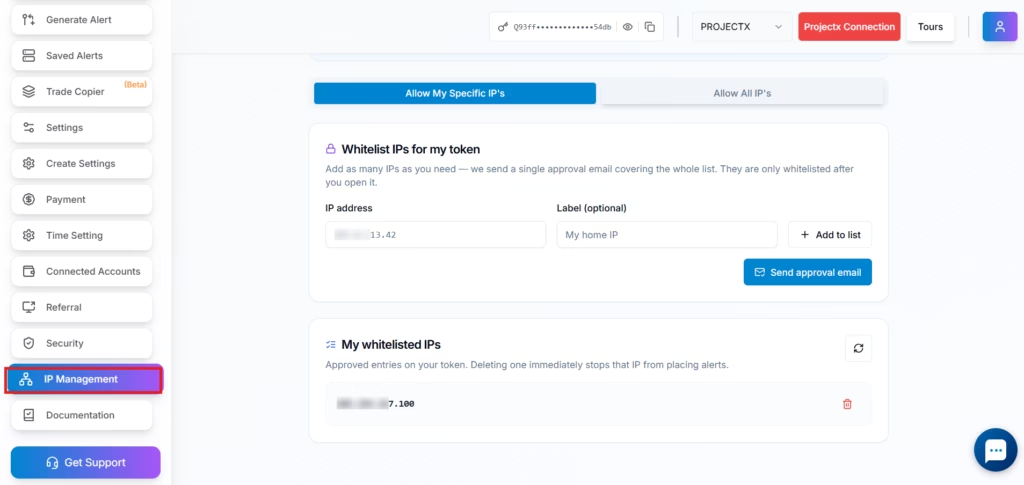
Log in to your PickMyTrade dashboard and click IP Management in the left sidebar.
Step 2: Choose “Allow My Specific IP’s” #
At the top of the page, make sure “Allow My Specific IP’s” is selected. This restricts webhook alerts to only the IP addresses you approve. If you’d rather not manage individual IPs, see “Allow All IPs” further down.
Step 3: Add your IP to the whitelist #
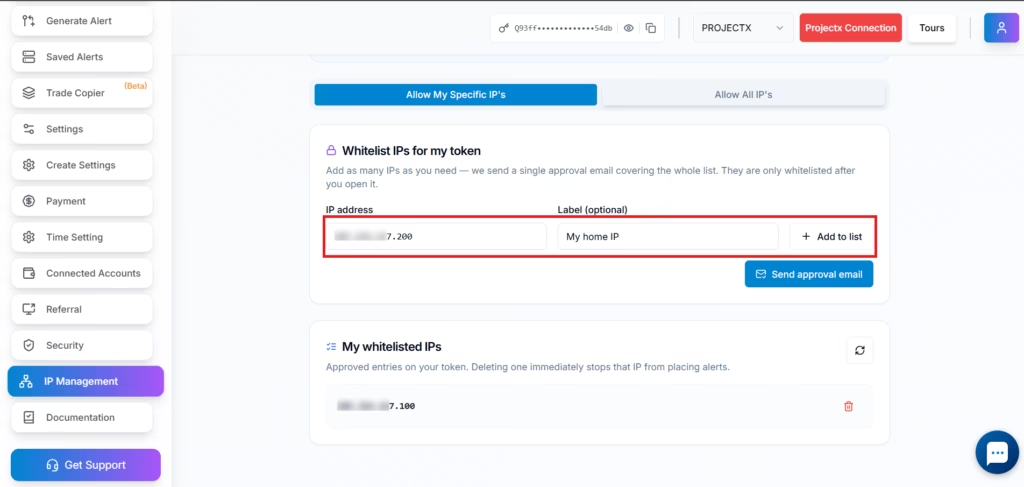
Under “Whitelist IPs for my token”, enter the IP address shown in your error message into the IP address field. Optionally add a label (e.g. “My home IP”) so you can identify it later, then click “Add to list”.
Step 4: Send the approval email #
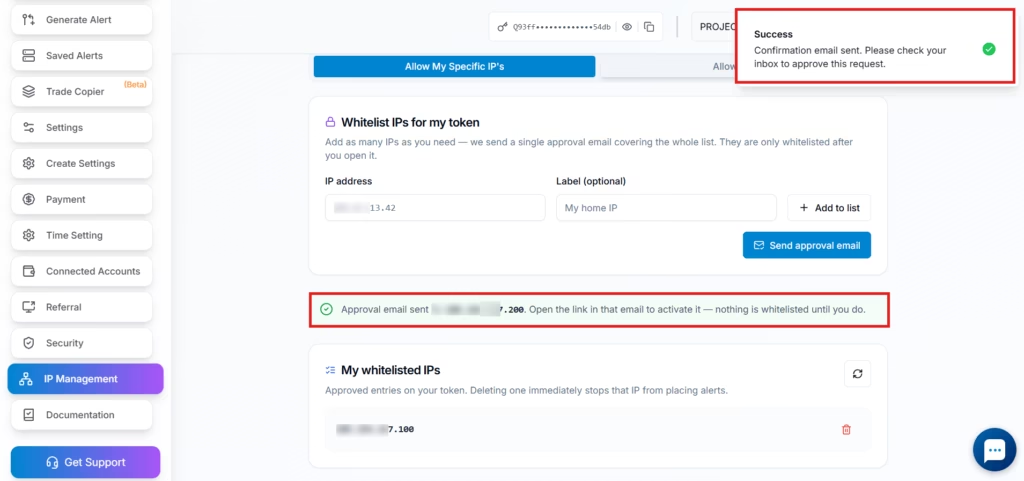
Click “Send approval email”. PickMyTrade sends a single confirmation email covering every IP you’ve added — none of them are actually whitelisted until you open that email and approve it.
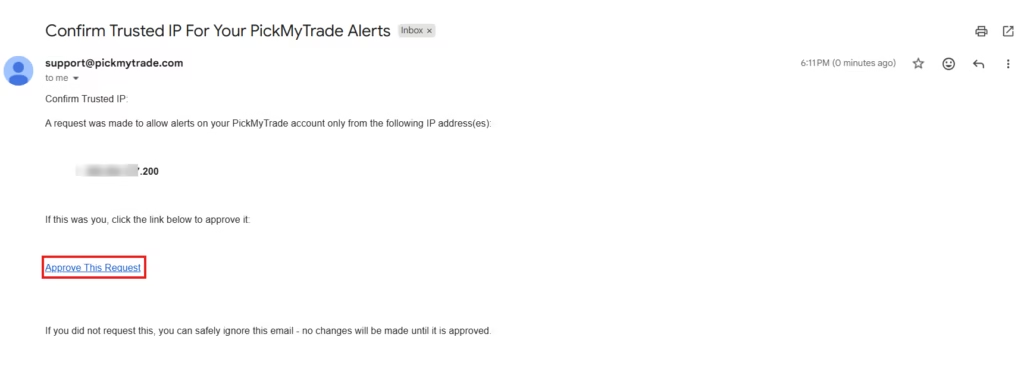
Step 5: Approve the request from your inbox #
Open the email titled “Confirm Trusted IP For Your PickMyTrade Alerts” from [email protected] and click “Approve This Request”.
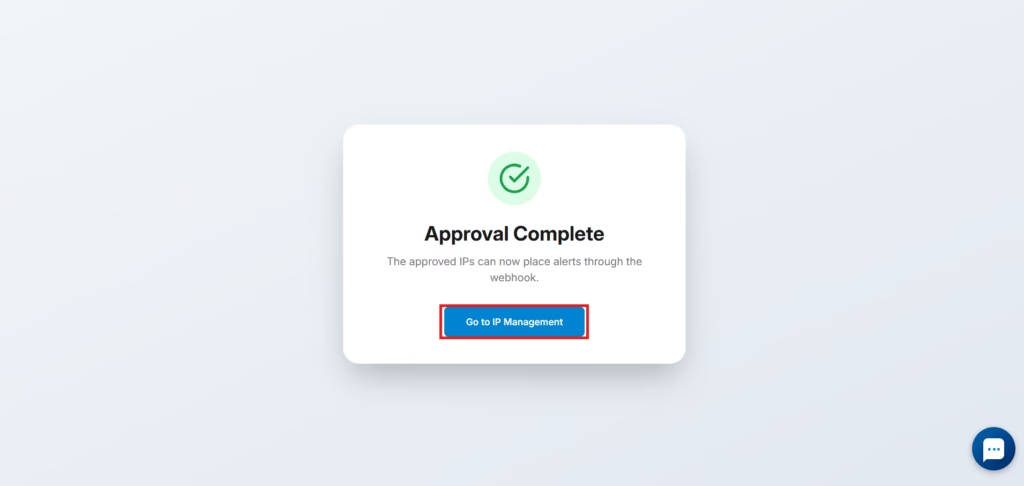
Step 6: Confirm the approval #
Approving the request opens an “Approval Complete” confirmation page, letting you know the IP can now place alerts through the webhook.
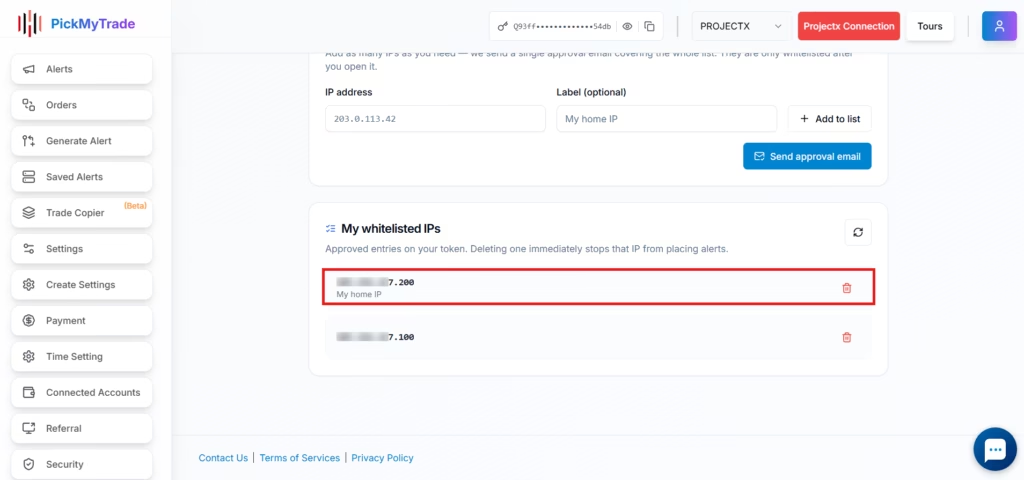
Step 7: Verify the IP is now whitelisted #
Click “Go to IP Management” (or return to the IP Management tab) and confirm the new IP now appears under “My whitelisted IPs” with the label you gave it.
Allow All IPs (For Dynamic IPs) #
If your IP address changes frequently — for example, a home connection without a static IP — and you don’t want to keep re-approving new addresses, select “Allow All IP’s” at the top of the IP Management page instead. This lets webhook requests through from any IP address, so only use it if you understand the tradeoff: it’s less restrictive than whitelisting specific IPs.
Which Option Should I Use? #
- Static or known IP → Add it under “Allow My Specific IP’s”
- Dynamic IP that changes often → Select “Allow All IP’s”
- VPS or server with a fixed IP → Add the server’s IP under “Allow My Specific IP’s”
Quick Steps #
- Log in to your PickMyTrade dashboard
- Open IP Management
- Select “Allow My Specific IP’s”
- Enter the IP (and an optional label) and click “Add to list”
- Click “Send approval email”
- Open the email and click “Approve This Request”
- Confirm the IP now appears under “My whitelisted IPs”
If the error persists after approving the IP, double-check that the IP shown in the error message matches exactly what you added — setups behind a reverse proxy or load balancer can rotate through multiple outbound IPs.
More Resources #
See how this fits into PickMyTrade’s automation platform.
Automation overview on pickmytrade.io
Last updated: September 29, 2026


