
Trading time settings play a crucial role in optimizing trade management and minimizing risks. With PickMyTrade, you can configure trading windows, and manage execution settings precisely. PickMyTrade offers configurable settings that allow traders to define trading time windows, control trade execution, and manage active trading sessions. This guide provides a step-by-step overview of how to configure these features for maximum flexibility and control.
Managing Trading Time and Trade Execution in PickMyTrade #
The Settings section allows you to define multiple trading sessions, customize execution behavior.
Accessing the Settings Panel #
- Log in to your PickMyTrade account.
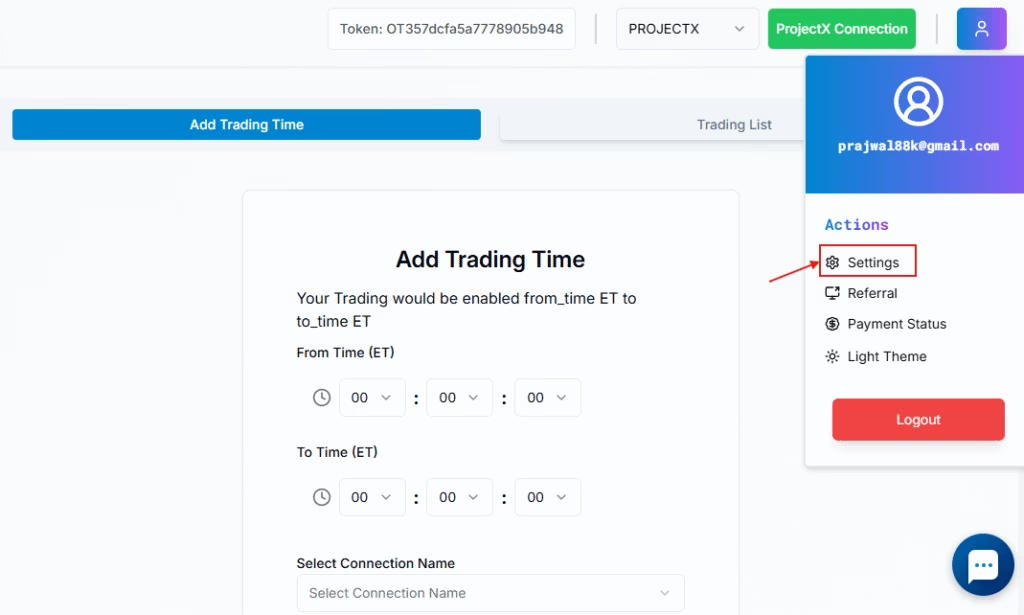
- Click the Profile button in the top-right corner.
- In the dropdown menu, select Settings under the “Actions” section.
- The Settings page will open for further configuration.
Active Trading Time Configuration (Now Supports Unlimited Sessions) #
You can now define unlimited trading windows using a flexible and sortable interface.
How to Add a Trading Session:
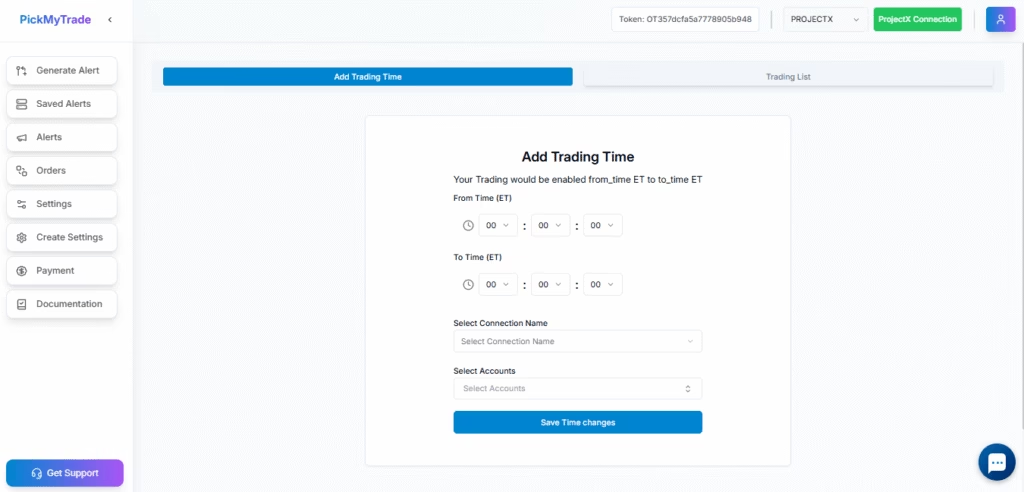
- Click [+] Add Time Slot (repeat for multiple sessions)
- Configure:
- Start Time and End Time in 24-hour format (ET)
- Account Selection: Apply to specific accounts or “All”
- Click Save
Note: Only new orders are paused outside active sessions. Existing open orders remain active and won’t close automatically
Example:
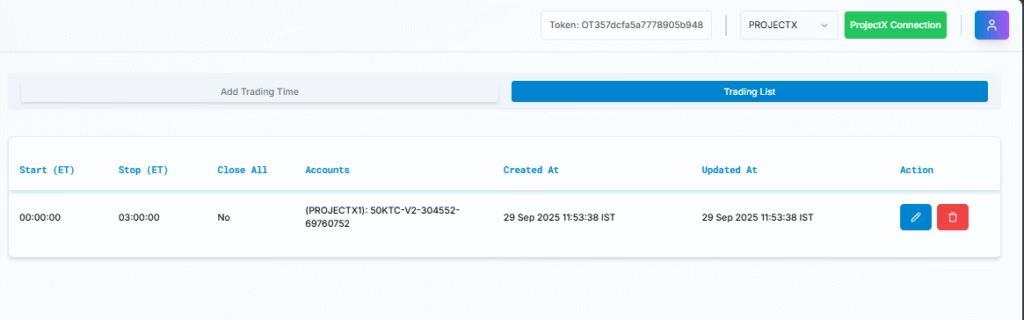
If you set trading time as 00:00 to 03:00 ET, then:
- Orders can be placed between 00:00 and 03:00 ET.
- Any new order after 03:00 ET will not be placed since it falls outside the active trading time.

Pausing Trade Activity Manually #
To manually halt trading without changing settings:
- Go to the Home Dashboard
- Click Alert Log
- Find the Pause Trading button
- Click Pause Account to stop trading until resumed
Pausing Trade Activity in PickMyTrade #
If you need to temporarily stop trading activity without changing your trading settings, PickMyTrade offers a simple “Pause Trading” option. Follow these steps to use it:
Go to the PickMyTrade Dashboard #
- Log in to your PickMyTrade account.
- Navigate to the Home Dashboard.
Access the Alert Log #
- On the dashboard, click on Alert Log to view all your active and past alerts.
Pause Trading #
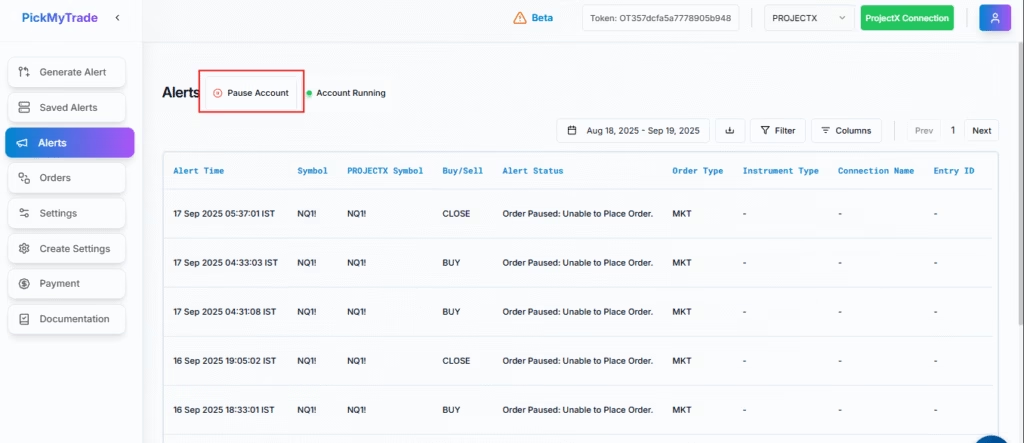
- In the Alerts section, find the Pause Trading button.
- Click on Pause Account to temporarily halt all trading activity. This ensures that no new trades will be executed until you resume the account.
6. Getting Support #
If you need further assistance, click on the “Get Support” button at the bottom left of the screen to reach customer support.
More Resources #
Want to automate trades on platforms beyond Rithmic, such as Interactive Brokers, TradeLocker, TradeStation, or ProjectX?
Explore all PickMyTrade setup guides
Using Tradovate instead?
View the Tradovate automation guide
See how this fits into PickMyTrade’s automation platform.
Automation overview on pickmytrade.io
Last updated: September 29, 2026


