
Introduction #
Automating TradingView indicator alerts in Bybit using PickMyTrade allows traders to execute crypto trades automatically with precise risk control.
Before you begin, ensure your Bybit account is connected to PickMyTrade (refer to the connection setup guide).
This guide explains how to configure TradingView alerts, connect them to PickMyTrade, and manage Stop Loss and Take Profit execution efficiently.
1. Connect Your Bybit Account to PickMyTrade #
Before creating alerts, you must connect your Bybit account to PickMyTrade.
Steps #
- Log in to PickMyTrade
- Go to Connections (top-right)
- Click Add New Connection
- Select Bybit as the broker
- Enter your Bybit API credentials:
- API Key
- Secret Key
Click Save and confirm the connection status shows Active

When the connection button turns 🟢 Green, your Bybit account is successfully connected to PickMyTrade.
Refer this document: Connect Bybit with PickMyTrade – Easy Setup Guide – PickMyTrade
2. Generate the Alert in PickMyTrade #
Once Bybit is connected:

- Go to Generate Alert from the left sidebar
- Fill in the required configuration fields
3. Select Bybit as Your Broker #
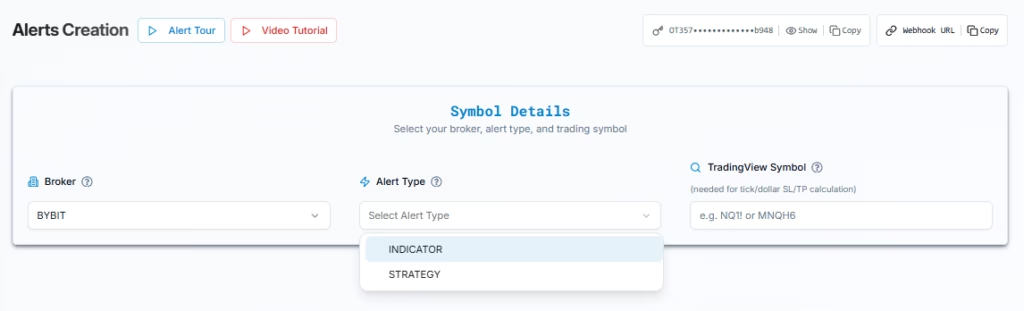
In Symbol Details:
- Broker: BYBIT

4. Choose Your Alert Type #
Two alert types are available:
INDICATOR #
Use this when triggering alerts from TradingView indicators
STRATEGY #
Use only when automating a Pine Script strategy
Example:
Alert Type: INDICATOR
5. Enter the TradingView Symbol #
Example: BTC/USDT
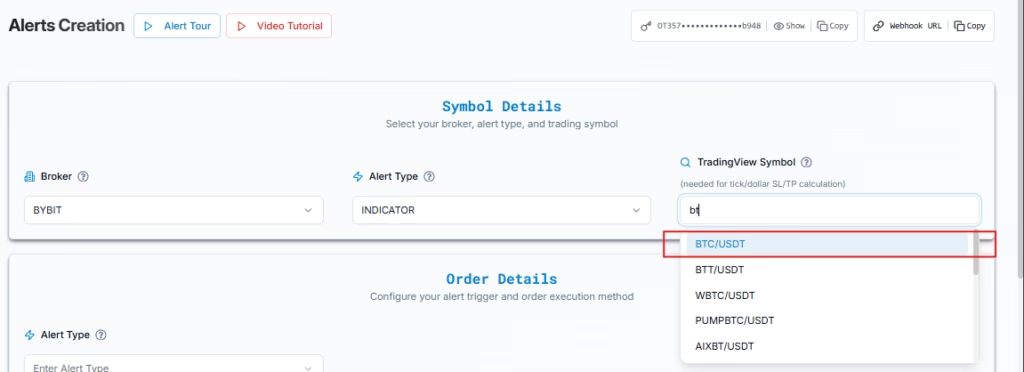
This field is optional, but required if you use:
- SL/TP Type = TICKS
- SL/TP Type = TOTAL PROFIT / LOSS
6. Configure Order Details (Trade Action) #
You can define both the trade action and the order type for execution.
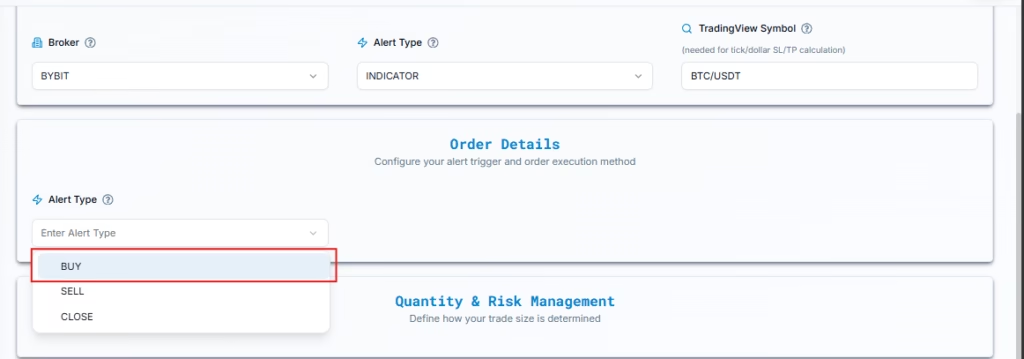
BUY Alert #
- Opens a new buy position if none exists
- Closes any existing sell position first
- Cancels open sell orders
SELL Alert #
- Opens a new sell position if none exists
- Closes any existing buy position first
- Cancels open buy orders
CLOSE Alert #
- Closes all open positions
- Cancels all open orders
- Does not open a new trade
Order Type #
PickMyTrade allows you to choose how your order is placed on Bybit:
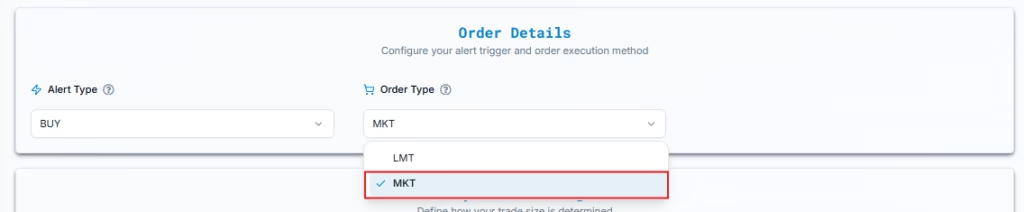
- Market Order → Executes instantly at the current market price
- Limit Order → Executes at a specific price you define
7. Quantity & Risk Management #
Quantity #
Defines number of lots per trade

Example:
Quantity: 0.5
Important:
Bybit enforces minimum order size depending on symbol
Ensure your order meets minimum notional requirements
8. Stop Loss & Take Profit Configuration #

Enable SL / TP #
- YES → Enable Stop Loss / Take Profit
- NO → Place market orders without exits
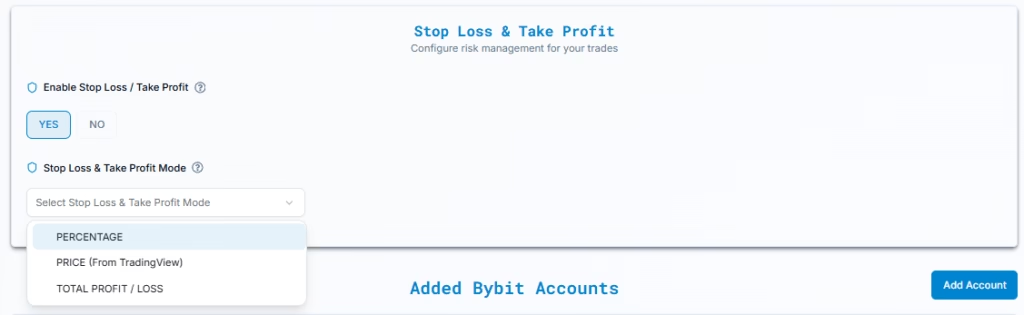
Bybit supports the following SL/TP types:
- Percentage
- Price (From TradingView)
- Total Profit / Loss
8.1 Percentage #
This calculates SL/TP based on percentage move from entry price.
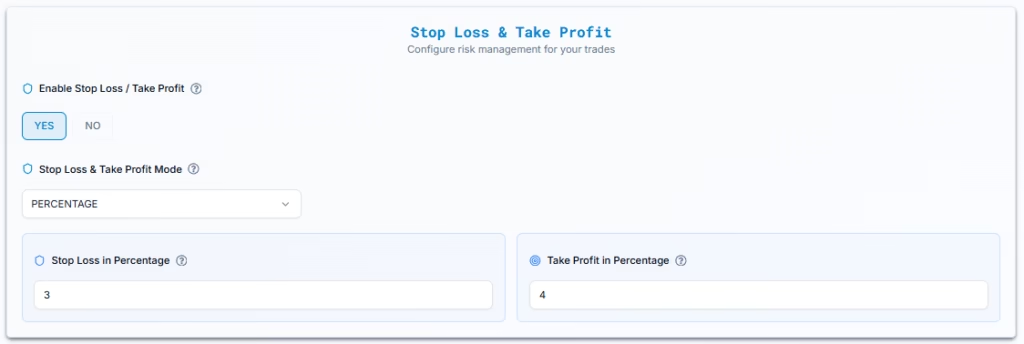
Example Configuration #
- Entry Price: 300 USDT
- Quantity: 0.5
- SL: 3%
- TP: 4%
Calculation #
Stop Loss:
300 × 3% = 9 → SL = 291
Take Profit:
300 × 4% = 12 → TP = 312
8.2 Price (From TradingView) #
Allows SL/TP to be sent directly from TradingView using indicator values.
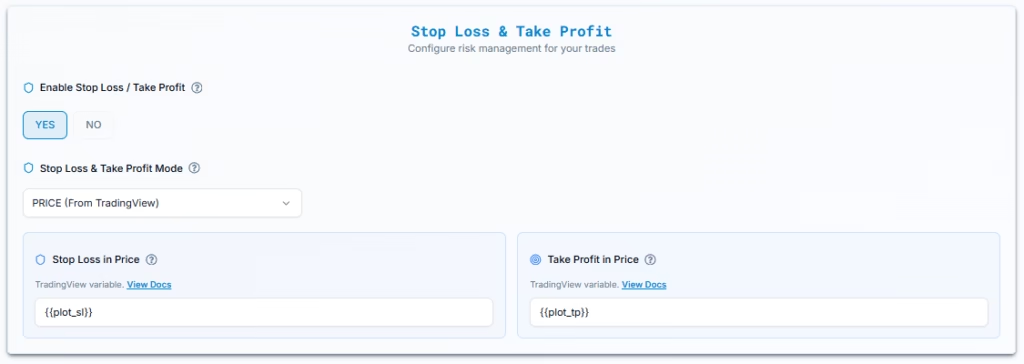
Use placeholders: #
- {{plot_0}}
- {{plot_tp}}
- {{plot_sl}}
Example: #
- Stop Loss → {{plot_sl}}
- Take Profit → {{plot_tp}}
TradingView replaces these values at runtime.
Refer this document for detailed steps: TradingView Plot Placeholder Integration
8.3 Total Profit / Loss (USD) #
Defines risk in fixed dollar terms.
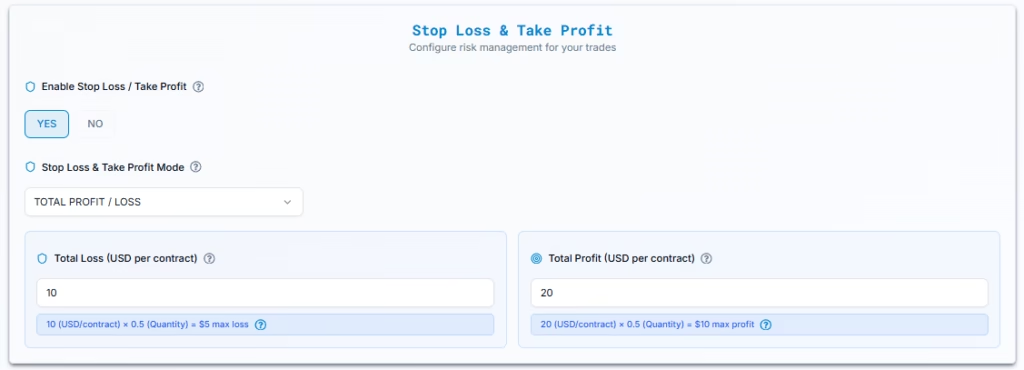
Example #
- Quantity: 0.5
- SL per unit: $10 → Total SL = 0.5 * 10 = $5
- TP per unit: $20 → Total TP =0.5 * 20 = $10
Trade closes automatically when total PnL hits target.
9. Assign Bybit Accounts for Strategy Execution #
PickMyTrade allows automation across one or multiple Bybit accounts.
9.1 Add Bybit Account in Current PickMyTrade Login #
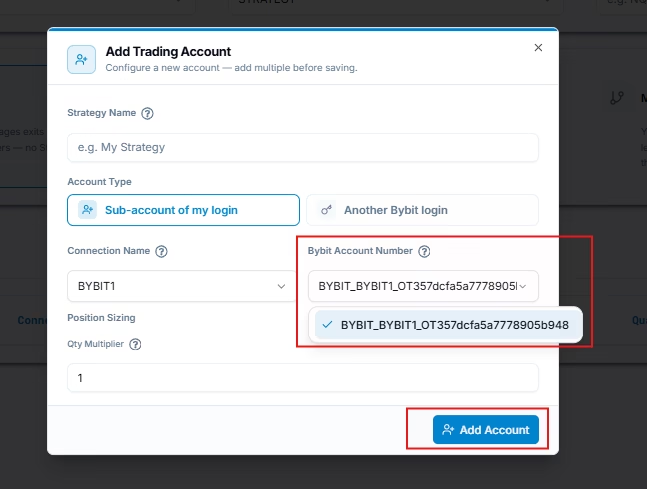
| Field | Example | Explanation |
|---|---|---|
| PickMyTrade Conn. Name | BYBIT1 | Your Bybit connection |
| Qty Multiplier | 1 | Multiplies your order size |
Example:
Default order = 0.01 BTC
Multiplier = 2 → Order = 0.02 BTC
9.2 Add Bybit Account From Another PickMyTrade Login #
Used when executing trades in another account.
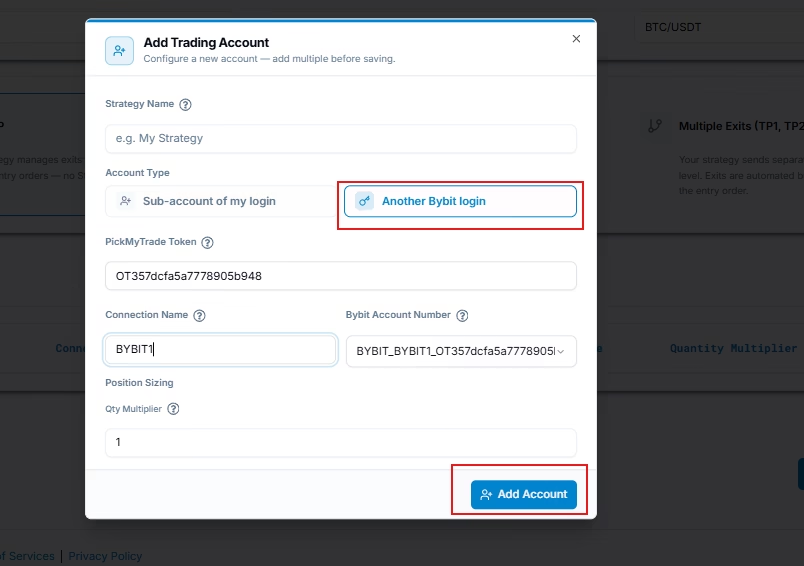
| Field | Example | Explanation |
|---|---|---|
| PickMyTrade Token | abcd1234xyz | Token from target account |
| Connection Name | BYBIT1 | Must match exactly |
| Qty Multiplier | 1 | Same usage |
Ensure:
- Token is correct
- Bybit connection is configured properly
Otherwise, execution will fail.
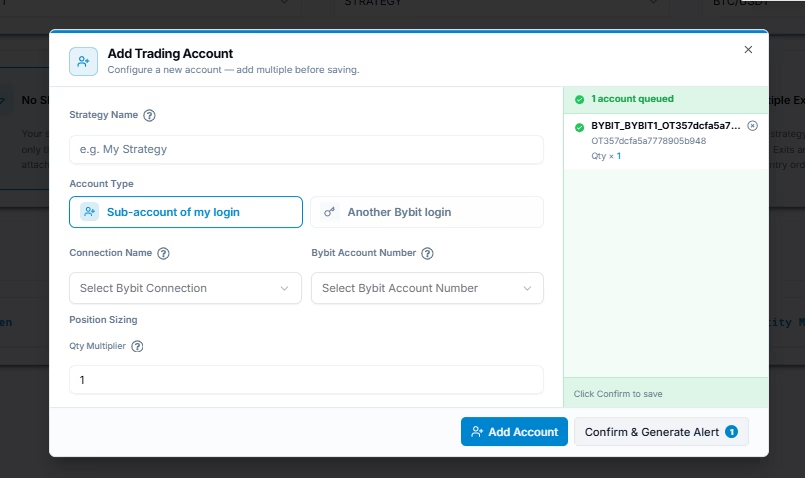
9.3 Generate Alert Code for Strategy Execution
Once all accounts are added and configured, click Confirm & Generate Alert button.
10. Generate Bybit Automation Alert in PickMyTrade #
After completing setup, click Generate Alert
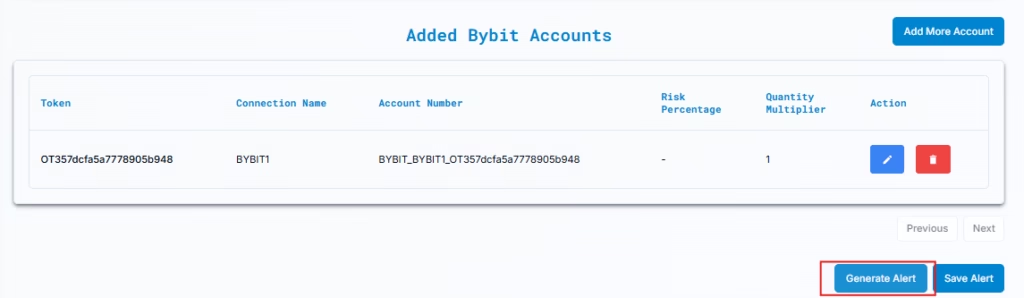
PickMyTrade will provide:
- JSON message
- Webhook URL
10.1 Copy JSON Code #
Click “Copy the following code…”
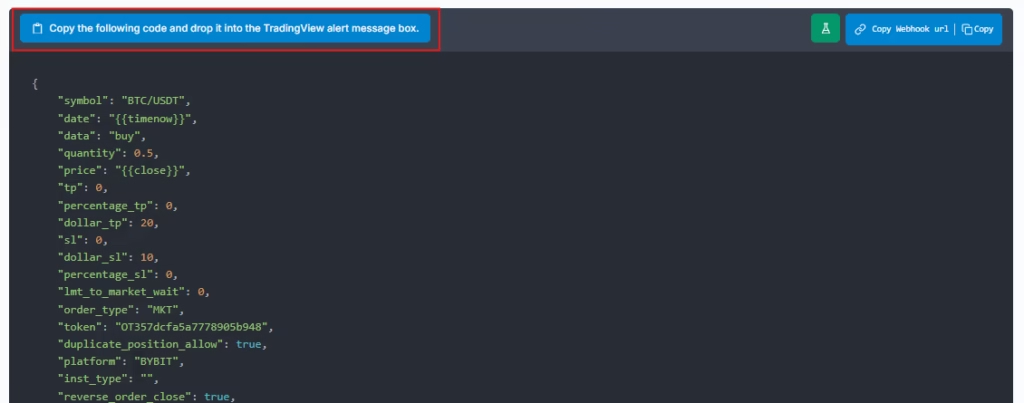
Paste it into the TradingView alert message box.
11. Generate Your TradingView Alert #
11.1 Open Indicator Alert Menu # #
- Hover over indicator name
- Click three dots
- Select “Add alert on Indicator”
11.2 Configure Alert Settings #
- Symbol: BTCUSDT (or your pair)
- Condition: Your indicator condition
- Interval: Your timeframe
11.3 Clear Message Box #
Delete all default text
11.4 Paste JSON #
Paste the exact JSON generated by PickMyTrade
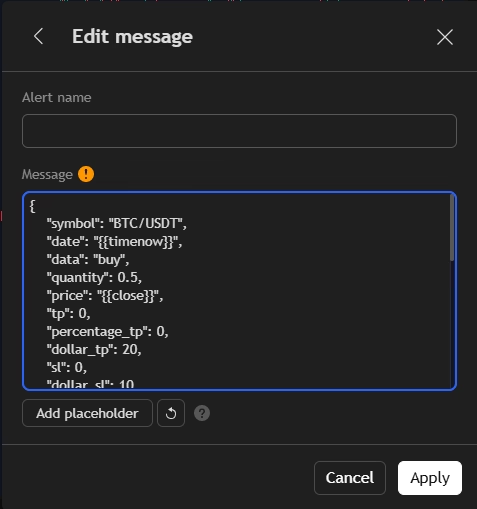
Includes:
- Order direction
- Quantity
- Price
- Token
- Platform (BYBIT)
11.5 Add Webhook URL #
Paste your PickMyTrade webhook URL
Ensure webhook is enabled
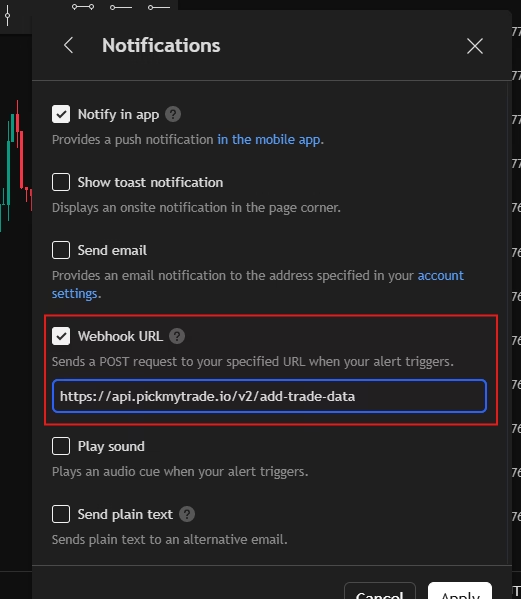
11.6 Create Alert #
Click Create
Your automation is now live.
12. Verify Bybit Automation #
12.1 TradingView Alerts Panel #
- Alert should show Active
12.2 TradingView Logs #
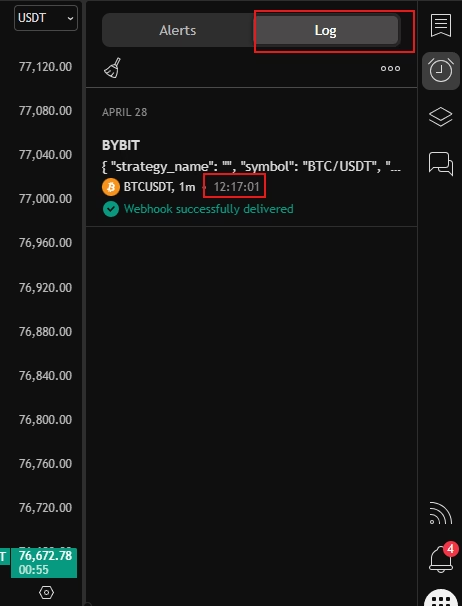
Check for:
- Trigger time
- JSON payload
12.3 PickMyTrade Alerts Page #
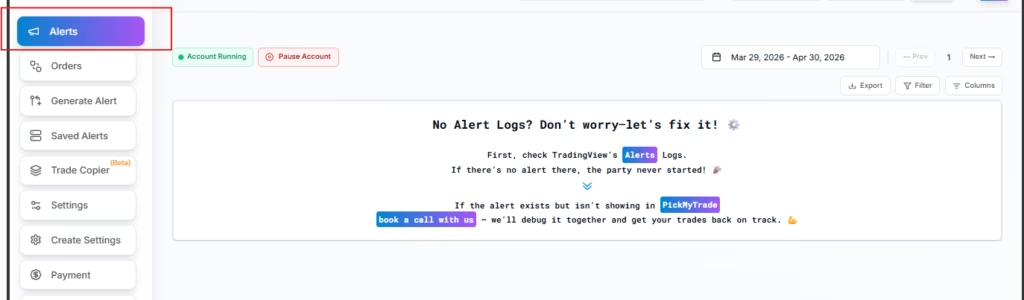
Inside PickMyTrade → Alerts:
You will see:
Order type
Trigger time
Symbol
Buy/Sell direction
Order status
Last updated: April 29, 2026


