
Want to connect your Binance account with PickMyTrade to automate crypto trades using TradingView alerts? This guide shows you how to set it up step by step.
Step 1: Log In to Your Binance Account #
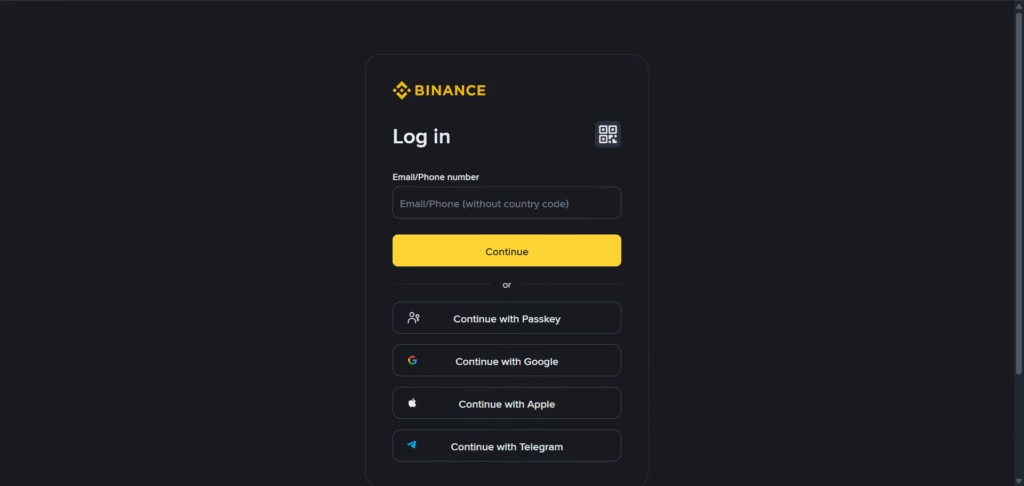
Go to the Binance login page:
https://www.binance.com/login
Use your registered Binance email/phone and password to log in.
Step 2: Open API Management #
After logging in:
- Click on your profile icon (top-right corner)
- Select API Management

Step 3: Create a New API Key #
Inside API Management:
- Click Create API
- Enter a name (example:
qwert) - Click Next

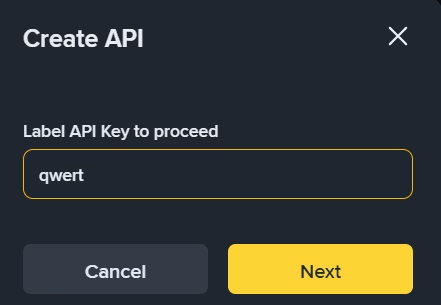
You may be prompted for security verification (Email + Google Authenticator).
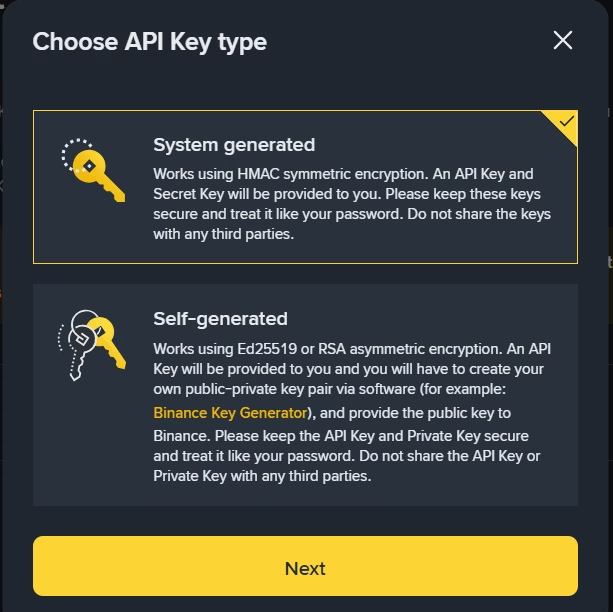
Step 4: Choose System Generated Key #
Choose System Generated (recommended).
Click Next to continue.
Step 5: Complete Security Verification #
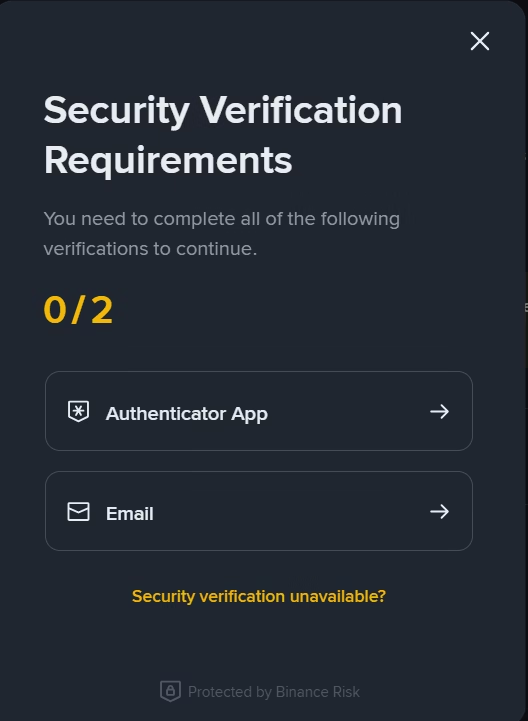
Binance will ask you to complete:
- Email verification
- Authenticator App verification
Enter the codes to proceed.
Step 6: Your Binance API Key Is Created #
You will now see:
- API Key
- Secret Key
Save these securely — you’ll need them for PickMyTrade.

Step 7: Restrict to Trusted IPs #
Recommended setting:
✔️ Restrict access to trusted IPs only
Enter the PickMyTrade IP addresses (provided in your dashboard).
Then click Save.

| Entry point | Port | Country | Assigned IP |
|---|---|---|---|
| ddc.oxylabs.io | 8001 | Singapore | 84.37.44.104 |
| ddc.oxylabs.io | 8002 | Singapore | 84.37.44.19 |
| ddc.oxylabs.io | 8003 | Singapore | 84.37.45.117 |
Security Requirement: You must whitelist all of these IP addresses in your Binance API configuration before connecting your account to PickMyTrade. Failure to whitelist every IP address may result in connection issues or failed trade execution.
8 Whitelisted IP Addresses
Add every IP listed below to Binance.
84.37.44.19 205.188.7.223 205.188.6.235 205.188.230.26 189.81.77.7 84.37.44.104 84.37.45.117 189.81.76.8Step 8: Enable Futures Trading #
In API Restrictions:
✔️ Enable Reading
✔️ Enable Futures
Do NOT enable withdrawals.

Step 9: Confirm Restrictions Saved #
Once configured, click Save again at the top.

Step 10: Open PickMyTrade Dashboard #
Go to:
https://pickmytrade.io
Log in to your account
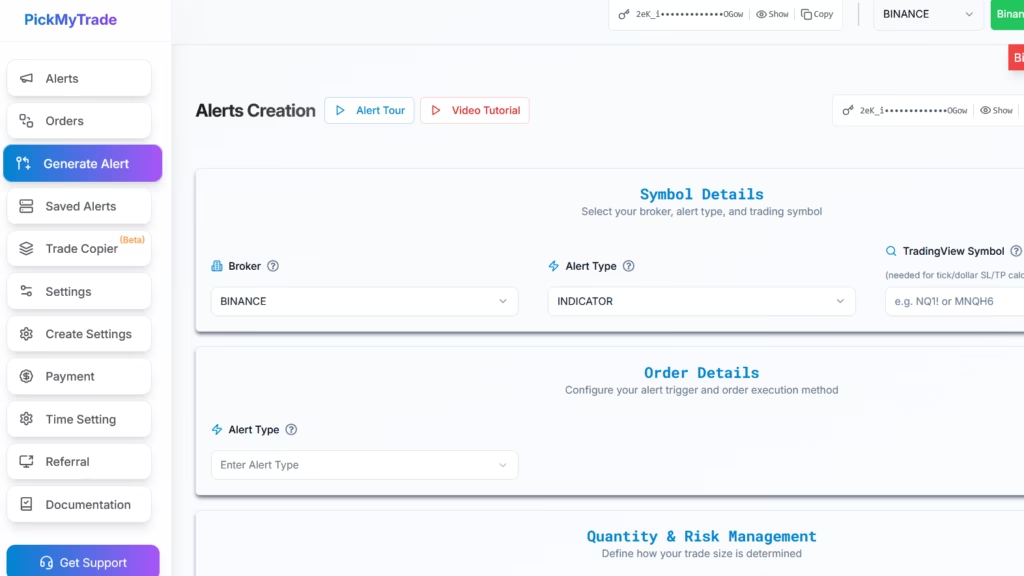
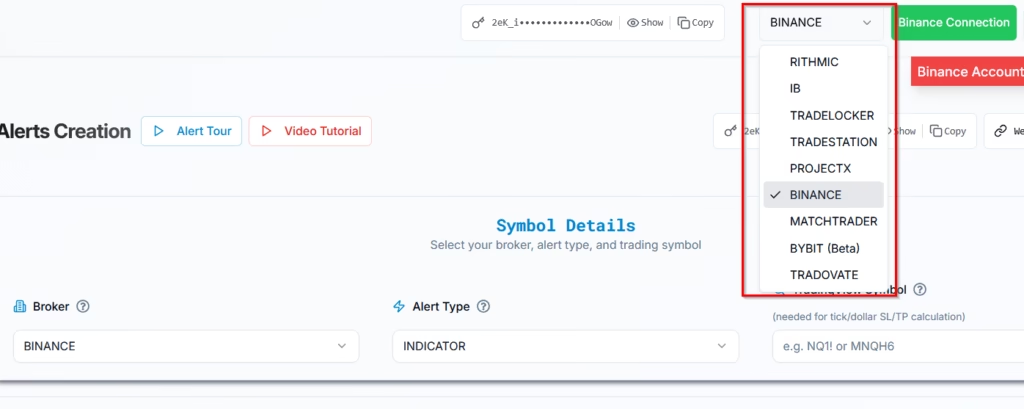
Step 11: Open Binance Connections #
Click on Binance Connection (top-right)
A popup opens.
Step 12: Add New Binance Connection #
Click Add New Connection

Step 13: Enter Your API Details #
Paste the values:
- API Key
- Secret Key
Click Create

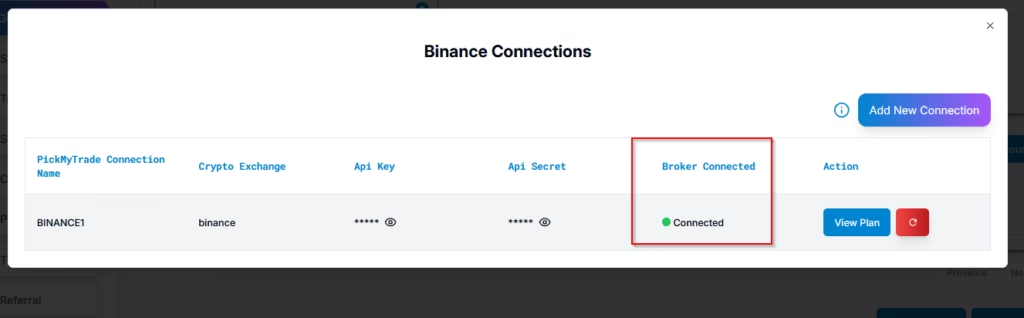
Step 14: Binance Successfully Connected #
You will see:
🟢 Connected
This means your API is working fine.
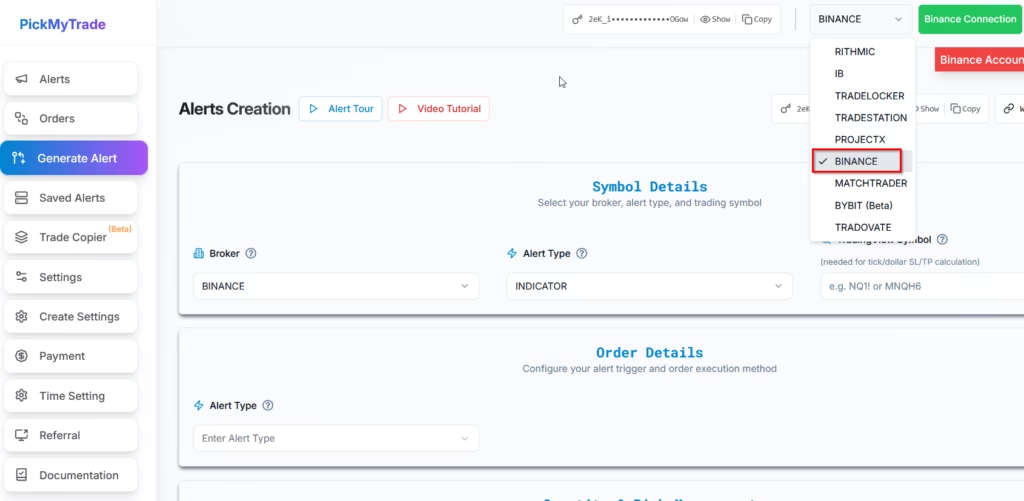
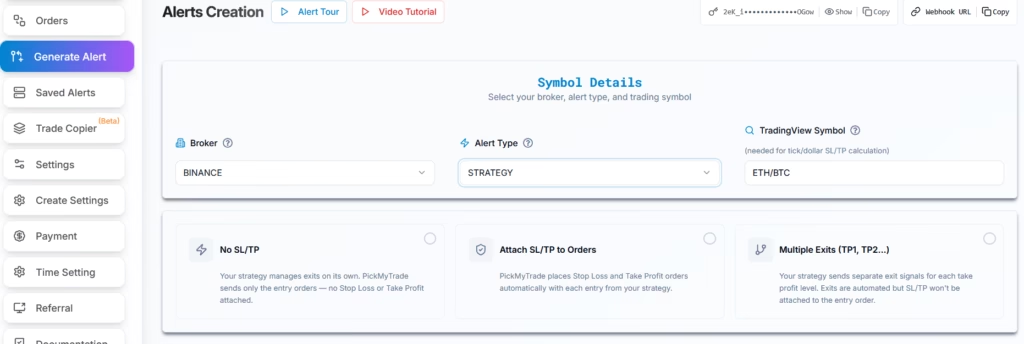
Step 15: Select Binance as Broker #
Under Generate Alerts → Broker
Choose BINANCE
Step 16: Setup Alert Parameters #
You will now enter:
- Alert Type
- Symbol
- Optional stop-loss value
Step 17: Binance Automation Ready #
Your PickMyTrade + Binance setup is complete.
You can now trigger automated trades using TradingView alerts.
Important Notes #
- API key must have Enable Reading & Enable Futures
- IP restrictions must stay on trusted IPs
- Never enable withdrawals (not required)
- If you regenerate the key in Binance, update it in PickMyTrade
Last updated: June 8, 2026


