
This document explains how to use the PickMyTrade ProjectX Trade Copier to copy trades:
- From one ProjectX login to another ProjectX login, and/or
- From a ProjectX login to Tradovate accounts
Using this setup, trades placed from a single master account can be automatically replicated across multiple connected accounts with consistent execution, symbol mapping, and risk parameters.
Prerequisites #
Before setting up the Trade Copier, ensure the following:
- You log-in to PickMyTrade.io account
- Your ProjectX account is successfully connected to PickMyTrade
- The ProjectX connection status shows Green (Connected)
To learn how to connect ProjectX to PickMyTrade, refer to the official guide: https://docs.pickmytrade.io/docs/connect-projectx-to-topstep-api/
A green connection indicator confirms that PickMyTrade is now authorized and ready to interact with your ProjectX account.
Accessing the Trade Copier #
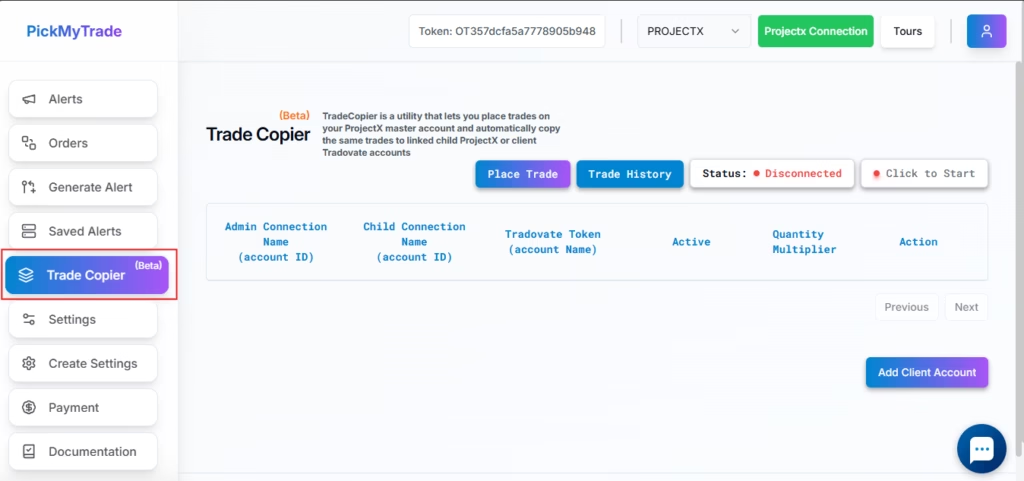
- Navigate to the Trade Copier tab from the dashboard
- Ensure your ProjectX broker connection is already active
Initially, the status may appear as Disconnected until the full setup is completed.
Setting Up the Trade Copier #
Step 1: Add a Client and Select Master Account #
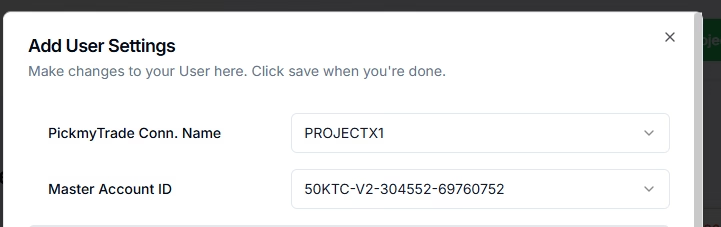
- Click on Add Client Account button
- Select the ProjectX connection for master account
- Choose the Account ID from the dropdown
- This selected ProjectX account becomes your Master Account
- All trades placed from this account will be copied to other linked accounts
Step 2: Add Follower Accounts #
After selecting the master account, you have two options for adding follower accounts:
Option A: Add Another ProjectX Account #
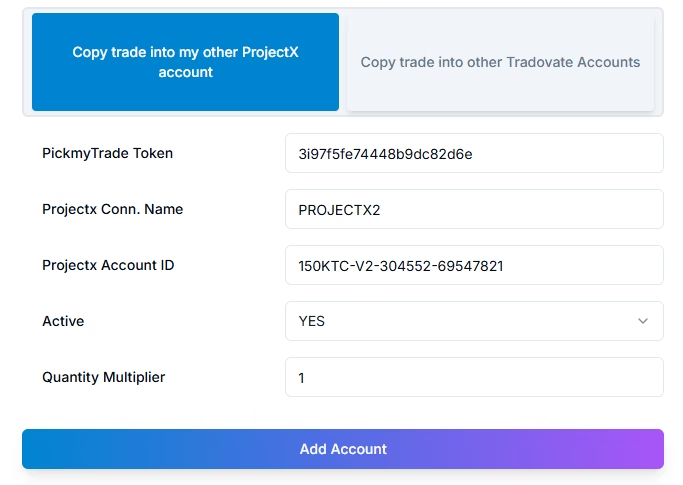
- Click on Add Account
- Enter the following details:
- Token ID: Copy this from your other ProjectX account
- Connection Name: Example
ProjectX2 - Account ID: Select the active ProjectX account
- Active: Set to Yes
- Quantity Multiplier: Set based on how you want quantities copied
Quantity Multiplier Examples:
- Multiplier = 1 → Same quantity as the master account
- Example: Master places 1 contract → Follower places 1 contract
- Multiplier = 2 → Double the master quantity
- Example: Master places 1 contract → Follower places 2 contracts
- Multiplier = 3 → Triple the master quantity
- Example: Master places 2 contracts → Follower places 6 contracts
Use the multiplier according to your risk and account size.
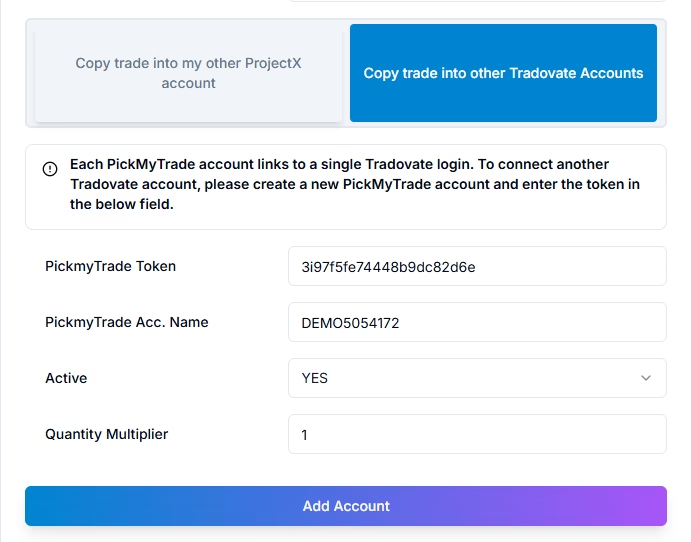
Option B: Add a Tradovate Account #
- Go to pickmytrade.trade
- Connect your Tradovate account there
- Once the Tradovate connection status turns Green, copy the generated Token ID
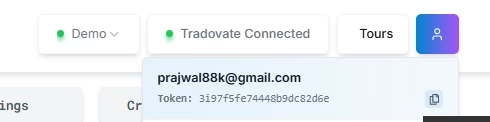
- Return to the Trade Copier and enter:
- Token ID (from pickmytrade.trade)
- Account ID (Tradovate account)
- Active: Set to Yes
- Quantity Multiplier: As per your requirement
- Click on Add Account
Step 3: Start the Trade Copier #

- After adding all master and follower accounts, review the setup
- Click on the Click to Start button
- The Trade Copier status will change to Connected

Once the connected status is displayed, your Trade Copier is fully set up and ready to copy trades across all configured ProjectX and Tradovate accounts.
Placing Orders Using the Trade Copier #
After the Trade Copier is connected, you can place trades manually from PickMyTrade that will be copied across all configured accounts.
Step 1: To Place Orders #
- Click on Place Trade button
- Select the Master Account from the dropdown
Step 2: Configure Order Details #
Fill in the following order parameters:
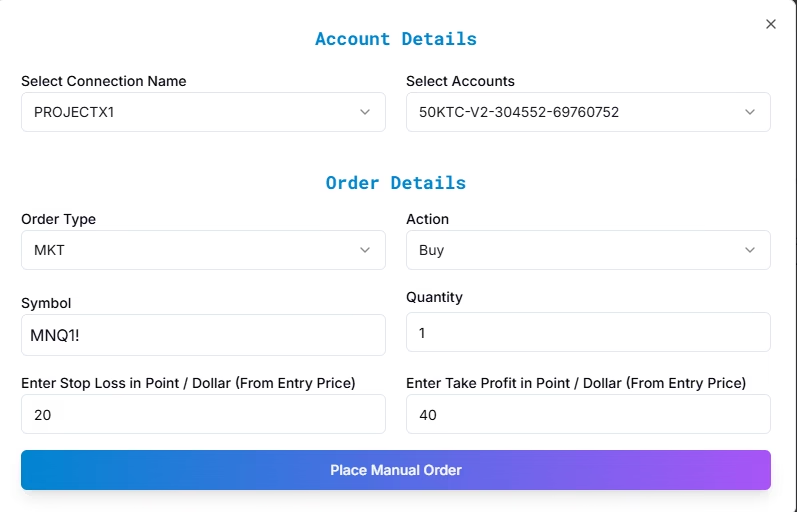
- Order Type: Market (MKT) or Limit (LMT)
- Action: Buy or Sell
- Symbol: Select from the dropdown (e.g.,
MNQ1!)- The selected symbol is automatically mapped to the current active contract across all ProjectX and Tradovate accounts
- Quantity: Enter the number of contracts
- Stop Loss (SL): Enter value in points or dollar
- Take Profit (TP): Enter value in points or dollar
Step 3: Limit Order (If Applicable) #
If using a Limit Order:
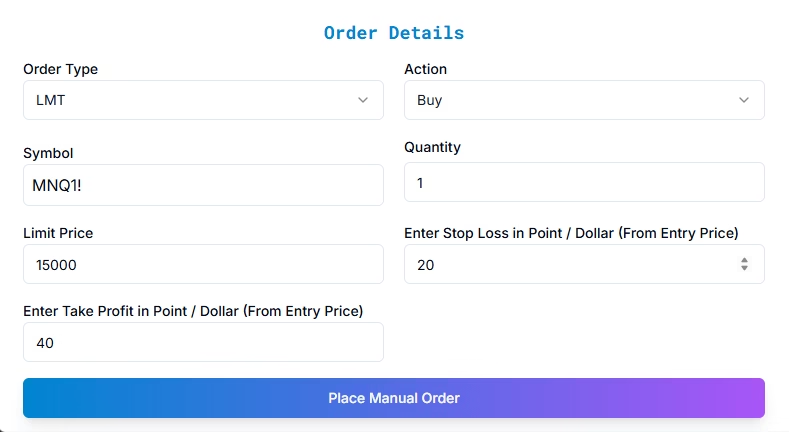
- Enter the Limit Price
- Keep SL, TP, quantity, and symbol settings the same as a market order
Step 4: Place the Order #
- Click on Place Manual Order
- The order is sent to the master account
- The same order is automatically copied to all connected ProjectX and Tradovate follower accounts
Order Copy Behavior #
- Trades are executed simultaneously across all linked accounts
- SL and TP are applied consistently to each copied trade
- Symbol mapping ensures correct contract execution across brokers
Monitoring Trade Copier Status #
- Connected: Trade copier is active and copying trades
- Disconnected: Trades will not be copied until reconnected
Always confirm the connected status before placing trades.
Supported Order Types #
The ProjectX Trade Copier supports:
- Market Orders
- Limit Orders
- Buy / Sell actions
- Stop Loss and Take Profit (Points per Dollar-based)
- Manual order placement from PickMyTrade
Verification and Monitoring #
After placing trades:
- Verify execution in ProjectX and Tradovate order panels
- Monitor positions and trade history regularly
- Ensure copied quantities and risk parameters match expectations
The Trade History tab provides a detailed breakdown of all executed trades.
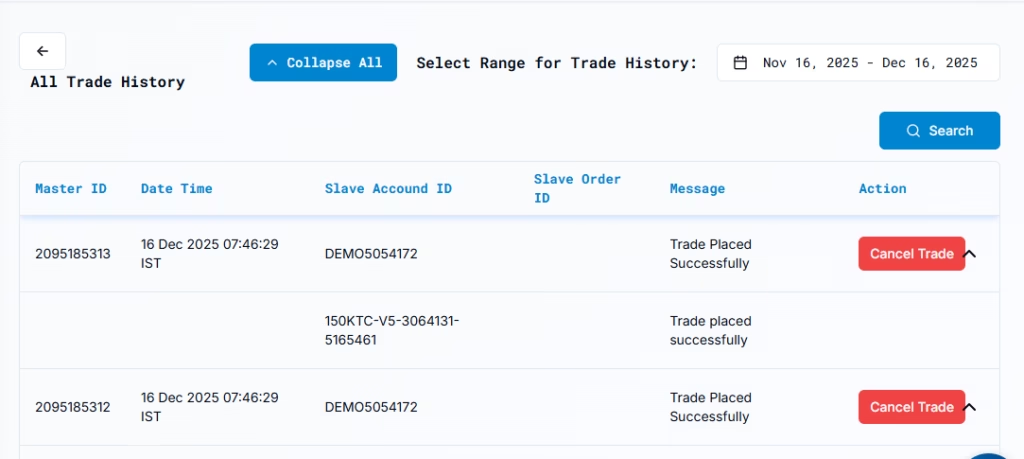
You can click on Cancel Trade button to close ongoing trade.
Conclusion #
The PickMyTrade ProjectX Trade Copier allows seamless trade replication across multiple ProjectX and Tradovate accounts from a single interface. With simple setup, automatic symbol mapping, and consistent risk controls, it is ideal for traders managing multiple funded or personal accounts efficiently.
Once connected and started, your Trade Copier is fully automated and ready to scale your trading workflow.


