
Want to automate your TradingView strategy alerts using Match-Trader?
This guide walks you through connecting your Match-Trader account to PickMyTrade, generating alerts, and configuring Stop Loss / Take Profit automation for CFD and Forex markets.
1. Connect Your Match-Trader Account to PickMyTrade #
Before creating alerts, you must connect your Match-Trader broker account to PickMyTrade.
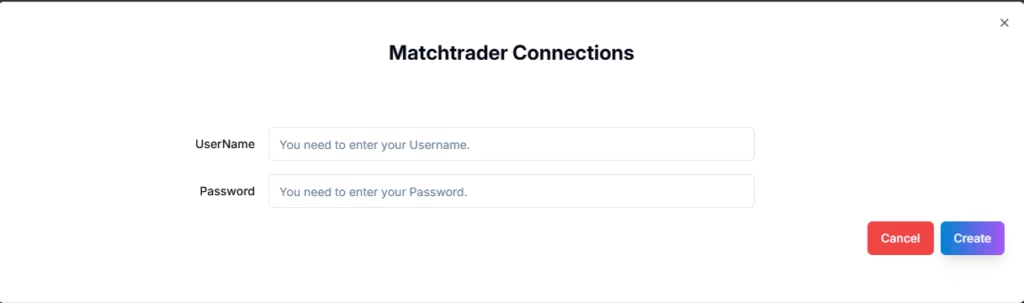
Steps:
- Choose Broker: Match-Trader
- Click Connections in the top-right of PickMyTrade
- Select Add New Connection
- Enter your credentials:
| Field | Description | Example |
|---|---|---|
| Username | Your Match-Trader login | [email protected] |
| Password / API Key | Broker credentials (as required) | ******** |
Click Save and confirm the connection status shows Active.
2. Generate the Alert in PickMyTrade #
Once Match-Trader is connected:
- Go to Generate Alert from the sidebar
- Fill in the required configuration fields
- Click Generate Alert
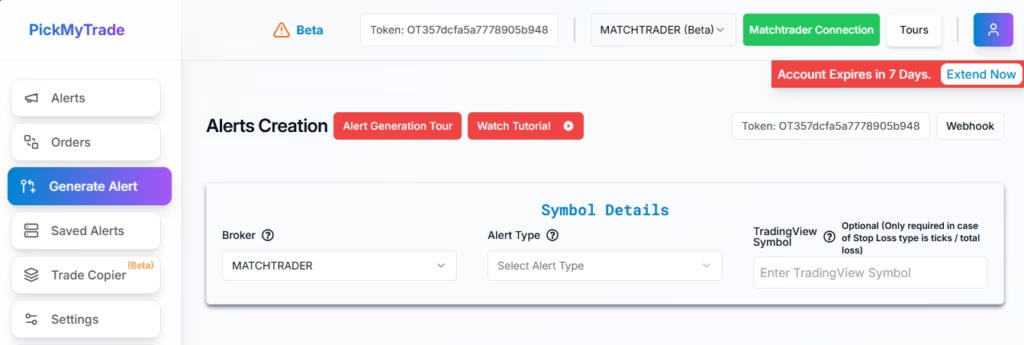
You’ll receive:
- A Webhook URL
- A JSON alert payload
These will be used in TradingView.
3. Select Match-Trader as Your Broker #
- Broker: Match-Trader
- Choose Match-Trader from the broker dropdown
4. Choose Your Alert Type #
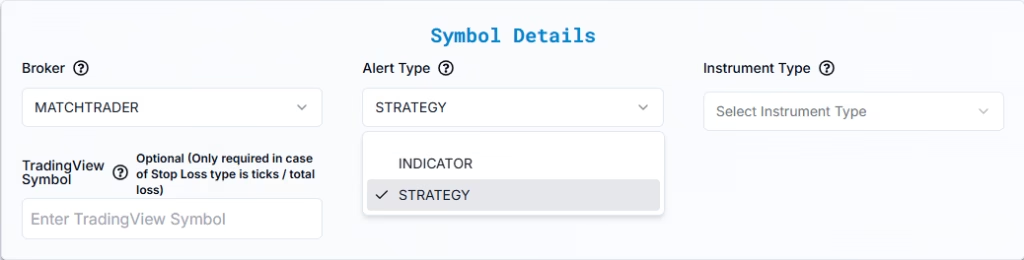
Two alert types are supported:
- INDICATOR — For TradingView indicator-based or manual alerts
- STRATEGY — For Pine Script strategies with automated execution
Example:
- Alert Type: STRATEGY
5. Select Instrument Type #
Before entering the symbol, choose the correct Instrument Type to ensure PickMyTrade applies the right execution and pricing logic.
Available options:
- CFD — Use for indices, metals, energies, and crypto CFDs (e.g., NAS100, US30, XAUUSD, BTCUSD).
- FOREX — Use for spot Forex pairs with standard FX contract specifications (e.g., EURUSD, GBPJPY).
- FOREXCFD — Use when your broker offers Forex pairs as CFDs instead of spot FX (common with prop firms).
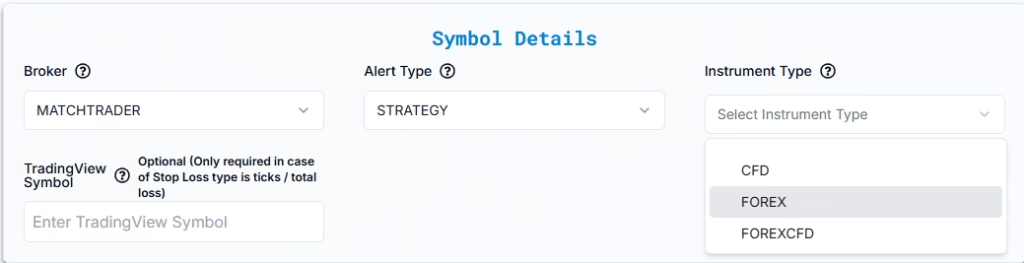
⚠️ Selecting the wrong instrument type may lead to incorrect lot sizing, SL/TP calculation, or order rejection.
6. Enter the TradingView Symbol #
Enter the TradingView symbol, and select symbol from dropdown.
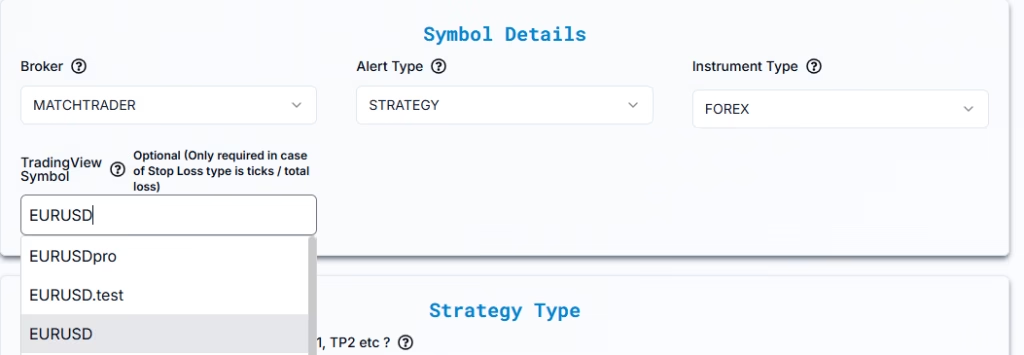
This field is mandatory when using:
- Ticks-based SL/TP
- Risk-percentage sizing
7. Confirm Exit Handling #
Determine how exits will be managed for your strategy:
- Multiple Exits (e.g., TP1, TP2):
- Yes: If your strategy inherently manages multiple exit levels (e.g., TP1, TP2), PickMyTrade will not prompt for additional Stop Loss (SL) or Take Profit (TP) settings.
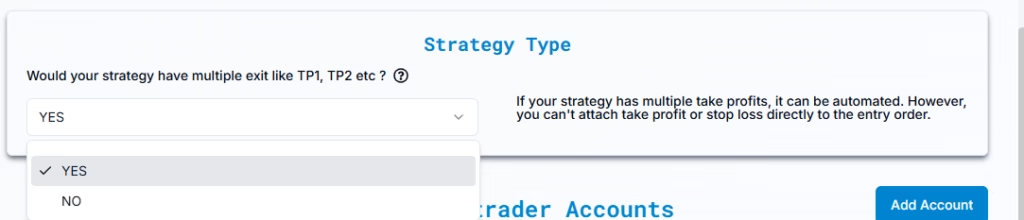
- Automated Exits: Exits can be fully automated within the TradingView strategy.
- Attaching SL/TP to Entry Orders: If you opt to attach Stop Loss and Take Profit to entry orders in PickMyTrade, only one Take Profit (TP) and one Stop Loss (SL) per order are supported. Multiple exit levels (e.g., TP1, TP2) are not accommodated in this configuration.
- No: If your strategy does not handle exits, you must manually configure Stop Loss (SL) and Take Profit (TP) settings in PickMyTrade.
Example: #
Would your strategy have multiple exits like TP1, TP2, etc.?
No
8. Stop Loss & Take Profit Configuration #
If you would like to place Stop Loss and Take Profit orders in PickMyTrade with each order from your strategy, Select Yes.
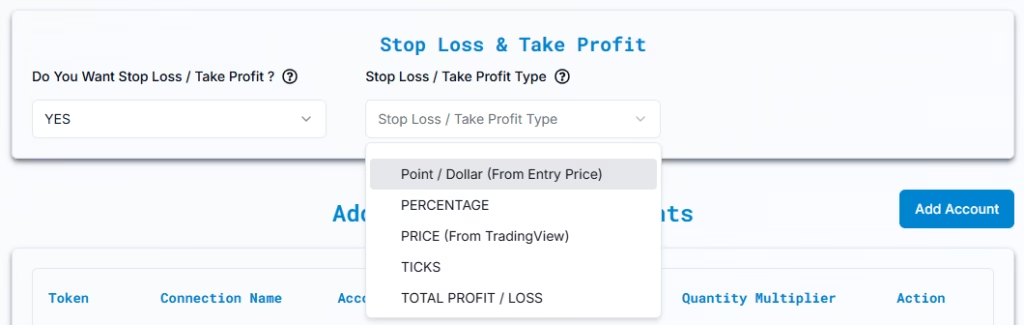
Enable Stop Loss / Take Profit: YES
Match-Trader supports one active SL and TP per symbol. Any new alert in the same direction will overwrite existing SL/TP values.
Available SL/TP Types #
- Dollar (from Entry)
- Percentage
- Price (From TradingView)
- Ticks
- Total Profit / Loss (USD)
When configuring Stop Loss (SL) and Take Profit (TP) in automated trading, you can choose different methods to define exit levels. Each method manages risk and profits in a distinct way, depending on whether you prefer fixed values, percentages, or price-based logic. #
1. Dollar (from Entry) #
Sets SL/TP using a fixed dollar amount from the entry price. This is useful when you want precise control over monetary risk.
Example:
Entry at $21,000
- Stop Loss: $500 → exits at $20,500
- Take Profit: $1,000 → exits at $22,000
2. Percentage #
Calculates SL/TP as a percentage of the entry price, keeping risk proportional to market value.
Example:
Entry at $21,000
- Stop Loss: 2% → exits at $20,580
- Take Profit: 5% → exits at $22,050
3. Price (From TradingView) #
Defines SL/TP at exact price levels, often based on technical analysis like support and resistance.
Reference Document: TradingView Plot Placeholder Integration
Example:
Entry at $21,000
- Stop Loss: $20,800
- Take Profit: $22,200
4. Ticks #
Uses a fixed number of ticks from the entry price. Commonly used in futures markets.
Example (NQ futures):
- 1 tick = 0.25 points = $5
- Stop Loss: 20 ticks → $100 risk
- Take Profit: 40 ticks → $200 reward
5. Total Profit / Loss #
Closes the position once a predefined total profit or loss is reached, regardless of price.
Example:
Target Profit: $1,000
The trade closes as soon as either limit is hit.
Max Loss: $500
11. Match-Trader Account Management in PickMyTrade #
10.1 Add Match-Trader Account (Same PickMyTrade Account) #
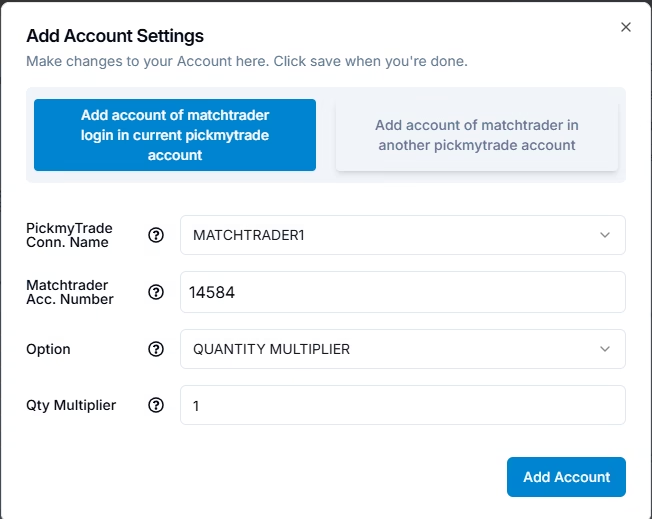
| Field | Example | Description |
| PickMyTrade Conn. Name | MATCHTRADER1 | Select your Match-Trader connection |
| Match-Trader Acc. Name | MT-ACC-001 | Choose broker account |
| Option | QUANTITYMULTIPLIER | Position sizing method |
| Qty Multiplier | 1 | 1 = same size, 2 = double |
Click Save to apply changes.
10.2 Add Match-Trader Account (Different PickMyTrade Account) #
Used when routing trades across multiple PickMyTrade accounts.
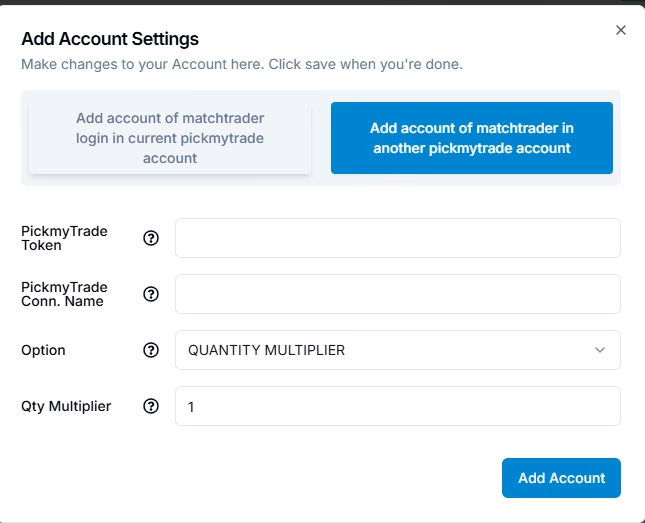
| Field | Example | Description |
| PickMyTrade Token | target_account_token | Token from destination account |
| PickMyTrade Conn. Name | MATCHTRADER1 | Must exist in target account |
| Match-Trader Acc. Name | MT-ACC-002 | Exact broker account name |
| Option | QUANTITYMULTIPLIER | Same sizing logic |
| Qty Multiplier | 1 | Trade size multiplier |
Execution will fail if the token or account mapping is incorrect.
12. Final Step – Generate & Use Your Alert #
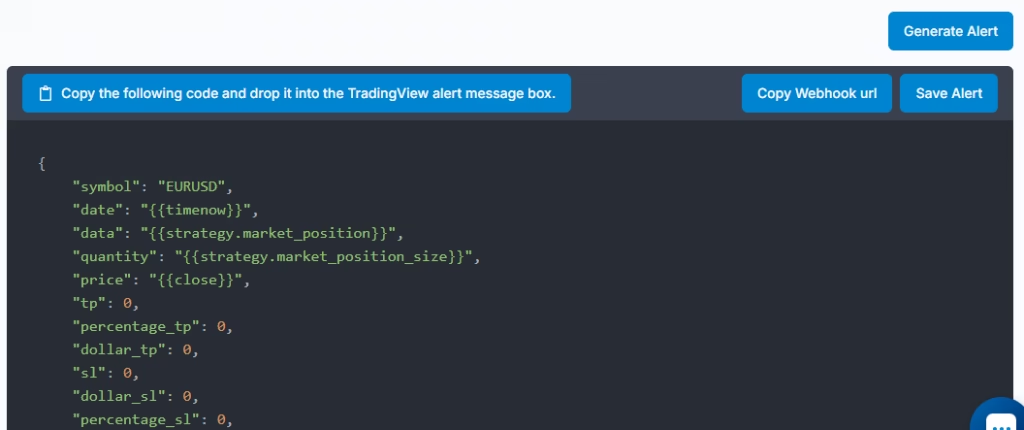
- Click Generate Alert in PickMyTrade
- Copy the Webhook URL and JSON payload
- Paste them into TradingView’s alert dialog
Next, follow the TradingView setup guide to complete automation with Match-Trader.


