
1. Introduction #
Automate your TradingView strategies with Interactive Brokers using PickMyTrade — no coding required. This guide walks you through the full setup for stocks, futures, and options.
Watch the tutorial: PickMyTrade Setup Video
Platform: PickMyTrade.io
Before You Begin #
Requirements #
- Interactive Brokers account (Live or Paper)
- Trader Workstation (TWS) installed and logged in
- TradingView Pro, Pro+, or Premium subscription
- PickMyTrade account created
Important #
Trader Workstation (TWS) must remain open and logged in during all trading hours.
PickMyTrade connects to Interactive Brokers through TWS, not directly to IB servers.
For uninterrupted 24/7 connectivity, especially when automating trades, consider running TWS on a VPS such as QuantVPS.
How the Connection Works (Visual Overview) #
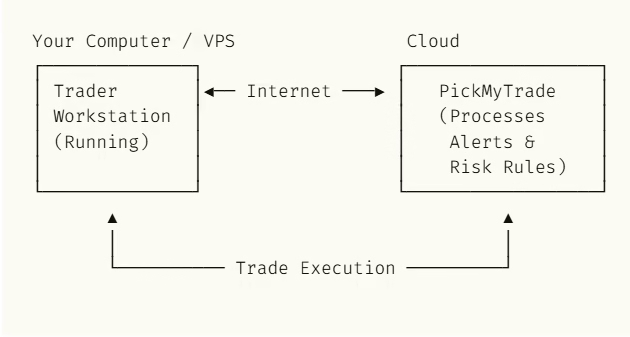
Flow Summary
- TradingView sends an alert
- PickMyTrade receives and validates the alert
- PickMyTrade sends the order to TWS
- TWS executes the trade on Interactive Brokers
2. Interactive Brokers Trading Setup with PickMyTrade #
2.1. Configure Interactive Brokers Account #
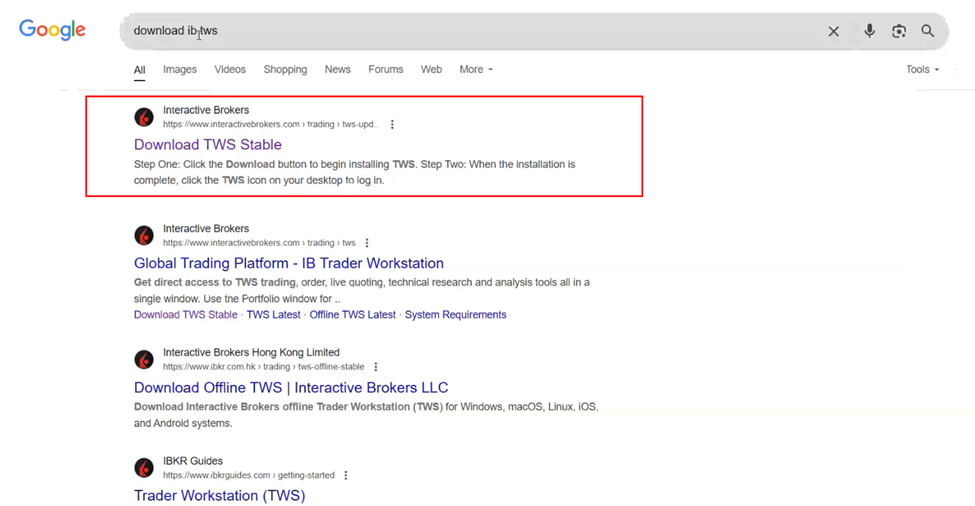
Begin by downloading and installing TWS. #
- Visit the Interactive Brokers Website: Go to Interactive Brokers.
- Navigate to the TWS Download Page: Click on the “Trading” section and select “TWS Update” or directly visit the TWS Download Page.
- Download TWS: Click the “Download” button to get the latest stable version of TWS.
- Install TWS: Follow the on-screen instructions to install TWS on your computer.
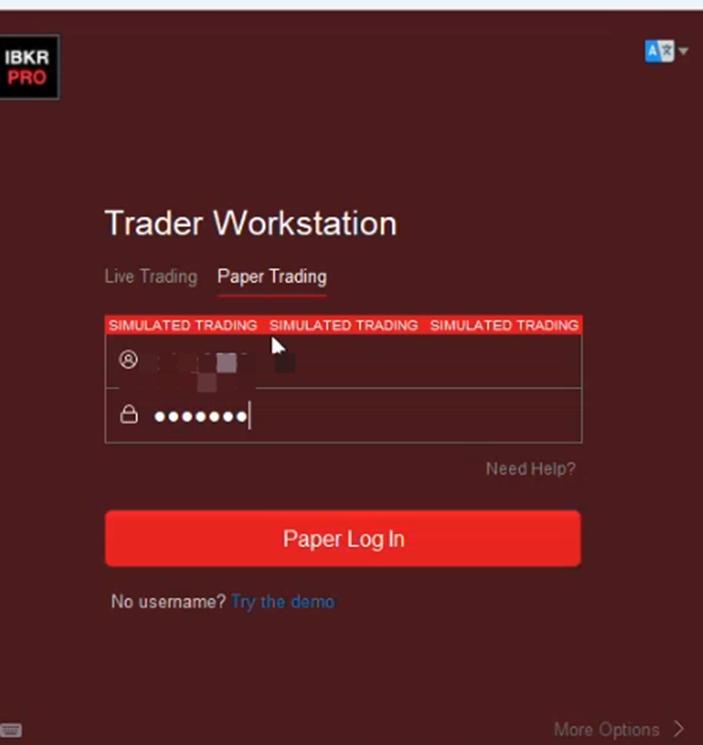
Next, log in to TWS with your IBKR credentials. #
- Open TWS: Launch the Trader Workstation application after installation.
- Enter Your Credentials: Input your IBKR username and password to log in.
- Ensure TWS is Running: Make sure TWS is open and logged in before proceeding to the next steps.
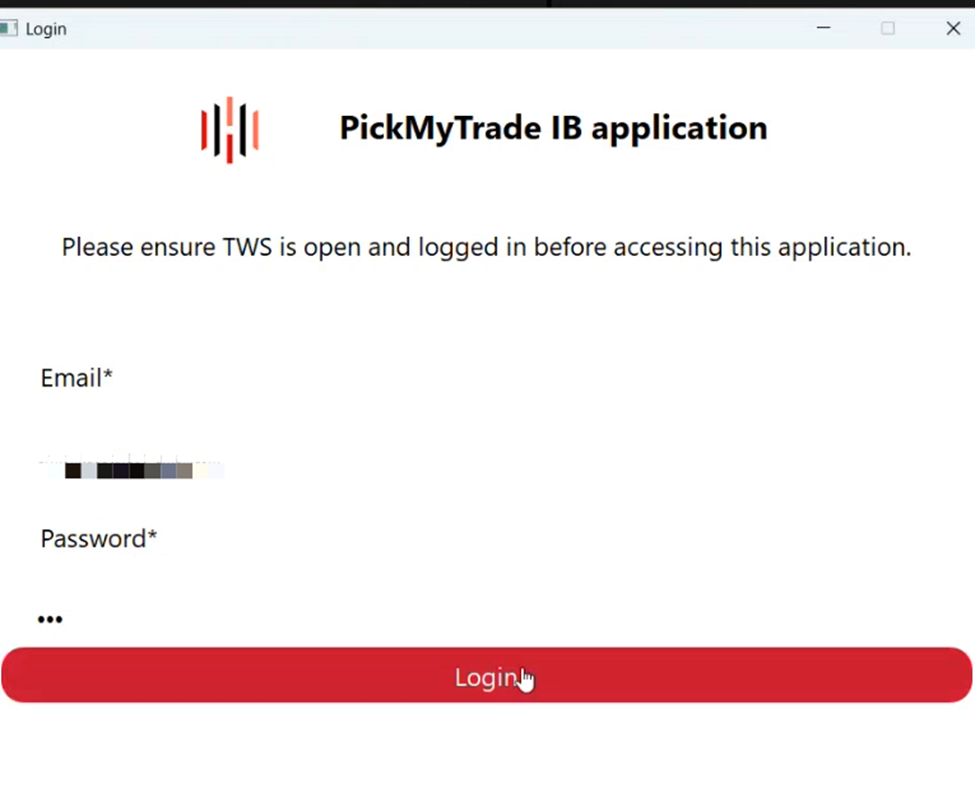
Then, connect PickMyTrade to your Interactive Brokers account. #
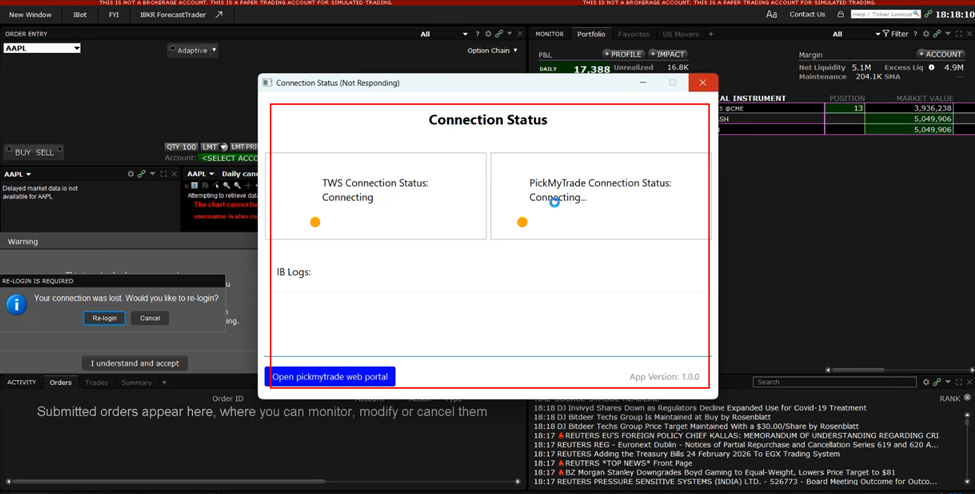
- Open PickMyTrade Application: Launch the PickMyTrade application on your device.
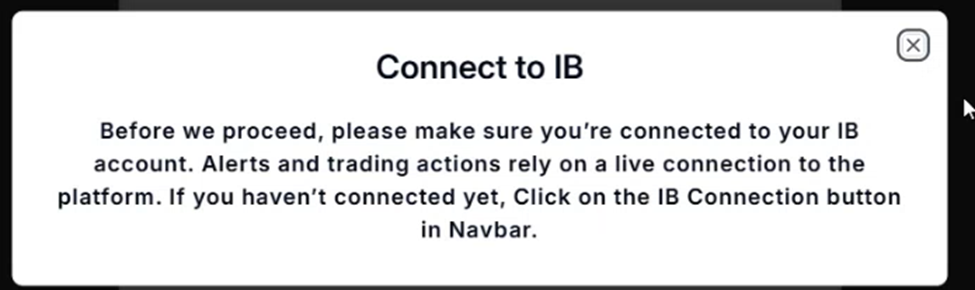
- Check IB Connection: Before proceeding, ensure you are connected to your IB account. Alerts and trading actions rely on a live connection to the platform.
- Connect to IB: If you haven’t connected yet, click on the “IB Connection” button in the Navbar of the PickMyTrade application to establish the connection.
2.2. Set Up TradingView Alerts #
Step 4: Generate Alert in PickMyTrade #
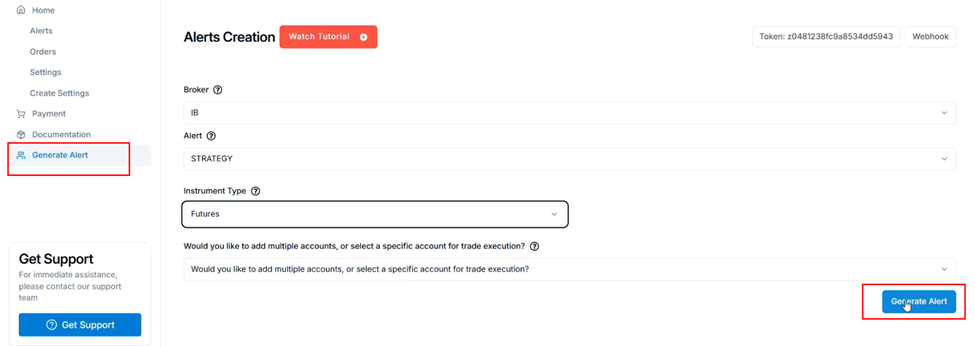
- Navigate to PickMyTrade and go to the “Generate Alert” section.
- Fill in the required details under Alerts Creation:
- Broker: Select IB (Interactive Brokers).
- Alert: Choose STRATEGY.
- Instrument Type: Select Future Options.
- Option Type: Choose CALL.
- Order Strike Away: Set your preferred value (e.g., 2).
- Option Expiry Date: Select Next Day.
- Would you like to add multiple accounts, or select a specific account for trade execution?: Select YES if applicable.
Step 5: Select Trading Account
- Click on the “Generate Alert” button.
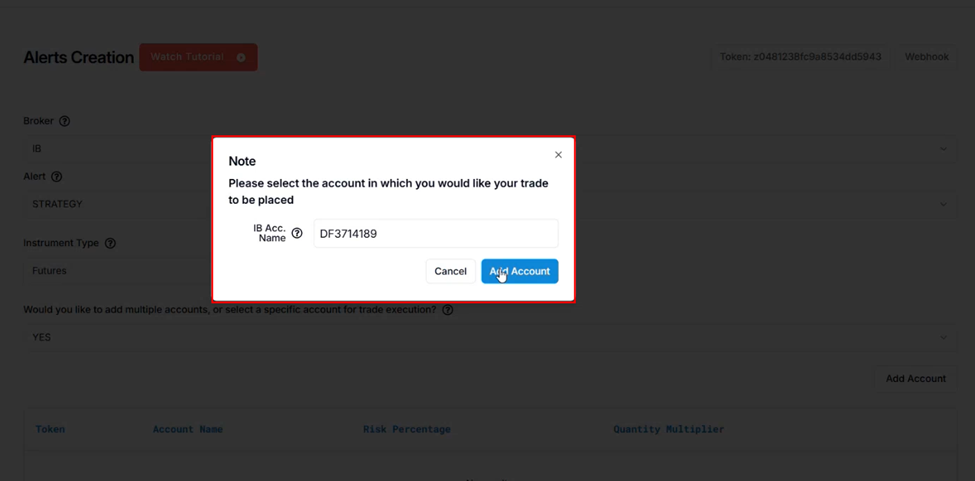
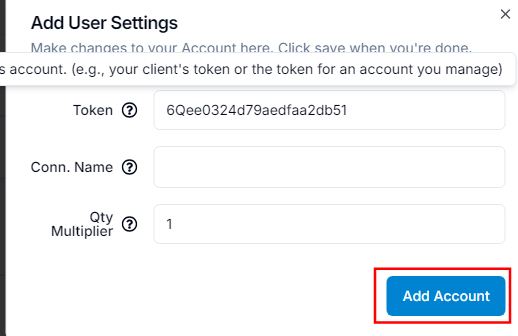
- A popup window will appear, prompting you to select the account in which you want your trade to be placed.
- Enter your IB Connection Name in the provided field.
- Click “Add Account” to confirm the selection.
2.3. Verify PickMyTrade Account Details #
Once connected, verify the details displayed, including:
- Token
- Connection Name
- Account Name
- Risk Percentage
- Quantity Multiplier

2.4. Monitor Trades in TWS #
Step 6: Monitor Trades in TWS #
- Use Trader Workstation (TWS) from IB to track your active trades.
- Check order execution status and manage open positions.
Step 7: Access Advanced Trading Tools #
- Utilize IB’s advanced trading features for improved risk management and trade execution.
2.5. Manage Multiple IBKR Accounts #
- Account Selection Prompt: If prompted, choose whether you want to:
- Add multiple accounts for trade execution.
- Select a specific account for trade execution.
- Review Report Details: Before finalizing, review the report to ensure:
- The selected account(s) are correct.
- The order configuration matches your intended strategy.
- All trading parameters are accurate.

3. Automate Trading Strategies with TradingView #
Once you’ve successfully configured your Interactive Brokers account with PickMyTrade, you can proceed to set up alerts for your trading strategies or indicators.
For detailed guidance on automating TradingView strategies, refer to the following resources:
Automating TradingView Strategies for Futures & Stocks in Interactive Brokers (IB)
Automating TradingView Strategies for Options & Futures Options in Interactive Brokers (IB)
Quick Fixes (Troubleshooting Reference) #
| Problem | Solution |
|---|---|
| Connection failed | Ensure TWS is running with API enabled |
| Account not found | Verify account ID in Risk Settings |
| Orders not executing | Confirm market hours and instrument availability |
| Access denied | Re-authenticate Interactive Brokers in PickMyTrade |
Best Practices #
- Use a VPS to avoid missed trades due to sleep or restarts
- Always test with a paper trading account first
- Keep TWS updated to the latest stable version
- Monitor logs during the first live sessions
Summary #
To trade successfully with Interactive Brokers:
- TWS must be running at all times
- PickMyTrade handles logic and risk
- TradingView provides trade signals
- A VPS ensures reliability and uptime


