
This guide shows how to connect QuantVPS with PickMyTrade for automated trading on Interactive Brokers.
When you sign up through the PICKMYTRADE referral, QuantVPS delivers a ready-to-use VPS. As a result, the server already includes Interactive Brokers TWS and the PickMyTrade IB application. You can therefore start automation without manual installation.
Watch the tutorial: How to Use QuantVPS with PickMyTrade for Interactive Brokers (IBKR)
Platform: PickMyTrade.io
Step 1: Choose a QuantVPS Plan Using the PickMyTrade Referral #
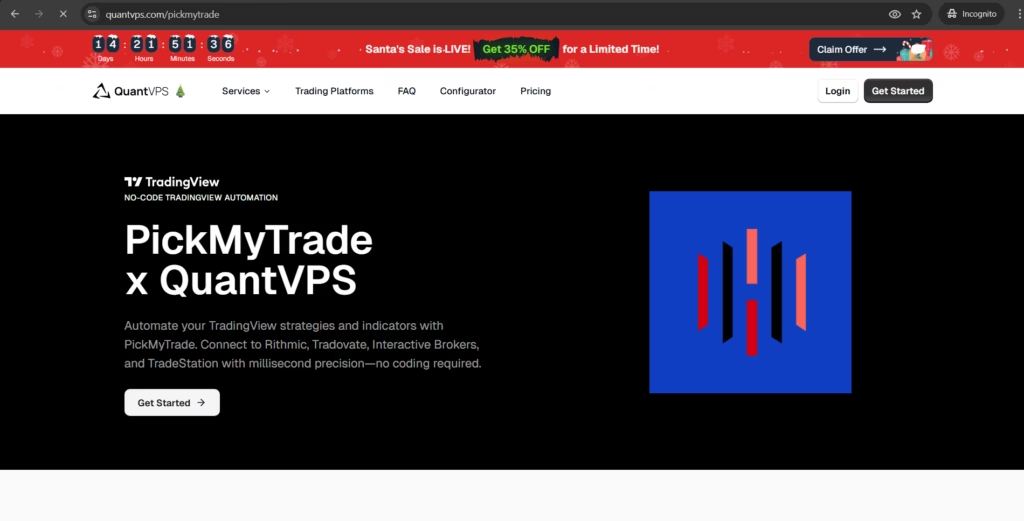
First, open the official PickMyTrade referral link:
https://www.quantvps.com/pickmytrade
When you sign up using this link, you receive an exclusive 15% discount on your QuantVPS plan.
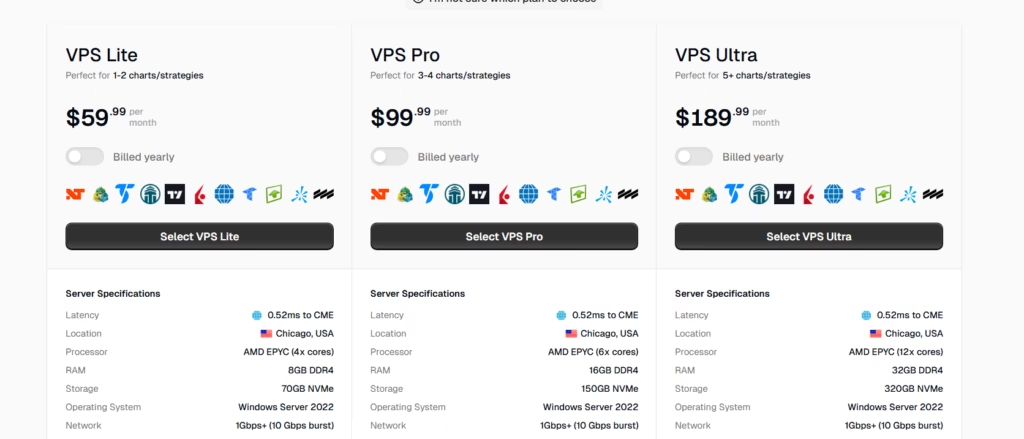
Next, select a VPS plan based on your trading activity:
- VPS Lite
- VPS Pro
- VPS Ultra
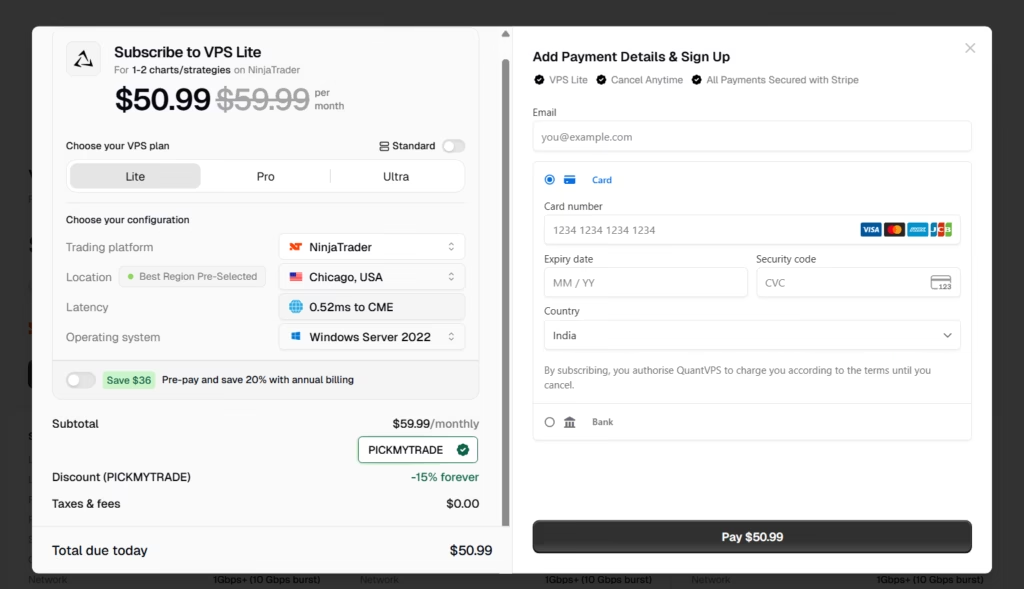
After selecting a plan, confirm these settings:
- Operating system: Windows Server 2022
- Location: Best region (as per your choice)
Step 2: Apply the PickMyTrade Referral Code #
During checkout, enter the referral code PICKMYTRADE.
Once the code is applied, the discount appears immediately. After that, complete the payment to start VPS deployment. As soon as the payment finishes, QuantVPS begins setting up your server.
Step 3: Get VPS Login Details from the QuantVPS Dashboard #
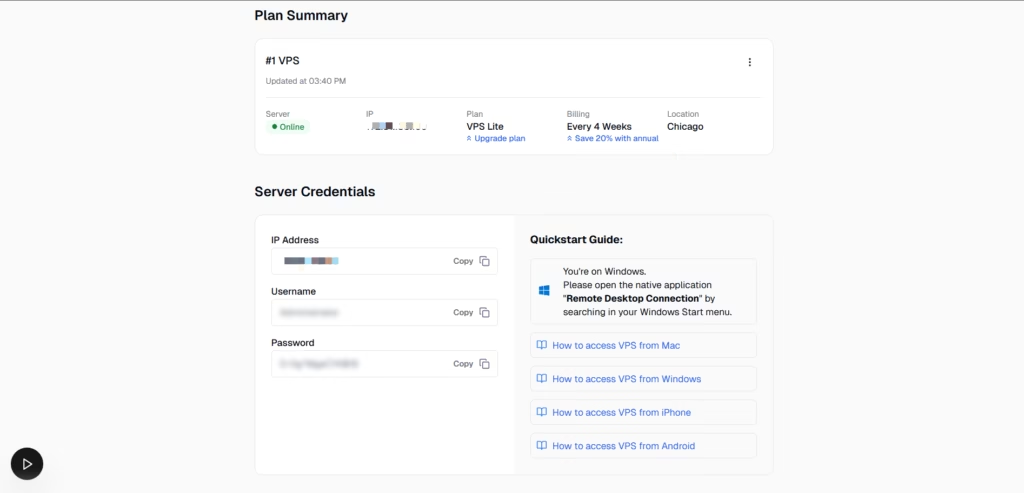
After QuantVPS activates the VPS, log in to your dashboard.
Here you can find:
- VPS IP address
- Username
- Password
- Server status
You will need these details in the next step, so keep them ready.
Step 4: Connect to the VPS Using Remote Desktop #
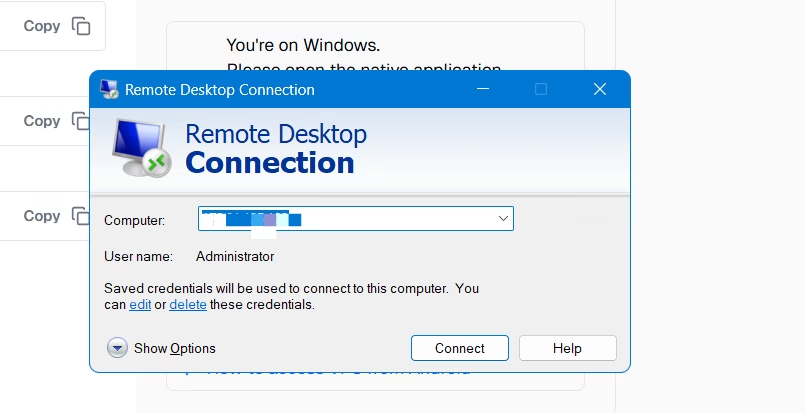
Now, open Remote Desktop Connection on your computer.
Then, enter the VPS IP address and login credentials. After connecting, you will see the Windows desktop of your VPS.
If you use macOS or a mobile device, you can connect using Microsoft Remote Desktop apps. This allows access from anywhere.
Step 5: Review the Preinstalled Software #
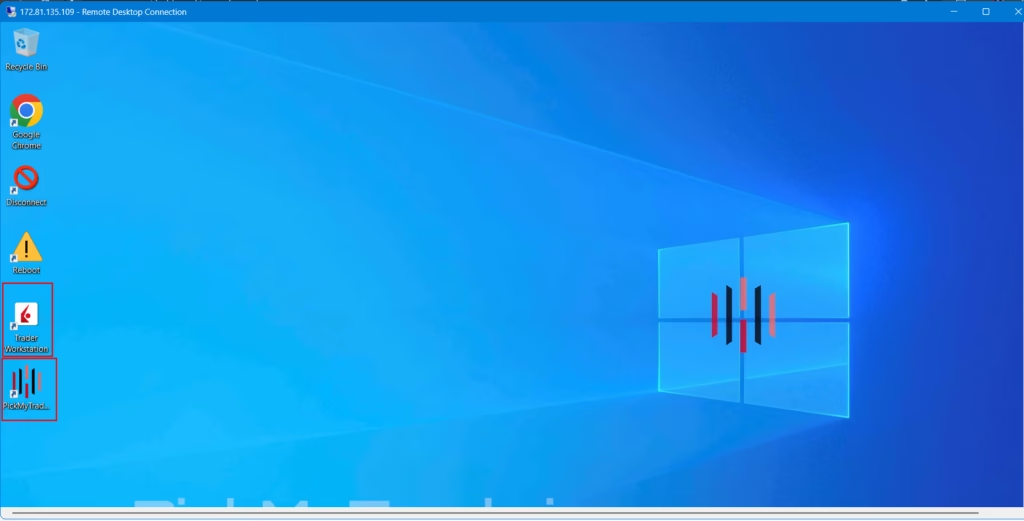
Once you log in, check the desktop.
You will already see:
- Interactive Brokers Trader Workstation (TWS)
- PickMyTrade IB application
Because QuantVPS prepared the VPS in advance, you do not need to install anything manually.
Step 6: Log In to Interactive Brokers (TWS) #
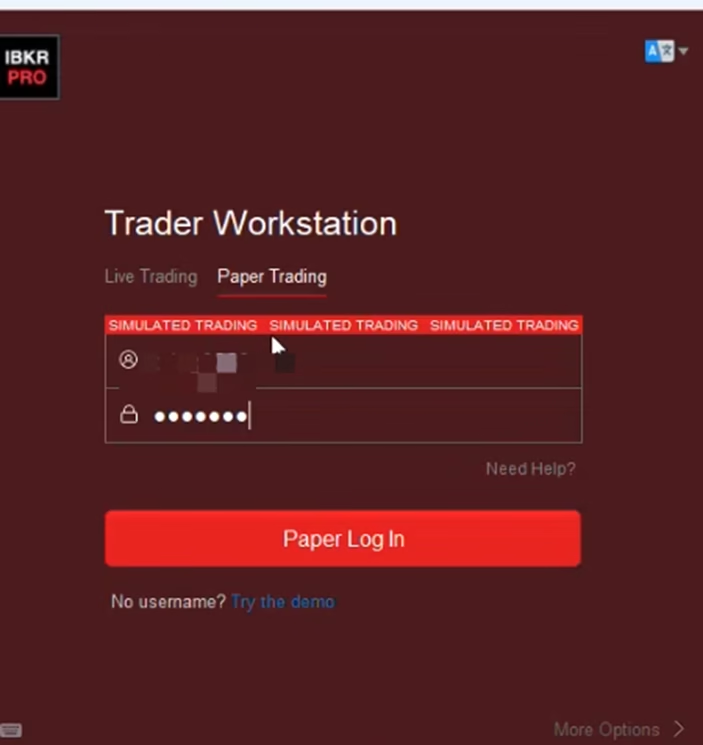
First, launch Trader Workstation (TWS) on your VPS.
Next, enter your Interactive Brokers (IBKR) username and password to log in.
Sometimes, IB may ask for additional security verification. Complete the verification if prompted.
After logging in, make sure TWS remains open and connected. PickMyTrade relies on a live TWS connection to place trades, so do not close the application while automation is active.
Step 7: Connect PickMyTrade to Interactive Brokers #
Once TWS is running, open the PickMyTrade IB application on the VPS.
Then follow these steps:
- Log in to your PickMyTrade account
- Check your IB connection status inside the application
- If not connected, click the “IB Connection” button in the navigation bar
- Wait for the connection confirmation
Before moving forward, always confirm that PickMyTrade shows an active connection to Interactive Brokers. Alerts and trading actions depend on this connection.

Next Steps: Automate TradingView Strategies #
Once PickMyTrade is connected to Interactive Brokers and Trader Workstation (TWS) is running, you can proceed with automating your TradingView strategies.
At this point, the VPS setup and broker connection are complete. Therefore, you only need to configure alert generation based on your trading strategy and instrument type.
For detailed, step-by-step instructions on creating alerts and automating trades, please refer to the official PickMyTrade documentation below:
- Automating TradingView Strategies for Futures & Stocks in Interactive Brokers (IB)
- Automating TradingView Strategies for Options & Futures Options in Interactive Brokers (IB)
Support Responsibilities #
To avoid confusion, support responsibilities are clearly divided.
- QuantVPS manages VPS uptime, server access, and infrastructure
- PickMyTrade manages automation setup, broker connection, and trade execution
Because of this separation, users receive faster and clearer support.


