
Want to connect your Binance account with PickMyTrade to automate crypto trades using TradingView alerts? This guide shows you how to set it up step by step.
Step 1: Log In to Your Binance Account #
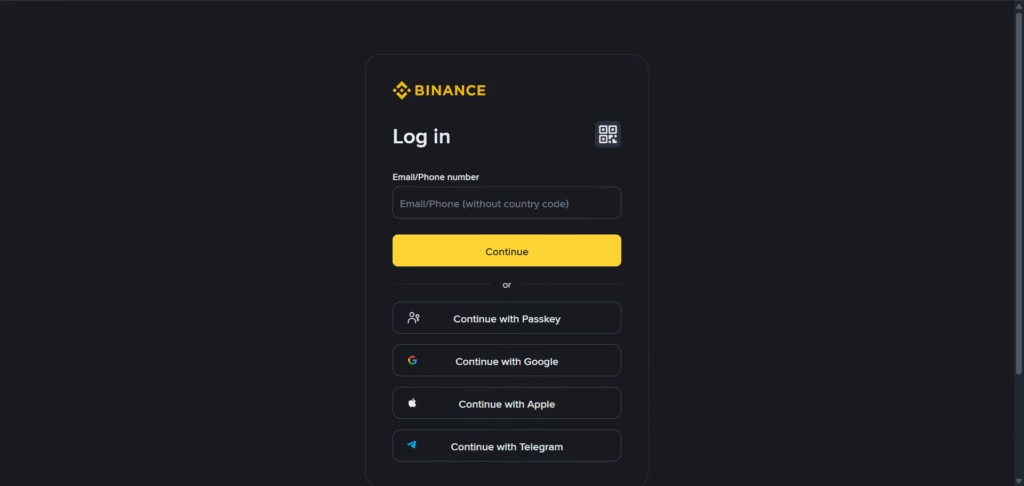
Go to the Binance login page:
https://www.binance.com/login
Use your registered Binance email/phone and password to log in.
Step 2: Open API Management #
After logging in:
- Click on your profile icon (top-right corner)
- Select API Management

Step 3: Create a New API Key #
Inside API Management:
- Click Create API
- Enter a name (example:
qwert) - Click Next

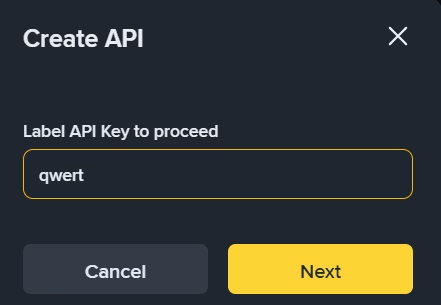
You may be prompted for security verification (Email + Google Authenticator).
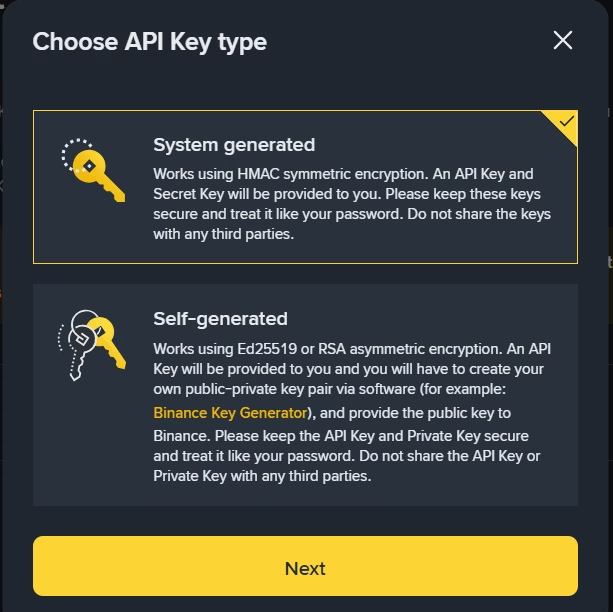
Step 4: Choose System Generated Key #
Choose System Generated (recommended).
Click Next to continue.
Step 5: Complete Security Verification #
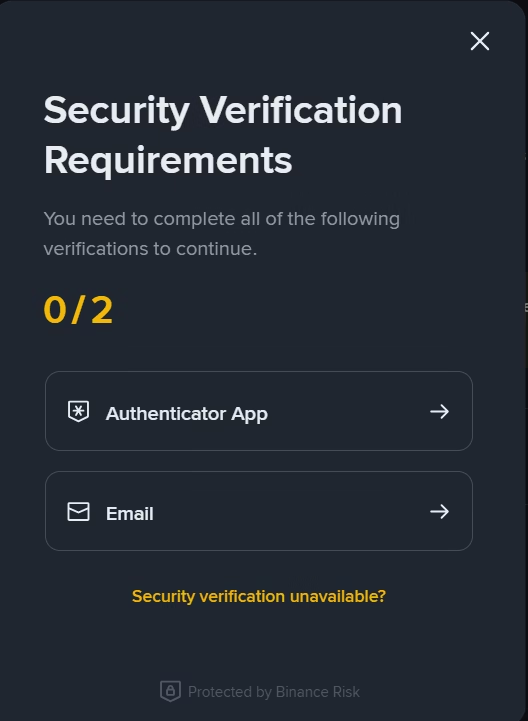
Binance will ask you to complete:
- Email verification
- Authenticator App verification
Enter the codes to proceed.
Step 6: Your Binance API Key Is Created #
You will now see:
- API Key
- Secret Key
Save these securely — you’ll need them for PickMyTrade.

Step 7: Restrict to Trusted IPs #
Recommended setting:
✔️ Restrict access to trusted IPs only
Enter the PickMyTrade IP addresses (provided in your dashboard).
Then click Save.

| Entry point | Port | Country | Assigned IP |
|---|---|---|---|
| ddc.oxylabs.io | 8001 | Singapore | 84.37.44.104 |
| ddc.oxylabs.io | 8002 | Singapore | 84.37.44.19 |
| ddc.oxylabs.io | 8003 | Singapore | 84.37.45.117 |
Step 8: Enable Futures Trading #
In API Restrictions:
✔️ Enable Reading
✔️ Enable Futures
Do NOT enable withdrawals.

Step 9: Confirm Restrictions Saved #
Once configured, click Save again at the top.

Step 10: Open PickMyTrade Dashboard #
Go to:
https://pickmytrade.io
Log in to your account

Step 11: Open Binance Connections #
Click on Binance Connection (top-right)
A popup opens.

Step 12: Add New Binance Connection #
Click Add New Connection

Step 13: Enter Your API Details #
Paste the values:
- API Key
- Secret Key
Click Create

Step 14: Binance Successfully Connected #
You will see:
🟢 Connected
This means your API is working fine.

Step 15: Select Binance as Broker #
Under Generate Alerts → Broker
Choose BINANCE

Step 16: Setup Alert Parameters #
You will now enter:
- Alert Type
- Symbol
- Optional stop-loss value

Step 17: Binance Automation Ready #
Your PickMyTrade + Binance setup is complete.
You can now trigger automated trades using TradingView alerts.
Important Notes #
- API key must have Enable Reading & Enable Futures
- IP restrictions must stay on trusted IPs
- Never enable withdrawals (not required)
- If you regenerate the key in Binance, update it in PickMyTrade


