
Automating TradingView Indicator Alerts in Binance Using PickMyTrade allows traders to execute crypto trades automatically with precise risk control. This guide explains how to connect Binance to PickMyTrade, configure TradingView alerts, and manage Stop Loss and Take Profit execution efficiently.
1. Connect Your Binance Account to PickMyTrade #
Before creating alerts, you must connect your Binance account to PickMyTrade.
Steps #
- Log in to PickMyTrade.
- Go to Connections (top-right).
- Click Add New Connection.
- Select Binance as the broker.
- Enter your Binance API credentials:
- API Key
- Secret Key
- Ensure the following permissions are enabled on Binance:
- Enable Trading
- Enable Futures (if trading futures)
- Disable withdrawals (recommended)
- Click Save and confirm the connection status shows Active.
For a detailed walkthrough, refer to the official guide:
https://docs.pickmytrade.io/docs/connect-binance-with-pickmytrade/ve.
2. Generate the Alert in PickMyTrade #
Once Binance is connected:
- Go to Generate Alert from the left sidebar.
- Fill in the required alert configuration fields.
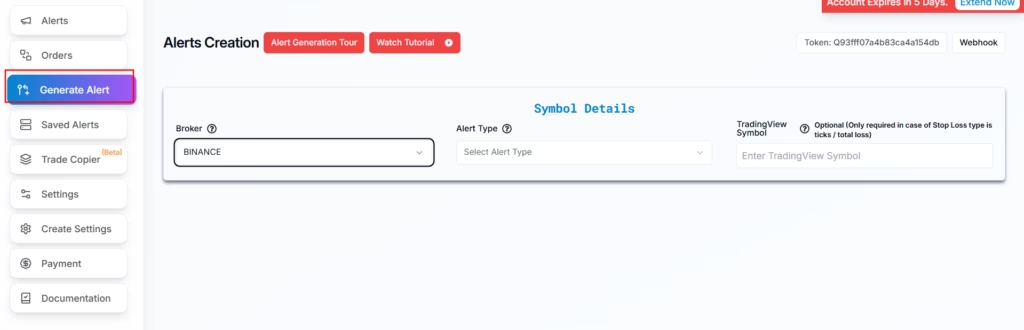
3. Select Binance as Your Broker #
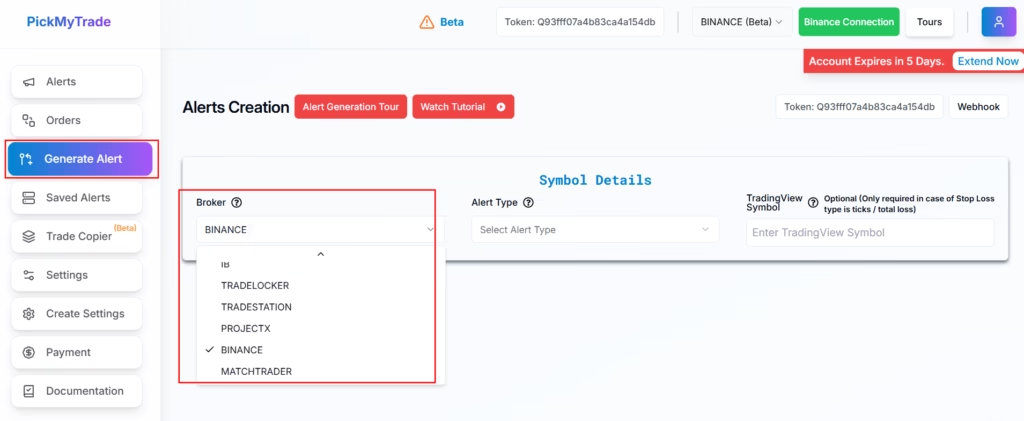
In Symbol Details:
- Broker: BINANCE
4. Choose Your Alert Type #
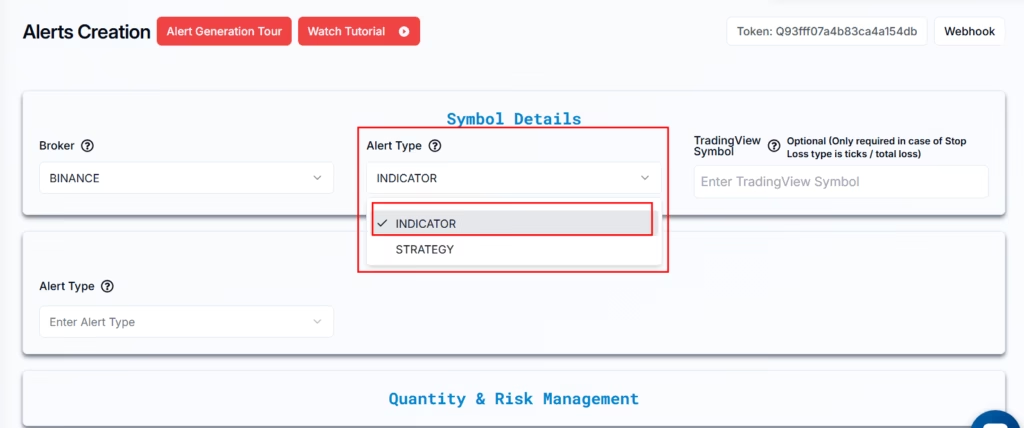
Two alert types are available:
- INDICATOR
Use when triggering alerts from TradingView indicators. - STRATEGY
Use only when automating a Pine Script strategy.
Example:
Alert Type: INDICATOR
5. Enter the TradingView Symbol #
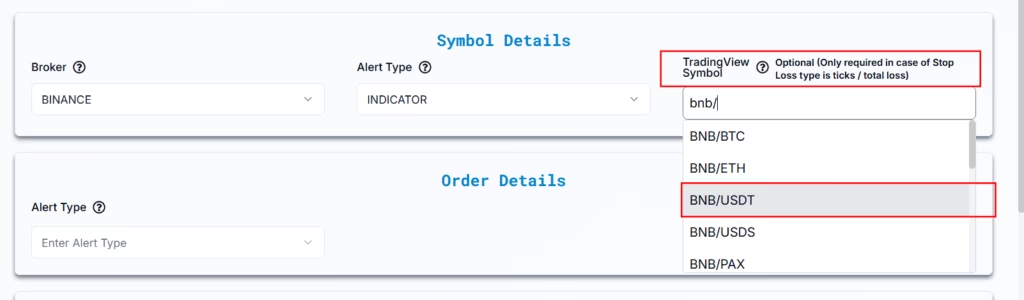
- Example:
BNB/USDT
This field is optional, but required if you use:
- Stop Loss / Take Profit type = TICKS
- Stop Loss / Take Profit type = TOTAL PROFIT / LOSS
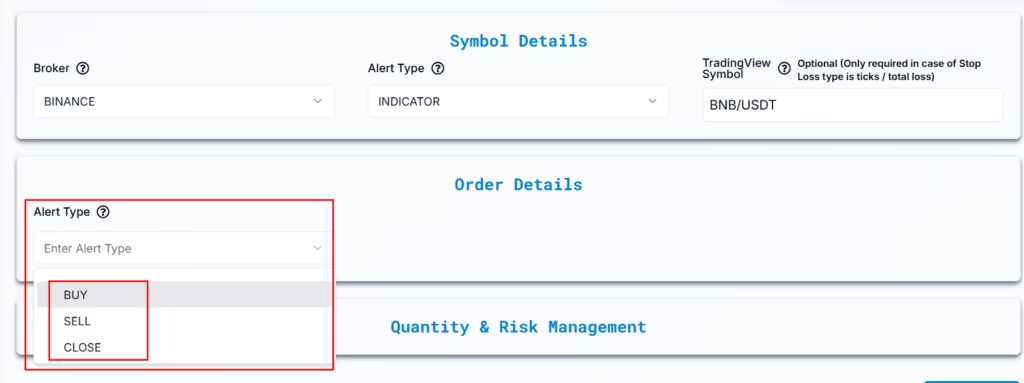
6. Configure Order Details (Trade Action) #
BUY Alert #
- If no position exists, a new buy position is opened.
- If a sell position exists, it is closed first, then a buy is opened.
- Any open sell orders are canceled.
SELL Alert #
- If no position exists, a new sell position is opened.
- If a buy position exists, it is closed first, then a sell is opened.
- Any open buy orders are canceled.
CLOSE Alert #
- Closes all open positions.
- Cancels all open orders.
- Does not open a new position.
Example:
Alert Type: BUY
7. Quantity & Risk Management #
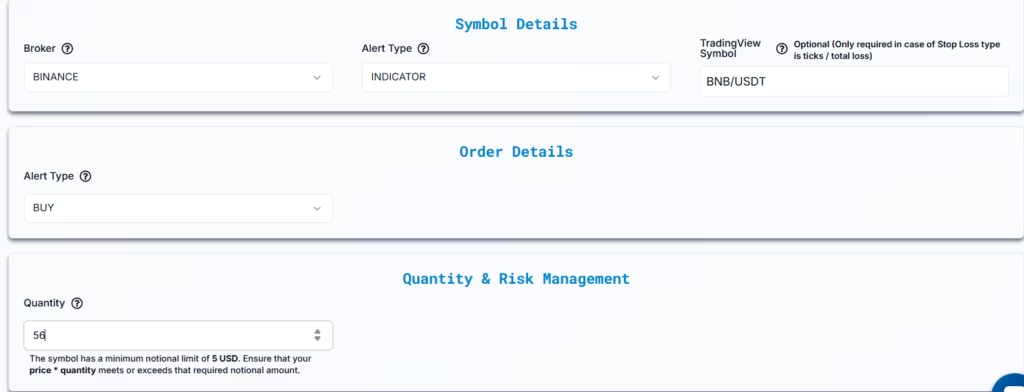
Quantity #
Defines the number of contracts (or units) per trade.
Example:
- Quantity: 56
Important:
- Binance enforces a minimum notional value of 5 USD.
- Ensure
Price × Quantity ≥ 5 USD. - Orders below this value will fail.
8. Stop Loss & Take Profit Configuration #
Enable SL / TP #
- Select YES to enable Stop Loss / Take Profit.
- Select NO to place market orders without exits.
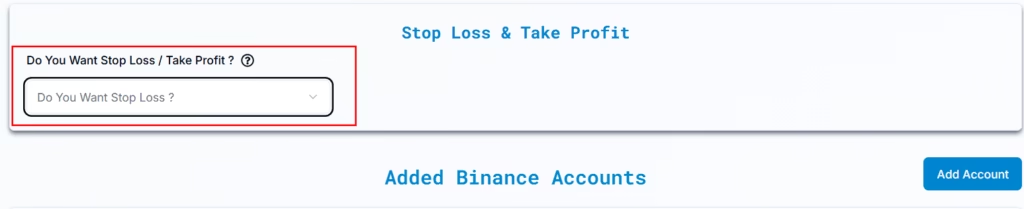
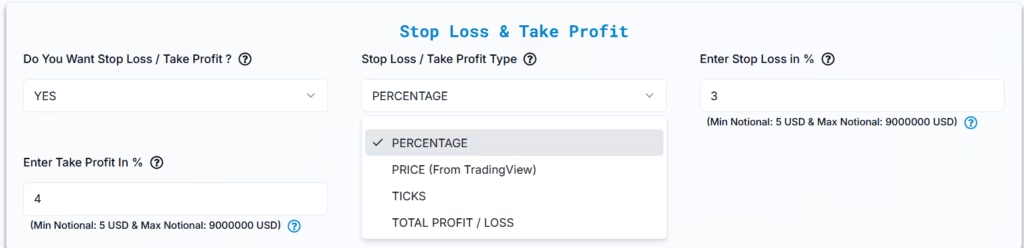
Binance supports four Stop Loss / Take Profit types.
8.1 Percentage #
The Percentage Stop Loss / Take Profit type calculates exit levels based on a percentage move from the entry price. This method is commonly used in crypto trading to define risk and reward relative to market movement rather than fixed prices or ticks.
8.1.1 Entry Order Details #
- Alert Type: BUY
This means a long position will be opened on Binance. - Entry Order Type: MARKET
The order is executed immediately at the current market price.
8.1.2 Quantity Settings #
- Quantity Type: QUANTITY
You are manually defining how many units to trade. - Quantity Value: 56
This means the system will buy 56 units of BNB for this trade.
Important:
- Binance requires a minimum notional value of 5 USD.
- Ensure
Entry Price × Quantity ≥ 5 USD.
8.1.3 Risk Settings #
- Stop Loss / Take Profit Type: PERCENTAGE
This tells PickMyTrade to calculate Stop Loss and Take Profit as a percentage of the entry price.
8.1.4 Stop Loss & Take Profit Calculation (Percentage-Based) #
Example Configuration #
- Symbol: BNB/USDT
- Entry Price: 300 USDT
- Quantity: 56
- Stop Loss Percentage: 3%
- Take Profit Percentage: 4%
Stop Loss Calculation #
Formula:
Stop Loss Amount = Entry Price × Stop Loss %
300 × 3% = 9 USDT
Stop Loss Price:
300 − 9 = 291 USDT
Take Profit Calculation #
Formula:
Take Profit Amount = Entry Price × Take Profit %
300 × 4% = 12 USDT
Take Profit Price:
300 + 12 = 312 USDT
8.1.5 Total Dollar Risk & Reward #
Total Stop Loss (USD) #
Formula:
(Entry Price − Stop Loss Price) × Quantity
(300 − 291) × 56 = 504 USD
Total Take Profit (USD) #
Formula:
(Take Profit Price − Entry Price) × Quantity
(312 − 300) × 56 = 672 USD
8.2 Price (From TradingView) #
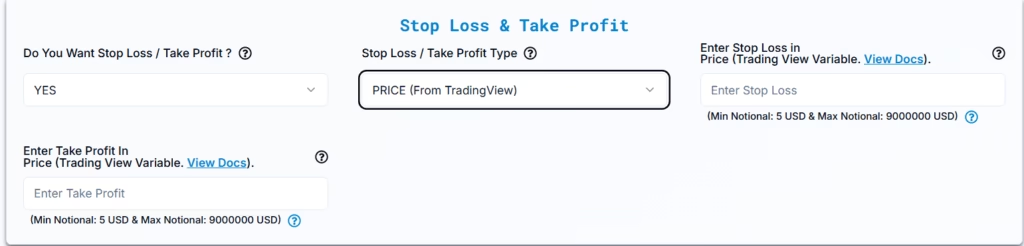
The Price (From TradingView) Stop Loss / Take Profit type allows you to send exact price levels from your TradingView indicator directly to Binance using TradingView plot variables. This is useful when your indicator dynamically calculates Stop Loss and Take Profit levels on the chart.
8.2.1 Entry Order Details #
- Alert Type: BUY or SELL
Determines whether a long or short position is opened. - Entry Order Type: MARKET
The position is opened immediately at the current market price.
8.2.2 Quantity Settings #
- Quantity Type: QUANTITY
- Quantity Value: User-defined (example: 56)
The quantity defines how many units of the selected symbol will be traded.
8.2.3 Stop Loss & Take Profit Type #
- Stop Loss / Take Profit Type: PRICE (From TradingView)
This option tells PickMyTrade to read Stop Loss and Take Profit prices directly from TradingView indicator outputs.
8.2.4 Stop Loss (Auto-Filled Price) #
Enter the Stop Loss price provided by your TradingView indicator using a plot variable.
Use TradingView placeholders such as:
{{plot_0}}{{plot_1}}{{plot_2}}
Example:
- If your indicator outputs the Stop Loss level as 21,691, and it is the second plotted value, enter:
{{plot_1}}
When the alert triggers, TradingView automatically replaces {{plot_1}} with the actual Stop Loss price.
8.2.5 Take Profit (Auto-Filled Price) #
Enter the Take Profit price provided by your TradingView indicator using a plot variable.
Example:
- If your indicator outputs the Take Profit level as 22,091, and it is the third plotted value, enter:
{{plot_2}}
TradingView will substitute this placeholder with the real Take Profit price when the alert fires.
8.2.6 Understanding {{plot_x}} Variables in TradingView #
In TradingView, {{plot_0}}, {{plot_1}}, {{plot_2}}, and so on are placeholders that represent the values plotted by an indicator.
{{plot_0}}— First value plotted by the indicator{{plot_1}}— Second value plotted{{plot_2}}— Third value plotted
The numbering follows the order in which plots are defined in the indicator code.
8.2.7 How Plot Variables Work for Stop Loss & Take Profit #
Assume your indicator plots two key levels:
- Stop Loss level
- Take Profit level
In this case:
- Stop Loss →
{{plot_1}} - Take Profit →
{{plot_2}}
Instead of manually typing price values (such as 21,691 or 22,091), you simply use these placeholders.
8.2.8 Example TradingView Alert Message #
When creating a TradingView alert, enter the following in the message box:
Stop Loss: {{plot_1}}, Take Profit: {{plot_2}}
8.2.9 Example Scenario #
At the time the alert is created:
{{plot_1}} = 21,691(Stop Loss){{plot_2}} = 22,091(Take Profit)
When the alert triggers, the system receives:
Stop Loss: 21,691, Take Profit: 22,091
PickMyTrade then places the trade on Binance with these exact Stop Loss and Take Profit prices.
8.3 Ticks #
The Ticks Stop Loss / Take Profit type calculates exit levels based on a fixed number of price ticks away from the entry price. This method is useful when you want precise control over price movement rather than percentages or fixed dollar values.
On Binance, tick size varies by symbol and is automatically applied by PickMyTrade.
8.3.1 Entry Order Details #
- Alert Type: BUY
This means a long position will be opened. - Entry Order Type: MARKET
The position is executed immediately at the current market price.
8.3.2 Quantity Settings #
- Quantity Type: QUANTITY
- Quantity Value: 56
This means 56 units of BNB will be traded.
Important:
- Binance enforces a minimum notional value of 5 USD.
- Ensure
Entry Price × Quantity ≥ 5 USD.
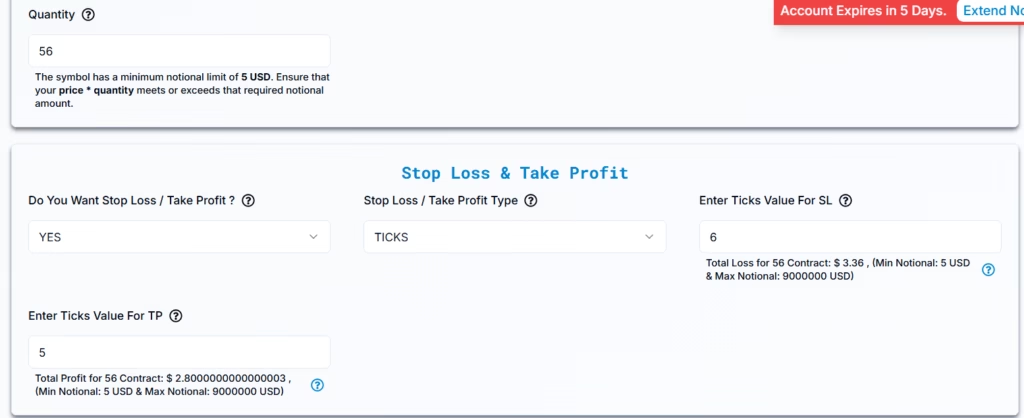
8.3.3 Risk Settings #
- Stop Loss / Take Profit Type: TICKS
Tick-based exits calculate SL and TP using:
- Tick count
- Minimum tick size
- Quantity
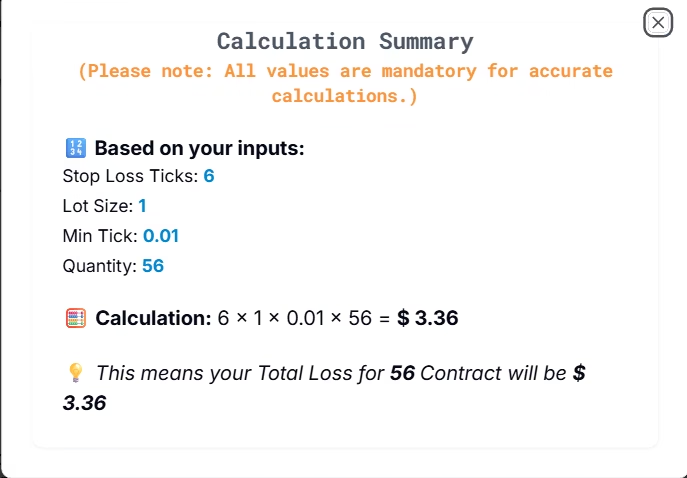
8.3.4 Stop Loss (SL) Calculation – Ticks #
Example Configuration #
- Symbol: BNB/USDT
- Quantity: 56
- Stop Loss Ticks: 6
- Lot Size: 1
- Minimum Tick Size: 0.01
Price Movement Calculation #
Formula:
Stop Loss Price Movement = Stop Loss Ticks × Min Tick
6 × 0.01 = 0.06 USDT
This means the Stop Loss is placed 0.06 USDT below the entry price for a BUY trade.
Dollar Risk Calculation #
Formula:
Total Loss = Stop Loss Ticks × Lot Size × Min Tick × Quantity
6 × 1 × 0.01 × 56 = $3.36
Total Stop Loss: $3.36
If the price moves against the position by 6 ticks, the total loss across 56 units will be $3.36.
8.3.5 Take Profit (TP) Calculation – Ticks #
Example Configuration #
- Take Profit Ticks: 5
- Lot Size: 1
- Minimum Tick Size: 0.01
- Quantity: 56
Price Movement Calculation #
Formula:
Take Profit Price Movement = Take Profit Ticks × Min Tick
5 × 0.01 = 0.05 USDT
This means the Take Profit is placed 0.05 USDT above the entry price for a BUY trade.
Dollar Profit Calculation #
Formula:
Total Profit = Take Profit Ticks × Lot Size × Min Tick × Quantity
5 × 1 × 0.01 × 56 = $2.80
Total Take Profit: $2.80
If the price moves in favor of the trade by 5 ticks, the total profit across 56 units will be $2.80.
8.4 Total Profit / Loss (USD) #
The Total Profit / Loss Stop Loss / Take Profit type allows you to define your risk and reward as fixed USD values per contract, regardless of price percentage or tick movement. This method is useful when you want precise dollar-based control over each trade.
On Binance, the system calculates the total Stop Loss and Take Profit by multiplying the per-contract value by the total quantity.
8.4.1 Entry Order Details #
- Alert Type: BUY
This means a long position will be opened. - Entry Order Type: MARKET
The position is executed immediately at the current market price.
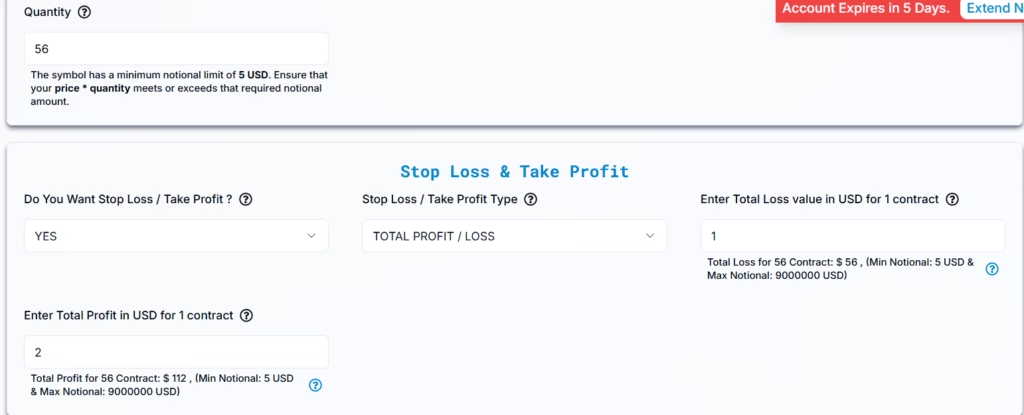
8.4.2 Quantity Settings #
- Quantity Type: QUANTITY
- Quantity Value: 56
This means 56 units of the selected symbol (BNB/USDT) will be traded.
Important:
- Binance enforces a minimum notional value of 5 USD.
- Ensure
Entry Price × Quantity ≥ 5 USD.
8.4.3 Risk Settings #
- Stop Loss / Take Profit Type: TOTAL PROFIT / LOSS
This tells PickMyTrade to manage exits based on absolute USD values per contract, rather than percentages or ticks.
8.4.4 Stop Loss Calculation (Total Loss) #
Example Configuration #
- Symbol: BNB/USDT
- Quantity: 56
- Stop Loss per Contract: $1
Total Stop Loss Calculation #
Formula:
Total Stop Loss = Stop Loss per Contract × Quantity
1 × 56 = $56
This means the maximum loss for this trade is $56.
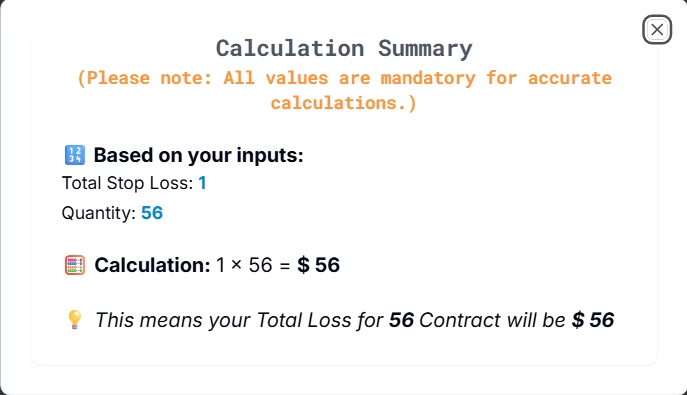
Once the unrealized loss across all 56 units reaches $56, the position will be closed automatically.
Price Movement Reference (Optional) #
For Binance spot and USDT-M instruments:
- A $1 loss per contract corresponds to a $1 price move against the position per unit.
This reference is provided for understanding only. The system does not rely on price or tick calculations when using Total Profit / Loss.
8.4.5 Take Profit Calculation (Total Profit) #
Example Configuration #
- Take Profit per Contract: $2
- Quantity: 56
Total Take Profit Calculation #
Formula:
Total Take Profit = Take Profit per Contract × Quantity
2 × 56 = $112
This means the maximum profit for this trade is $112.
Once the unrealized profit across all 56 units reaches $112, the position will be closed automatically.
10. Binance Account Management in PickMyTrade #
FPickMyTrade allows you to execute the same TradingView alert across multiple Binance accounts. This is useful when managing multiple Binance logins or when routing trades to different PickMyTrade accounts.
10.1 Enable Multi-Account Trading #
- Enable Multi-Account Trading: Select Yes
This allows a single TradingView alert to execute trades across more than one Binance account.
When enabled, you can add one or more Binance accounts for simultaneous trade execution.
10.2 Add Multiple Binance Accounts for Trade Execution #
You can add Binance accounts in two different ways, depending on where the Binance connection exists.
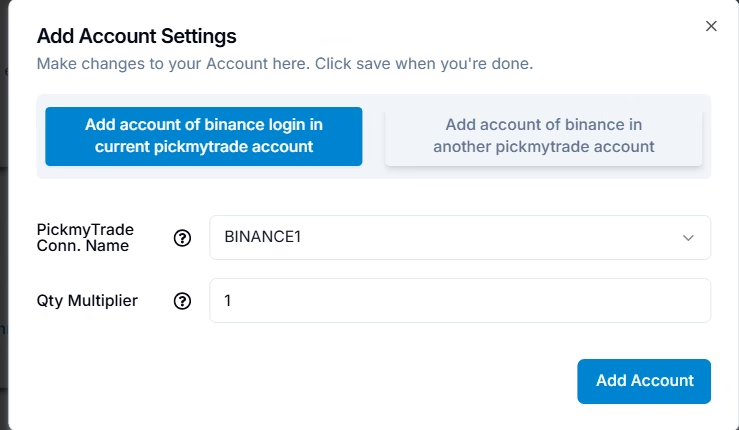
10.2.1 Add Binance Account in Current PickMyTrade Account #
Use this option if your Binance API connection already exists in the same PickMyTrade account you are currently using.
Steps #
- Click Add Account.
- Select Add account of Binance login in current PickMyTrade account.
- Fill in the fields as shown below.
- Click Add Account to save.
Field Explanation #
| Setting | Explanation | Example |
|---|---|---|
| PickMyTrade Conn. Name | Select the Binance connection name already added in this PickMyTrade account. | BINANCE1 |
| Qty Multiplier | Multiplies the trade quantity sent by the alert. | 1 |
Example:
If the TradingView alert sends a quantity of 56 and the multiplier is 1, the Binance account will trade 56 units.
If the multiplier is 2, the account will trade 112 units.
10.2.2 Add Binance Account in Another PickMyTrade Account #
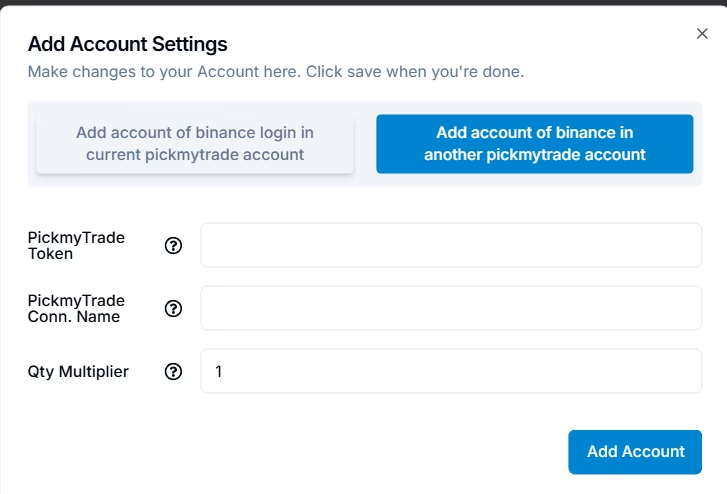
Use this option if you want to send trades to a different PickMyTrade account, such as when managing multiple logins or users.
Steps #
- Click Add Account.
- Select Add account of Binance in another PickMyTrade account.
- Enter the required details.
- Click Add Account to save.
Field Explanation #
| Setting | Explanation | Example |
|---|---|---|
| PickMyTrade Token | Token of the target PickMyTrade account where the Binance connection exists. | Q93fff07a4b83ca4a154db |
| PickMyTrade Conn. Name | Binance connection name exactly as it appears in the target PickMyTrade account. | BINANCE1 |
| Qty Multiplier | Adjusts the trade quantity for this account. | 1 |
Important:
- The PickMyTrade Token must be copied exactly.
- The connection name must match exactly with the destination account.
- Execution will fail if the token or connection name is incorrect.
10.3 Quantity Multiplier Explained #
The Quantity Multiplier controls how much size is sent to each Binance account.
| Multiplier | Result |
|---|---|
| 1 | Sends the exact quantity from the alert |
| 2 | Doubles the quantity |
Example:
If the alert quantity is 56 BNB:
- Multiplier = 1 → 56 BNB
- Multiplier = 2 → 112 BNB
11. Generate Your TradingView Alert #
- Click Generate Alert in PickMyTrade.
- Copy the Webhook URL.
- Copy the generated JSON payload.
- Open TradingView → Create Alert.
- Paste the JSON into the Alert Message box.
- Paste the webhook URL into the Webhook URL field.
- Save the alert.
For a detailed step-by-step guide on configuring TradingView webhooks and alert messages, refer to the official documentation below:
https://docs.pickmytrade.io/docs/setting-up-tradingview-alerts-for-automated-trading/
More Resources #
Want to automate trades on platforms beyond Rithmic, such as Interactive Brokers, TradeLocker, TradeStation, or ProjectX?
Explore all PickMyTrade setup guides
Using Tradovate instead?
View the Tradovate automation guide


